How to Convert XML to PDF Online for Free
Ever opened an XML file and wondered why a simple document looks like a wall of code? You're not alone. XML stores information in tags and nested elements, which makes it useful for software but awkward to share with clients or colleagues. Converting it into a PDF can make the information easier to read, print, and save.
The good news is that you don't need to install a program or write code. In this guide, we'll show you how to convert XML to PDF online for free using PDFTechno, with a screenshot at every stage of the process, clearly explained.
How to Convert XML to PDF Online for Free Using PDFTechno
For XML to PDF conversion, simply go to the PDFTechno website, load the XML file, analyze its structure, select an appropriate layout, and download the resultant PDF.
The process works through your web browser, so you won't need additional desktop software.
Follow these five steps.
Step 1: Open PDFTechno's XML to PDF Converter
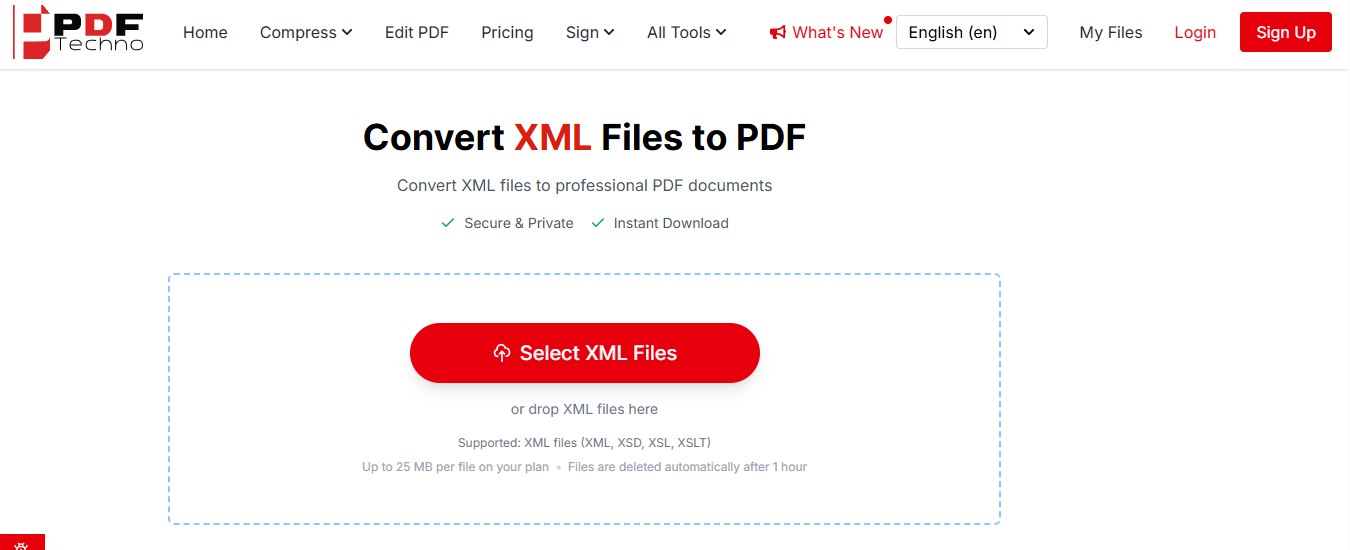
Start by visiting the XML to PDF Converter. You'll find the file upload area near the top of the page.
You'll find a file upload area near the top of the page. This is where you begin the conversion process.
There's no need for any installation or even a dedicated conversion utility. First of all, make sure that your XML file is accessible from your computer.
Step 2: Upload Your XML File
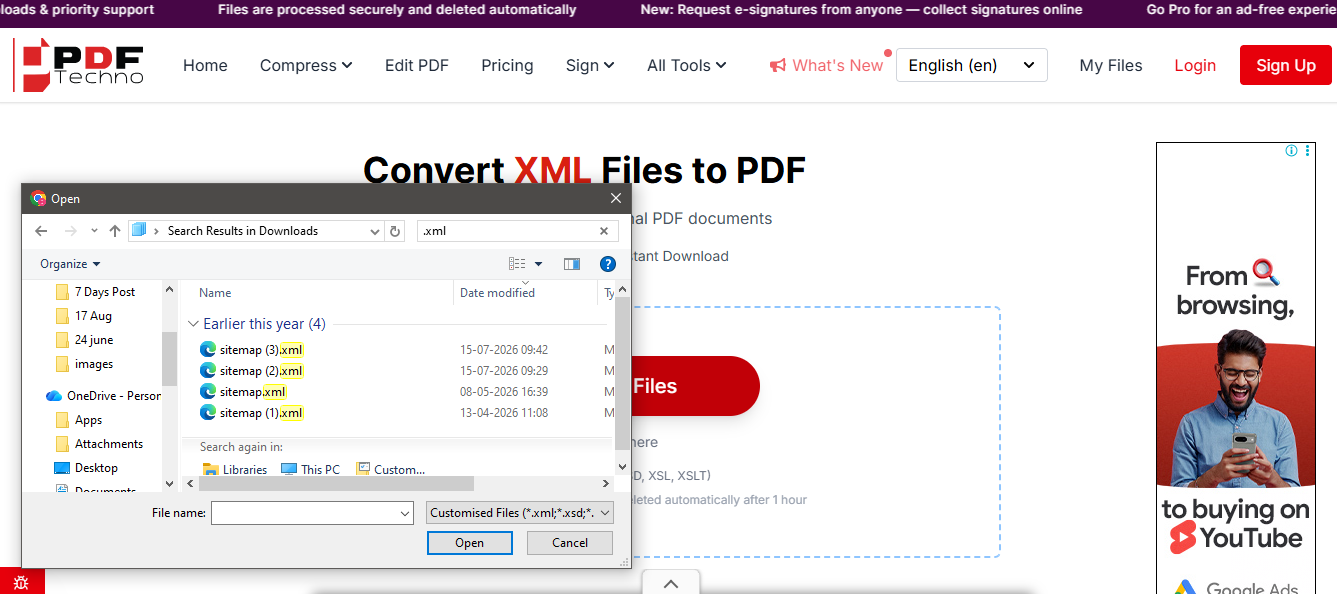
Now, select the XML file you want to convert. You can choose it from your device or drag and drop it into the upload area.
For example, suppose your business exports inventory records in XML format. Instead of manually copying every product name and quantity into a document, you can upload the original file.
Once uploaded, PDFTechno begins examining its structure.
Before uploading, make sure you've selected the correct file. It's surprisingly easy to choose last month's report when several documents have similar names.
Step 3: Review the XML Structure Analysis
Here's where PDFTechno does more than simply accept your file.
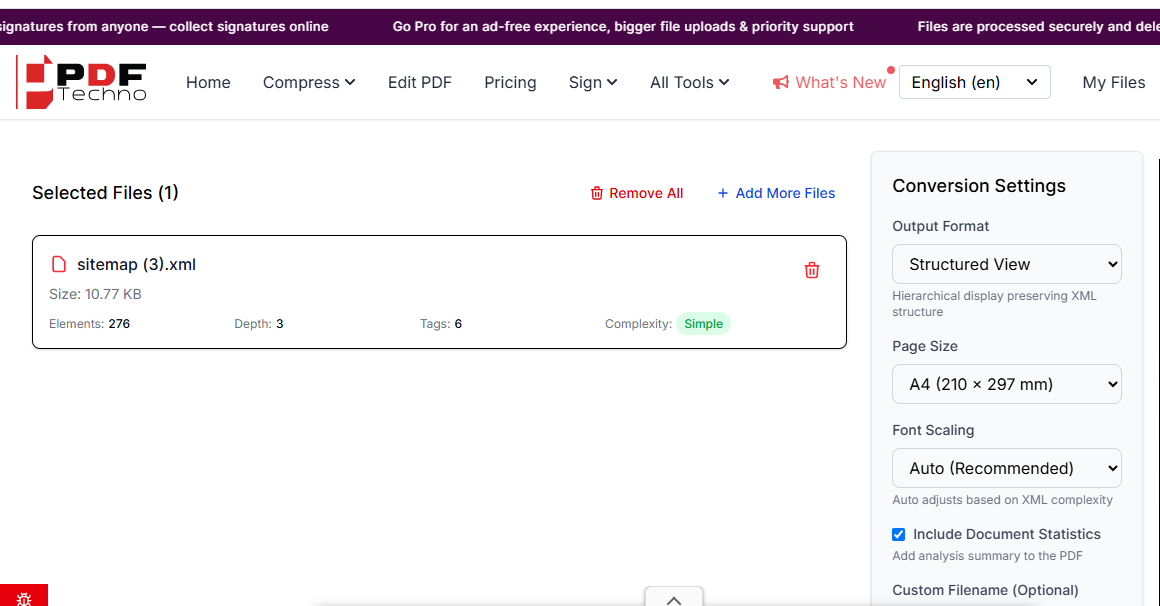
Its structure analysis examines how the XML document organises information, including nested elements, attributes, and repeated data patterns.
This helps the converter recommend an appropriate presentation format. For instance, an XML file containing repeated customer records may benefit from a table. A technical document containing multiple levels of information might need a hierarchical layout.
Review the available analysis or recommended view before continuing.
You don't need to understand every XML tag to make a choice. Consider how you want someone to read the finished PDF.
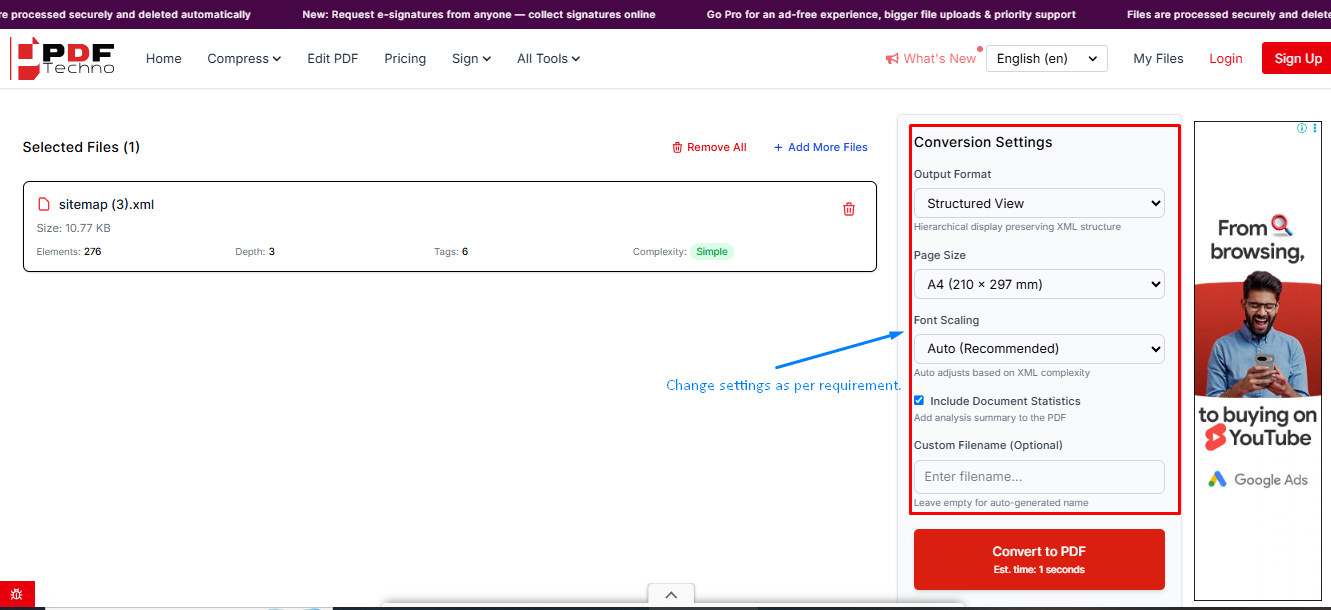
Step 4: Choose the Layout and Convert XML to PDF
PDFTechno offers three XML presentation options: Tabled View, Structured View, and Hybrid View. Choose the layout that best suits your document. If you're unsure, start with the converter's recommendation.
Once you've selected your preferred format, use the available conversion control to generate the PDF. The processing time can vary with the size and complexity of your file. Avoid closing the browser tab before the conversion finishes.
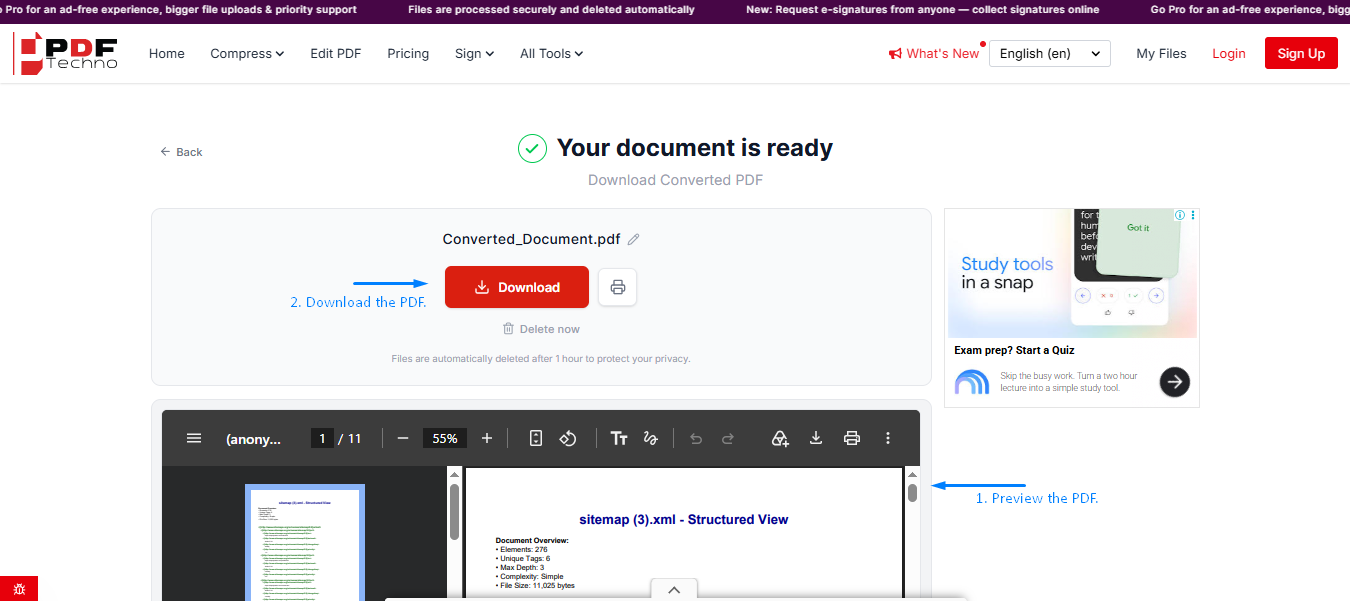
Step 5: Download and Review Your PDF
After conversion, use the download option to save the generated PDF to your device. Open the file and check whether it displays the information you expected. Pay attention to longer tables, nested fields, special characters, and page breaks.
If the document is difficult to read, return to the converter and try another available layout. Once you're satisfied, the PDF is ready for sharing, printing, or record keeping.
Which XML to PDF Layout Should You Choose?
The best layout depends on how your XML file organises information. PDFTechno's three viewing modes serve different purposes.
| Layout | When to Use It | Example |
|---|---|---|
| Tabled View | XML with repeated records and similar fields | Inventory lists, product records |
| Structured View | XML with nested elements and parent-child relationships | Configuration files, technical data |
| Hybrid View | XML containing both repeated records and nested information | Detailed business data exports |
Suppose you're converting an XML document with hundreds of products. A table makes it easier to compare names, prices, and quantities.
However, a configuration file containing several nested settings might become confusing when forced into columns. Structured View can make those relationships clearer.
Hybrid View offers another option when neither presentation suits the entire document.
The goal isn't to make the PDF look elaborate. It's to make the original information understandable.
What Should You Check After Converting XML to PDF?
Before sharing your newly converted document, inspect more than the first page.
XML files can contain information that extends across several sections. A PDF might open correctly while still displaying an awkward table or cutting a long value across pages. Check that the important information appears and remains readable.
Also, remember that XML data doesn't automatically contain the visual design of an invoice, certificate, or business report. If you need a highly customized document, you may need a template or a stylesheet-based workflow. For small corrections after conversion, you can edit the PDF directly.
A useful check: Compare a few records from the original XML with the downloaded PDF. This can help you identify missing values or presentation problems before sending the document to someone else.
Why Is Your XML File Not Converting to PDF?
Sometimes, the conversion doesn't work as expected. Before assuming the converter is faulty, look at the original document.
The XML File Contains Syntax Errors
XML follows strict formatting rules. A missing closing tag, invalid character, or incorrectly nested element can prevent proper parsing.
Open the document in an XML editor or validator and check whether its structure is valid.
Then attempt the conversion again.
The File Is Too Large or Complex
Large exports containing thousands of records can require additional processing.
If the tool struggles, check its current upload limits. You can also test a smaller, representative XML file to establish whether the problem relates to size or structure.
Avoid deleting important information simply to complete the conversion.
The PDF Layout Doesn't Match Your Expectations
A PDF may generate successfully but present the XML data in an inconvenient format. For example, deeply nested information may look crowded in a table.
In PDFTechno, try switching between Tabled, Structured, and Hybrid views. A different layout can improve readability without changing the underlying XML file.
Convert XML Files to PDF for Free With PDFTechno
Turn XML data into readable PDF documents with PDFTechno's online converter. Upload files, choose a suitable layout, and download your result. Try PDFTechno's free XML to PDF tool today.
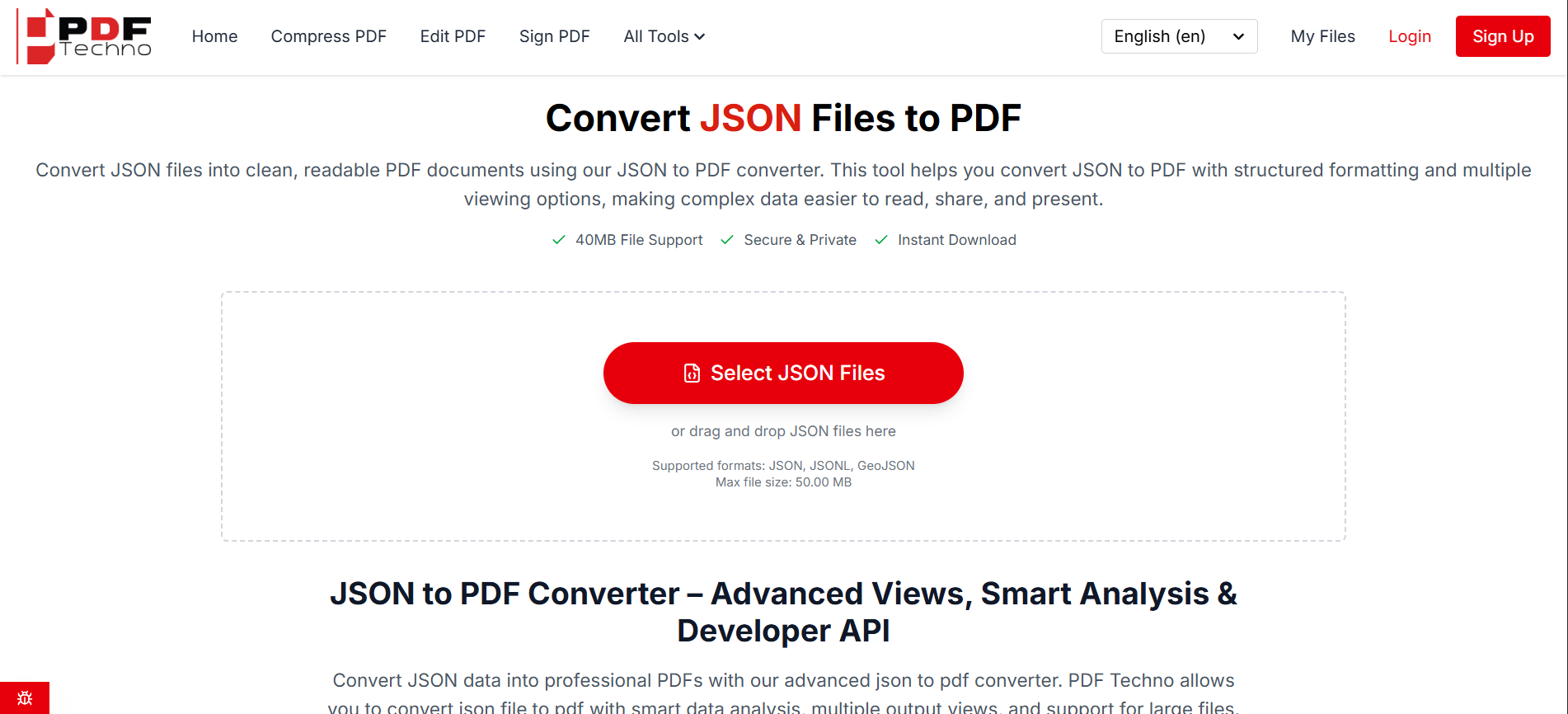
Working with other structured formats? You can also convert JSON to PDF or convert HTML to PDF.
Conclusion
Converting an XML document into a PDF doesn't have to involve complicated software or manual formatting.
With PDFTechno, you can upload your file, examine its structure, select a suitable view, and download the converted document through your browser.
However, the conversion isn't complete until you've checked the PDF. A few moments spent reviewing the layout and important values can prevent problems when sharing it.
Whether you're handling business exports, technical records, or structured information, choosing an appropriate layout can make the resulting PDF much easier to use.
Frequently Asked Questions
1. How Can I Convert XML to PDF Online for Free?
Open PDFTechno's XML to PDF converter, upload your file, review the structure analysis, choose a layout, and generate the PDF. Download the result and check its contents before sharing.
2. Do I Need to Install Software to Convert XML to PDF?
No. PDFTechno provides a browser-based XML conversion tool. You can upload a supported XML document and generate a PDF without installing a separate desktop application.
3. Can I Convert Complex XML Files Into PDF?
Yes. PDFTechno describes support for nested XML elements, namespaces, attributes, and other structured information. However, the final layout should be checked for readability and accuracy.
4. Why Does My Converted XML File Look Different in PDF?
XML stores structured information rather than a fixed visual layout. The PDF converter must decide how to present that information. Choosing a suitable layout can improve the result.
5. Is It Safe to Convert XML Files to PDF Online?
PDFTechno states that it uses encrypted processing and automatically deletes uploaded files after conversion. For confidential records, review the provider's current privacy policy and your organisation's data-handling requirements before uploading.