
The Secret to Managing HEIC Photos Like a Pro (Free Tools Included)
If you use an iPhone, you're already working with HEIC files whether you realize it or not. Apple introduced HEIC (High Efficiency Image Container) to replace JPG because it compresses images far more efficiently while preserving high visual quality. In simple terms, you get sharper photos that take up less space.
From a storage perspective, HEIC is brilliant. A photo that would normally take 4–5 MB as a JPG might take nearly half that in HEIC format without visible loss in clarity. For everyday users capturing thousands of images, this makes a real difference.
The problem is not quality.
The problem is compatibility.
The moment you step outside the Apple ecosystem, friction begins. Uploading a HEIC file to a government portal? Rejected. Sending it to a Windows user? It doesn't open. Trying to submit documents to a university, employer, or client? They usually ask for PDF.
This is why more users are searching for ways to convert HEIC to PDF free instead of converting to JPG. PDF is universally accepted. It works on Mac, Windows, Android, iOS, and every browser. It previews properly in email. It prints correctly. It's submission-ready.
In other words, HEIC is perfect for storage. PDF is perfect for sharing.
Managing HEIC photos like a pro doesn't mean avoiding them. It means knowing when and how to convert them efficiently without losing quality, security, or time.
And that's where smart conversion workflows come in.
Why Converting HEIC to PDF Is Smarter Than Converting to JPG
Most people's first instinct is to convert HEIC to JPG. It feels familiar. JPG has been around forever. But in many real-world situations, PDF is the more strategic choice.
Think about common scenarios:
- You're submitting scanned ID proofs.
- You're uploading multiple images to a job portal.
- You're sending property documents.
- You're sharing event photos in a structured file.
- You need to merge 5–10 images into one document.
JPG cannot combine multiple files cleanly. PDF can.
When you convert HEIC to PDF, you're not just changing formats. You're turning an image into a structured document. That gives you several advantages:
Universal acceptance: Almost every website that rejects HEIC will accept PDF. Whether it's a visa form, college submission, freelance client portal, or government upload system, PDF is the safest bet.
Multi-image consolidation: A good HEIC to PDF converter free tool allows you to combine multiple HEIC images into a single PDF. Instead of uploading 8 separate files, you upload one clean document.
Layout control: PDFs maintain margins, orientation, and consistent formatting. That's crucial when printing or presenting professional material.
Email compatibility: Many email clients preview PDFs directly. HEIC previews are inconsistent outside Apple Mail.
File size management: With the right HEIC to PDF converter online, you can compress the final PDF for submission without sacrificing clarity.
This is exactly why searches like "heic to pdf converter free" and "convert heic to pdf mac" have grown significantly. Users are not just trying to open images anymore. They're trying to manage workflows efficiently.
Converting to JPG solves only a compatibility problem.
Converting to PDF solves compatibility, organization, submission, and professionalism in one step.
Stop dealing with upload rejections and compatibility errors. Convert your HEIC images into clean, submission-ready PDFs instantly using PDF Techno's free HEIC to PDF converter. Upload multiple files, merge them into one document, and download in seconds — no watermark, no sign-up, no quality loss.
How to Convert HEIC to PDF Free Without Losing Quality
Once you understand that PDF is the better sharing format, the next question becomes practical:
How do you convert HEIC to PDF free without installing heavy software or compromising image quality?
There are three main ways to do it. The method you choose depends on your device and how often you need to convert files.
1. Converting HEIC to PDF on Mac (Built-In Method)
If you are using a Mac, Apple already gives you a native way to convert HEIC to PDF Mac.
You can open the HEIC file in Preview, select "Export as PDF," and save it instantly. It works well for single images.
But here's where it becomes inefficient:
- You cannot easily batch convert dozens of HEIC files at once.
- There's no compression control.
- Merging multiple images into a structured PDF takes extra manual steps.
- It's limited to macOS only.
For occasional users, this works. For professionals handling multiple submissions, client documents, or regular uploads, it quickly becomes time-consuming.
That's why many Mac users still search for "convert HEIC to PDF Mac" even though Preview exists. They're looking for something faster and more scalable.
2. Using a HEIC to PDF Converter Online (Faster & Cross-Platform)
If you want speed, device flexibility, and batch processing, an online HEIC to PDF converter is the smarter choice.
A good HEIC to PDF converter online should allow you to:
- Drag and drop multiple HEIC images
- Convert instantly
- Merge them into one clean PDF
- Maintain original resolution
- Download without watermark
- Avoid mandatory sign-ups
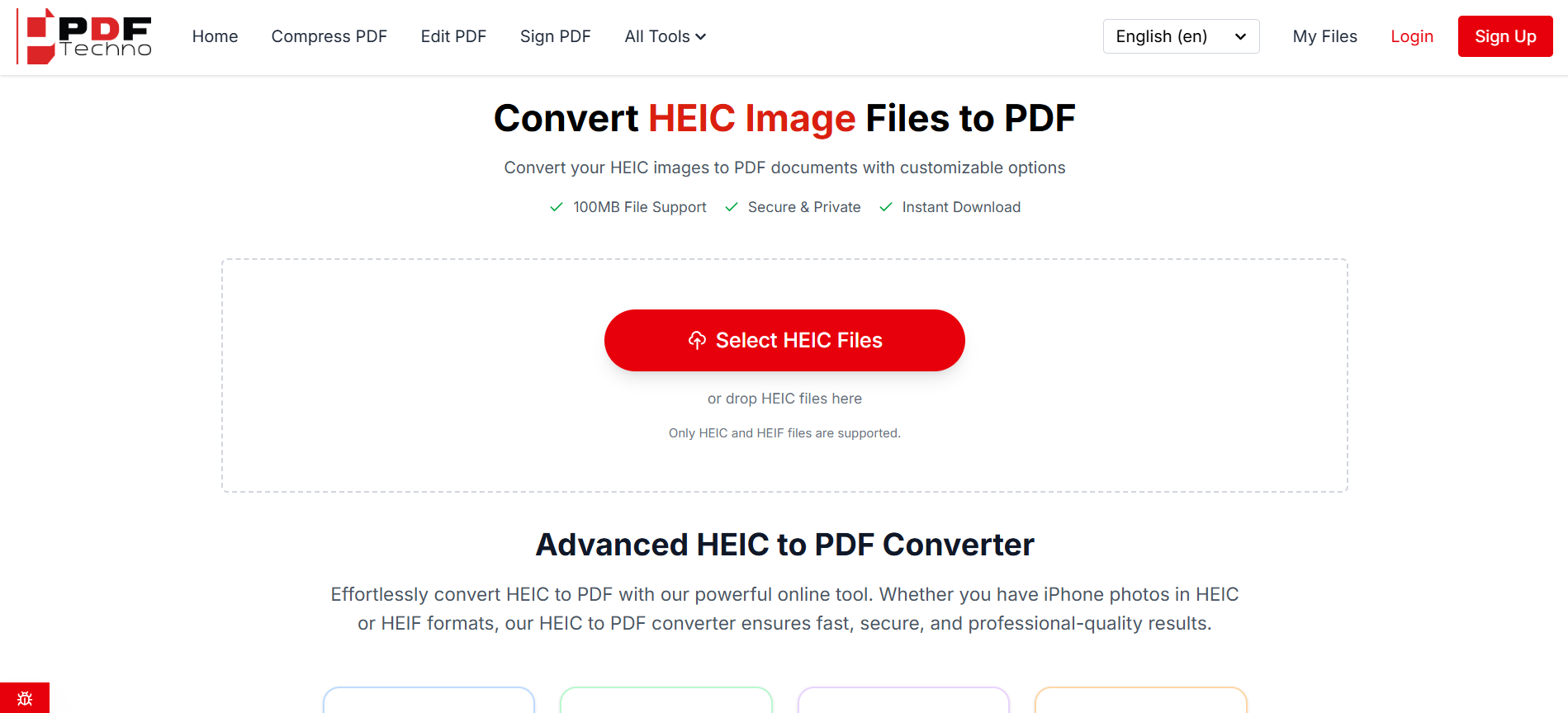
This is where PDF Techno's HEIC to PDF Converter becomes especially useful.
Unlike many tools that either reduce image quality or restrict features behind paywalls, PDF Techno allows you to convert HEIC to PDF free without forcing registration or limiting file clarity. The interface is clean, conversion is fast, and it supports batch uploads so you can merge multiple HEIC files into a single professional PDF.
For students, freelancers, corporate teams, and everyday users, that batch feature alone saves serious time.
Instead of converting 10 HEIC images individually, you upload them once and download one organized PDF document.
That's workflow efficiency.
Handling multiple HEIC images for a submission or client delivery? Use PDF Techno's HEIC to PDF converter online to batch convert and merge your files into one professional PDF. Fast processing, secure uploads, and crystal-clear output — built for real-world document workflows.
Why PDF Techno Is Built for Real-World Use Cases
Many free converters focus only on format switching.
PDF Techno focuses on workflow.
Here's what makes a real difference when choosing a HEIC to PDF converter free tool:
Resolution preservation: HEIC images often contain high-detail photography. When converting, you want zero visible degradation. PDF Techno maintains clarity instead of aggressively compressing by default.
Multi-file merging: Whether you're submitting ID documents, invoice proofs, property images, or academic material, merging multiple HEIC files into one PDF saves upload friction.
Cross-device support: It works whether you're on Mac, Windows, Android, or iOS. That eliminates ecosystem dependency.
Speed: Many online converters queue files or slow down with larger uploads. PDF Techno processes files almost instantly, which matters when you're on a deadline.
Security: Files are processed securely and removed after conversion, which is critical when handling sensitive documents.
When users search for "convert HEIC to PDF free" or "HEIC to PDF converter online," they're not just looking for format change. They want:
- Reliability
- No quality loss
- No watermark
- No hidden fees
- No unnecessary complexity
And that's exactly the gap PDF Techno fills.
How to Batch Convert HEIC Files Like a Professional
If you frequently handle HEIC images, you should not be converting files one by one. That's beginner-level workflow.
Here's how professionals manage volume efficiently.
Imagine you need to submit ten images of documents to a portal that accepts only PDF. If you convert them individually, you end up with ten PDF files. That creates upload complexity and increases the chance of rejection.
Instead, upload all HEIC files at once into a HEIC to PDF converter online tool like PDF Techno and merge them into a single consolidated PDF.
This accomplishes three things:
- It reduces upload friction.
- It keeps documents structured in order.
- It looks more professional.
For example:
- Students submitting assignments.
- Freelancers sending work proofs.
- Real estate agents sharing property photos.
- HR teams collecting document copies.
- Visa applicants uploading scanned documents.
In all these cases, merging HEIC files into one PDF is more efficient than converting to JPG and attaching separate images.
Another professional habit is checking final file size. If the PDF is too large for upload limits, you can immediately use a compression tool after conversion. PDF Techno offers compression capabilities that allow you to reduce file size while maintaining clarity.
This is the difference between casual conversion and workflow optimization.
When to Use Mac's Built-In Method vs an Online Converter
It's important to clarify something for search intent alignment.
If you are converting a single HEIC file occasionally and you are on a Mac, Preview works fine.
But if any of the following apply:
- You need batch conversion.
- You need merging.
- You're on Windows.
- You're on Android.
- You want faster processing.
- You need compression after conversion.
Then a HEIC to PDF converter online is the more scalable choice.
That's why queries like "convert HEIC to PDF Mac" still lead users to online tools. Built-in methods are limited. Online tools offer flexibility.
PDF Techno bridges that gap by giving Mac users and non-Mac users the same streamlined workflow.
Managing HEIC Photos Long-Term Without Constant Conversion Headaches
Converting HEIC to PDF free solves an immediate problem. But managing your photo ecosystem strategically prevents repeated friction.
Most users treat conversion as a reaction. Professionals treat it as part of a system.
Here's the smarter approach.
Keep HEIC as Your Storage Format
HEIC is extremely efficient. It reduces storage usage while maintaining high-quality images. There is no reason to convert your entire photo library to JPG or PDF permanently. That defeats the purpose of Apple's compression efficiency.
Instead, convert only when sharing externally.
For example:
- Keep personal photos in HEIC.
- Convert documents, scanned IDs, and submission files into PDF.
- Archive finalized PDFs separately for future access.
This separation keeps your device optimized while maintaining compatibility when needed.
Use Folder Structuring
Another powerful workflow is folder structuring.
Create three simple folders:
- Raw HEIC Files
- Converted PDFs
- Final Submitted Documents
This prevents you from repeatedly converting the same file every time you need it. Once it's converted and archived, it's ready for reuse.
When you combine this system with a fast HEIC to PDF converter online like PDF Techno, you eliminate conversion stress permanently.
Avoiding Quality Loss During HEIC to PDF Conversion
One of the biggest fears users have is image degradation.
The truth is, HEIC files are already compressed. If a converter aggressively re-compresses during PDF creation, you may lose clarity.
That's why choosing the right HEIC to PDF converter free tool matters.
Here's what happens technically:
HEIC → decoded into image data → re-encoded into PDF image layer.
If the converter reduces DPI or over-compresses during that re-encoding stage, you lose detail.
PDF Techno maintains image clarity by preserving resolution during the conversion process. It avoids unnecessary compression unless the user intentionally reduces file size afterward using a compression tool.
For professional use cases such as:
- Legal documents
- Academic submissions
- Visa documentation
- Real estate photography
- Client deliverables
Resolution matters. Blurry text or pixelated edges can cause rejection or appear unprofessional.
That's why workflow-focused tools outperform generic converters.
HEIC vs PDF: Understanding Their Roles
To truly manage HEIC photos like a pro, you must understand that HEIC and PDF are not competitors. They serve different purposes.
HEIC is for efficient storage and photography. PDF is for structured documentation and universal sharing. If you try to use HEIC for submissions, you'll face rejection. If you convert everything to PDF for storage, you'll waste space. Balance is the key.
- Keep HEIC for capturing.
- Convert to PDF for sharing.
- And use a reliable HEIC to PDF converter free tool when needed instead of permanently altering your files.
Conclusion: Master the Format, Master the Workflow
HEIC was designed for efficiency. PDF was designed for compatibility.
The frustration most users experience doesn't come from the file itself — it comes from not having the right conversion workflow in place.
Once you understand when to keep HEIC for storage and when to convert HEIC to PDF free for sharing, submissions, or professional use, the problem disappears entirely. No more upload errors. No more unreadable attachments. No more last-minute format panic.
The key is using a reliable, fast, and secure HEIC to PDF converter online that preserves image quality while simplifying batch conversion. Instead of converting files one by one or relying on limited built-in tools, you can streamline everything in seconds with PDF Techno — merging multiple HEIC images into one clean, submission-ready PDF without watermark or quality loss.
Managing HEIC photos like a pro isn't about avoiding the format.
It's about controlling it.
And once you have the right system in place, file compatibility stops being a problem — and starts being a non-issue.
Frequently Asked Questions About Converting HEIC to PDF
How can I convert HEIC to PDF free?
You can convert HEIC to PDF free using either your Mac's built-in Preview app or an online HEIC to PDF converter. While Preview works for single images on macOS, an online tool like PDF Techno allows you to upload multiple HEIC files, merge them, and download a structured PDF instantly without installing software.
What is the best HEIC to PDF converter free?
The best HEIC to PDF converter free should preserve image quality, allow batch uploads, avoid watermarks, and not require sign-up. Tools like PDF Techno are designed for fast processing, multi-image merging, and secure file handling, making them suitable for academic, business, and personal use.
Can I convert HEIC to PDF on Mac without software?
Yes. You can convert HEIC to PDF on Mac using the Preview app. Open the image, click "File," choose "Export as PDF," and save it. However, this method is limited for batch processing and merging multiple images. For larger workflows, an online converter is more efficient.
Does converting HEIC to PDF reduce image quality?
Not if you use a reliable converter. A good HEIC to PDF converter online maintains original resolution during conversion. Quality loss typically occurs only if the tool applies aggressive compression.
Can I convert multiple HEIC files into one PDF?
Yes. Many online tools allow batch conversion and merging. With a proper HEIC to PDF converter online, you can upload several HEIC images and download them as a single organized PDF file.
Is it safe to use an online HEIC to PDF converter?
It is safe if the platform uses encrypted connections (HTTPS), processes files securely, and deletes uploads after conversion. Always use reputable tools like PDF Techno and avoid sites that require unnecessary personal information.