How to Extract Tables from PDF to Excel Without Formatting Errors
PDF documents are commonly used for reports, invoices, financial statements, and research papers. Many of these documents contain structured tables that hold important data. However, extracting this data directly from a PDF can be difficult, especially when you want to work with the information in a spreadsheet.
Many users try to copy and paste tables from a PDF into Excel, but this often leads to broken columns, missing rows, or incorrect alignment. The formatting of the table may be lost, making the data difficult to analyze.
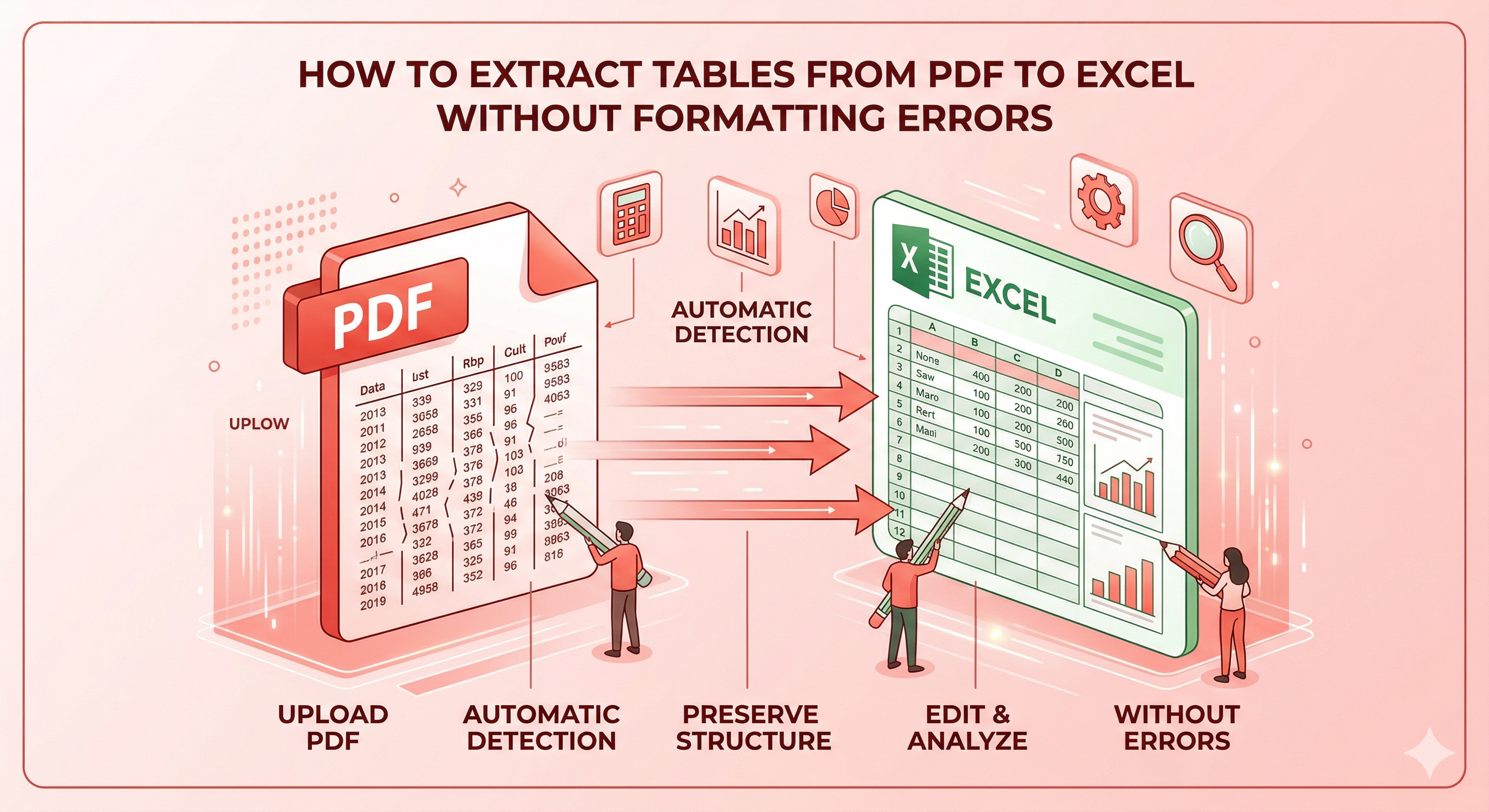
To solve this problem, specialized tools can extract table from PDF to Excel while preserving the structure of the table. These tools analyze the layout of the PDF and convert the table into a spreadsheet format that can be edited and analyzed easily.
In this guide, we will explore the best way to perform accurate PDF table conversion, convert PDF spreadsheet tables into Excel, and handle PDF data extraction without formatting errors. You will also learn how tools like PDF Techno simplify the entire process.
Why Extracting Tables from PDF Can Be Difficult
Although PDFs are great for sharing documents, they are not designed for data extraction. Unlike spreadsheets, PDFs store content based on visual layout rather than structured rows and columns.
Because of this, extracting tabular data from a PDF can be challenging without specialized tools.
PDF Files Are Not Structured Like Spreadsheets
Spreadsheets are designed to store data in clearly defined rows and columns. Each cell contains structured information that can be edited or analyzed.
PDF documents, on the other hand, are primarily designed for visual presentation. The file stores the positions of text and graphics on the page rather than organizing the content as spreadsheet data.
This difference in structure makes it harder to convert PDF spreadsheet tables into Excel files directly.
Copy-Paste Often Breaks Table Formatting
Many people attempt to copy tables from a PDF and paste them into Excel. Unfortunately, this method rarely works well.
When tables are pasted into a spreadsheet, the data may appear misaligned, with columns merging together or rows shifting incorrectly. This happens because the PDF does not store the table in a format that Excel can easily interpret.
Using proper tools helps extract table from PDF to Excel while preserving rows, columns, and overall formatting.
Complex Tables and Multi-Column Layouts
Some PDFs contain complicated tables with multiple columns, merged cells, or irregular spacing. These layouts can make PDF data extraction even more challenging.
For example, financial reports or research documents may contain large tables that span several pages. Extracting such tables manually can be extremely time consuming.
Advanced conversion tools analyze the layout of the PDF and detect table structures automatically. This makes PDF table conversion much easier and more accurate.
Benefits of Converting PDF Tables to Excel
Extracting tables from PDFs and converting them into Excel spreadsheets provides several practical advantages. Once the data is available in Excel, it becomes much easier to work with, analyze, and organize.
Converting tables helps users transform static documents into editable spreadsheets that support data analysis and manipulation.
Easier Data Editing
When tables are stored inside a PDF, editing the data is almost impossible. Even small changes require recreating the table manually.
By converting the table into Excel format, users can easily edit individual cells, update values, and reorganize information.
This makes it much easier to perform PDF data extraction and work with the information in a flexible spreadsheet environment.
Better Data Analysis
Excel provides powerful tools for analyzing data, including formulas, charts, filters, and pivot tables.
Once the data from a PDF table is converted into a spreadsheet, it becomes possible to perform calculations, compare values, and generate visual insights.
This is one of the main reasons professionals prefer to convert PDF spreadsheet tables into Excel for deeper analysis.
Organizing Large Data Sets
Large reports often contain extensive tables with hundreds or even thousands of entries. Managing this information inside a PDF can be difficult.
After extracting the table into Excel, users can sort data, filter records, and organize information efficiently.
This process makes PDF table conversion extremely useful for handling large datasets and improving data organization.
Step-by-Step Guide to Extract Tables from PDF to Excel
Extracting tables from a PDF may seem complicated, but the process becomes simple when you use the right tools. Instead of manually copying rows and columns, a dedicated conversion tool can detect tables automatically and transform them into an editable spreadsheet.
By following a few straightforward steps, you can extract table from PDF to Excel and preserve the original structure of the data.
Step 1: Upload the PDF File
Start by selecting the PDF document that contains the table you want to convert. This could be a financial report, invoice, research document, or any file that contains tabular data.
Upload the file to a PDF-to-Excel conversion tool. Once the file is uploaded, the system begins analyzing the document layout and identifying areas that contain tables.
This step prepares the document for accurate PDF table conversion and data extraction.
Step 2: Detect Tables Automatically
After uploading the document, the conversion system scans the PDF and detects table structures automatically.
Advanced tools analyze the spacing between text elements, identify column boundaries, and determine where rows begin and end. This allows the system to recognize the table layout even when the PDF contains complex formatting.
Automatic table detection helps ensure accurate PDF data extraction without manually selecting each cell.
Step 3: Convert PDF to Excel
Once the tables are detected, the next step is converting the extracted data into an Excel spreadsheet.
During this stage, the tool maps the table structure into rows and columns that Excel can understand. The goal is to maintain the original organization of the data as closely as possible.
This step allows users to convert PDF spreadsheet tables into Excel files that remain easy to read and analyze.
Step 4: Download the Excel File
After the conversion is complete, the final Excel file becomes available for download. The spreadsheet now contains the extracted table data in an editable format.
Before working with the file, it is a good idea to review the spreadsheet and ensure that all columns and rows appear correctly.
Once verified, you will have successfully extracted a table from PDF to Excel without losing the data structure.
Extract PDF Tables Easily with PDFTechno
While many tools claim to convert PDF tables, not all of them preserve formatting accurately. Using a reliable platform ensures that the converted spreadsheet remains organized and easy to use.
PDF Techno provides a convenient solution for PDF table conversion and data extraction. The platform is designed to detect table structures automatically and convert them into Excel spreadsheets with minimal formatting issues.
Why Use an Online PDF Table Converter
Online PDF converters allow users to process documents directly through a web browser without installing additional software.
These tools simplify the entire workflow by allowing users to upload a document, perform PDF data extraction, and download the converted spreadsheet within seconds.
For professionals who regularly work with reports, invoices, or research data, online tools make it easier to convert PDF spreadsheet tables into Excel files quickly.
Convert PDF Tables to Excel in Seconds
With PDF Techno, users can upload a PDF file and convert the tables into Excel format using automated detection technology.
The platform allows you to:
- Extract table from PDF to Excel quickly
- Perform accurate PDF table conversion
- Convert PDF spreadsheet tables into Excel format
- Preserve most of the original PDF to Excel formatting
This makes it easier to analyze financial data, organize business records, and manage large datasets efficiently.
By using a reliable tool like PDF Techno, users can avoid the formatting problems that often occur during manual table extraction.
Tips to Avoid Formatting Errors When Converting PDF Tables
Although modern tools make it easier to extract tables from PDFs, certain factors can still affect the accuracy of the conversion. Following a few best practices can help ensure that the data is transferred correctly into Excel.
Applying these tips can significantly improve PDF table conversion accuracy and reduce formatting issues.
Use Clear Table Layouts
Tables with clear borders, consistent spacing, and well-defined columns are easier for conversion tools to detect. When a table is clearly structured, the system can identify rows and columns more accurately.
If the PDF contains properly formatted tables, it becomes much easier to extract table from PDF to Excel while preserving the structure of the data.
Documents with irregular spacing or missing borders may require small adjustments after conversion.
Check Column Alignment
Column alignment plays a major role in accurate PDF data extraction. If text inside the table columns is misaligned or unevenly spaced, the converter may interpret the structure incorrectly.
Before converting the file, check whether the table columns appear evenly aligned within the document. Proper alignment helps the tool recognize the table structure and convert the data into Excel columns correctly.
This reduces the chances of broken rows or merged columns during PDF to Excel formatting.
Review Excel Formatting After Conversion
Even with advanced conversion tools, minor formatting adjustments may sometimes be required after the conversion is complete.
Once the table has been converted into Excel format, review the spreadsheet carefully. Check that the columns are correctly aligned and that the data appears in the correct cells.
Making small adjustments ensures that the final spreadsheet is clean and ready for analysis.
Common Use Cases for PDF Table Extraction
Extracting tables from PDFs is useful in many professional and academic situations. Instead of manually entering large amounts of data into spreadsheets, users can quickly convert tables and start working with the information.
Below are some common scenarios where people need to perform PDF data extraction and convert PDF spreadsheet tables into Excel.
Financial Reports
Financial reports often contain detailed tables with revenue figures, expense breakdowns, and performance metrics.
When these reports are stored as PDFs, analyzing the data becomes difficult. By converting the tables into Excel spreadsheets, professionals can perform calculations, generate charts, and compare financial data more efficiently.
This makes PDF table conversion extremely valuable for financial analysis and reporting.
Research Data and Surveys
Academic research papers and surveys frequently include large tables containing statistical data and experimental results.
Extracting these tables into Excel allows researchers to organize the information, perform calculations, and analyze patterns more effectively.
Using conversion tools helps researchers extract table from PDF to Excel without manually reentering large datasets.
Invoices and Business Records
Businesses often store invoices, purchase orders, and operational records as PDF documents. Many of these files contain tables listing products, quantities, and prices.
Converting these tables into Excel spreadsheets makes it easier to manage financial records, track transactions, and generate reports.
Efficient PDF data extraction allows organizations to organize and analyze business information more effectively.
Conclusion
Extracting tables from PDF documents can be challenging when done manually. Copying and pasting data often leads to broken rows, merged columns, and formatting issues that make the spreadsheet difficult to use.
Using the right conversion method makes it much easier to extract table from PDF to Excel while preserving the structure of the data. Specialized tools can detect table layouts automatically and convert them into organized spreadsheets that can be edited and analyzed.
By performing accurate PDF table conversion, users can transform static PDF reports into dynamic Excel files. This allows professionals to analyze financial data, organize research results, and manage business records more efficiently.
Tools like PDF Techno simplify the process by enabling users to perform quick PDF data extraction and convert PDF spreadsheet tables into Excel files with minimal formatting errors.
By following the steps and best practices outlined in this guide, you can successfully convert PDF tables into Excel spreadsheets and work with your data more effectively.
Frequently Asked Questions
How do I extract a table from PDF to Excel?
To extract a table from PDF to Excel, upload the PDF file to a conversion tool that detects table structures automatically. The tool analyzes the layout, extracts the table data, and converts it into an Excel spreadsheet.
Can PDF tables be converted to Excel without formatting errors?
Yes, modern conversion tools can perform accurate PDF table conversion by detecting rows and columns automatically. However, minor adjustments may sometimes be required depending on the complexity of the table.
What is the best way to convert PDF spreadsheet tables?
The best way is to use a specialized converter that can recognize table structures and perform reliable PDF data extraction.
Is PDF table conversion accurate?
Accuracy depends on the quality and structure of the original PDF. Well-formatted tables usually convert to Excel with minimal errors.
Can I extract data from PDF tables online?
Yes, many online tools allow users to extract table from PDF to Excel directly through a browser without installing additional software. These tools automatically convert the tables into editable spreadsheets.