How to Merge Multiple PDFs for Job Applications
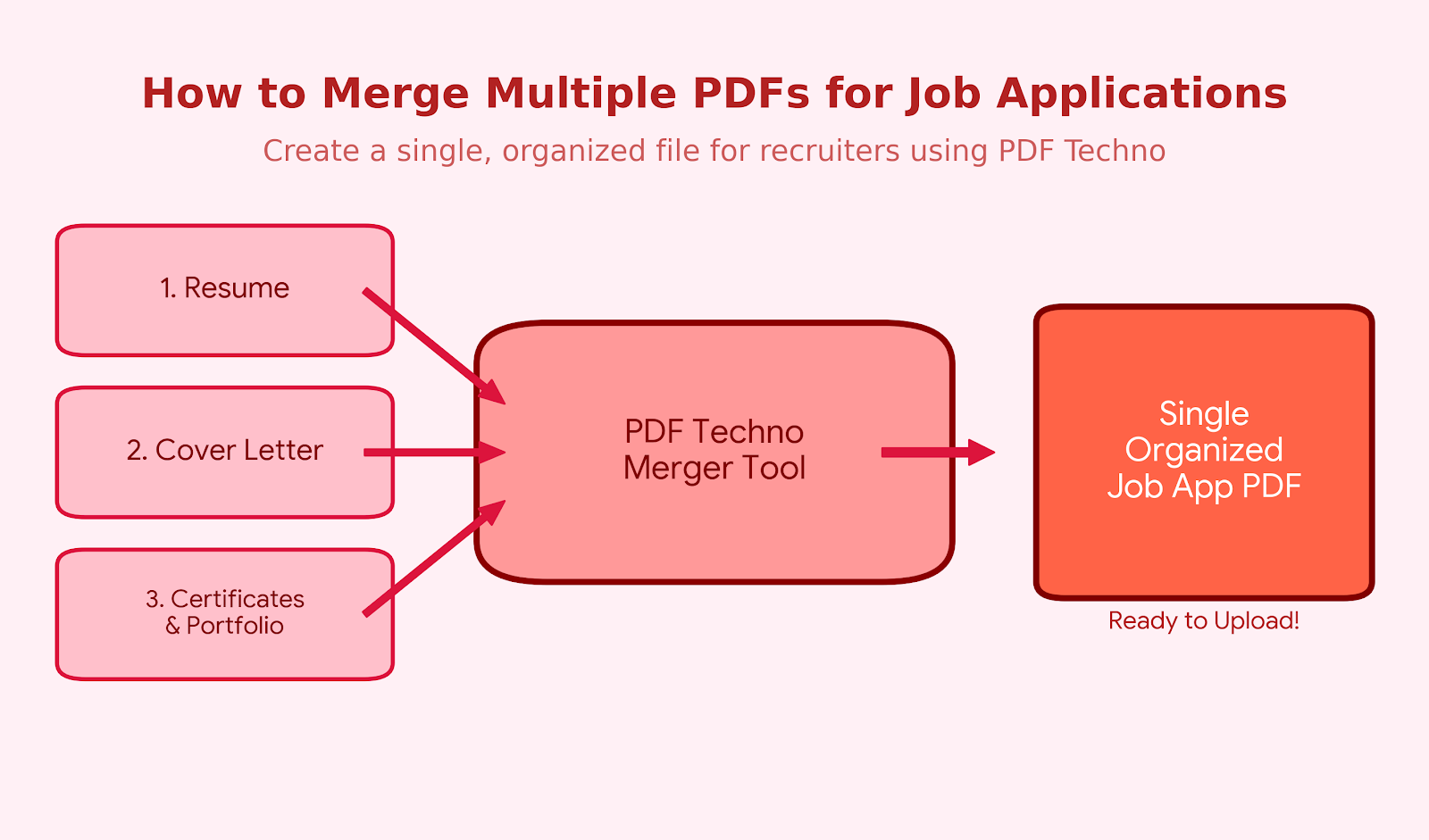
When applying for jobs online, many companies ask candidates to upload their application documents as a single PDF file. This often includes a resume, cover letter, and sometimes additional documents such as certificates or portfolios.
Submitting multiple files separately can create confusion for recruiters and may even cause issues with some job portals. Because of this, many applicants prefer to merge PDF for job application submissions so that all documents are organized in one file.
Combining your documents into a single PDF helps present your application more professionally. Instead of uploading separate files, you can combine resume PDF, merge cover letter PDF, and join documents PDF into one organized document.
With tools like PDF Techno, you can merge PDF files online within seconds — ensuring your job application documents are clean, organized, and easy for recruiters to review.
Why Job Applications Often Require a Single PDF
Many recruiters and hiring platforms prefer receiving a single document rather than multiple attachments. Submitting one combined file makes it easier for recruiters to review the application and keep all relevant information in one place.
Recruiters Prefer Organized Documents
Recruiters often review dozens or even hundreds of applications for a single role. When documents are scattered across multiple files, it becomes harder to review candidate information quickly.
Submitting a single file allows recruiters to view your resume, cover letter, and supporting documents without opening multiple attachments. A well-organized PDF also creates a better first impression and shows that the applicant has prepared their documents carefully.
Avoid Upload Errors on Job Portals
Some job portals restrict the number of files that can be uploaded during an application. In certain cases, applicants are only allowed to upload a single PDF file. If your resume, cover letter, and other documents are stored separately, you may need to merge PDF files online before uploading them to the portal.
Combining your files ensures that all required documents are included and reduces the chances of missing important information during submission.
Keeping Resume and Cover Letter Together
Many recruiters prefer reviewing the resume and cover letter together in the same document. This allows them to understand the candidate's qualifications and motivation for the role without switching between files.
Keeping these documents together helps create a smooth reading experience for the recruiter and ensures the cover letter provides immediate context for the application.
Documents You Should Merge for a Job Application
When preparing a job application PDF, it is important to include all relevant documents in a logical order.
Resume
The resume is the most important document in any job application. It highlights your professional experience, skills, education, and achievements. When preparing your application file, the resume is usually the first document included.
Cover Letter
A cover letter allows you to introduce yourself and explain why you are interested in the position. It provides additional context that may not be fully explained in the resume. Including the cover letter in the combined PDF ensures that recruiters can immediately read your introduction before reviewing your resume.
Certificates and Portfolio
Some job applications require additional documents such as certifications, academic transcripts, or work portfolios. Including these materials in the merged file helps recruiters review your qualifications more efficiently and ensures that nothing important is overlooked.
Step-by-Step Guide to Merge PDFs for Job Applications
Once you have prepared all your application documents, the next step is to combine them into a single file. Merging documents helps create a professional and organized application that recruiters can review easily.
Step 1: Prepare All Your Documents
Before merging files, make sure all your documents are ready in PDF format. Common documents include your resume, cover letter, certificates, or portfolio samples.
Saving these files as PDFs helps maintain consistent formatting across different devices and platforms. Preparing all documents in advance also ensures that nothing important is missing from the final merged file.
Step 2: Upload Files to a PDF Merger
After preparing the documents, upload them to an online PDF merging tool. These tools allow you to select multiple files and combine them into a single document quickly — without installing additional software. This makes the process faster and easier, especially when applying to multiple jobs.
Step 3: Arrange Documents in the Correct Order
The order of documents is important when creating a professional application file. Recruiters typically expect documents to follow a logical sequence. Rearrange the uploaded files to ensure that:
- The resume appears first
- The cover letter follows
- Supporting documents (certificates, portfolio) come last
A clear document order improves readability and makes it easier for recruiters to review your application.
Step 4: Merge the Files
Once the files are arranged correctly, start the merging process. The tool will combine all selected documents into a single PDF file, eliminating the need to upload multiple attachments and ensuring that all important materials are included in one file.
Step 5: Download the Final PDF
After the files are merged successfully, download the final PDF document. The combined file now contains your resume, cover letter, and supporting materials in the correct order.
Before submitting your application, review the merged document to ensure that all pages appear correctly. Once verified, your application PDF is ready to upload.
Best Way to Merge PDF Files Online Using PDFTechno
Merging PDF files manually can take time, especially when preparing multiple job applications. Using an online tool simplifies the process and allows you to combine documents quickly without needing advanced technical knowledge.
Why Use an Online PDF Merger
Online PDF merging tools provide a quick and convenient way to combine multiple documents into a single file. Instead of installing software, users can upload their documents directly through a web interface. Using a reliable online tool also helps ensure that the merged file maintains proper formatting and structure.
Merge Resume and Cover Letter in Seconds
With PDFTechno, users can easily combine resume PDF and merge cover letter PDF into one professional document. The tool allows you to upload multiple files, arrange them in the desired order, and merge them instantly. PDFTechno makes it simple to:
- Merge PDF for job application submissions
- Combine resume PDF and supporting documents
- Merge cover letter PDF with the resume
- Join documents PDF into one organized file
Best Order to Combine Documents in a Job Application PDF
When you merge PDF for job application submissions, arranging the documents logically helps create a professional impression. Recruiters typically expect documents to follow a clear sequence so that they can read through the application smoothly.
Resume First
The resume should always appear at the beginning of the merged document. It provides a quick overview of your professional experience, education, and skills. Recruiters often start by reviewing the resume to determine whether the candidate matches the job requirements — placing it first ensures they can immediately access the most important information.
Cover Letter Next
The cover letter typically follows the resume. Including it after the resume allows recruiters to read your detailed explanation of motivation and interest in the role. This helps maintain a logical flow within the application.
Supporting Documents Last
Additional materials such as certificates, academic transcripts, recommendation letters, or portfolio samples should appear after the main documents. These supporting materials provide further evidence of your qualifications but are usually reviewed after the recruiter has read the resume and cover letter.
A well-organized PDF ensures that recruiters can quickly navigate through your application and find the information they need.
Tips for Creating a Professional Job Application PDF
Keep File Size Small
Some job portals restrict the maximum file size for uploaded documents. If the PDF becomes too large, it may fail to upload or take longer to process. After merging files, make sure the final document remains within the allowed size limit. If necessary, compress the file slightly to reduce the overall size.
Maintain Clear Formatting
Before merging your files, check that all documents use consistent formatting — font styles, margins, and spacing. When documents have consistent formatting, the final merged PDF appears more polished and professional, improving the readability of your application.
Use a Reliable PDF Tool
Using a trusted PDF tool ensures that the merging process works smoothly. Reliable tools maintain the original formatting of your documents and combine them without errors. Tools like PDFTechno allow users to merge PDF files online quickly and join documents into a single organized file.
Conclusion
Submitting a well-organized job application can make a strong first impression on recruiters. Instead of uploading multiple files, many applicants choose to merge PDF for job application submissions so that all documents appear in one clean and structured file.
Combining documents such as your resume, cover letter, and supporting materials into a single file makes it easier for recruiters to review your application. Using an online tool simplifies the entire process — with platforms like PDFTechno, you can quickly merge PDF files online, arrange your documents in the correct order, and download a single application-ready file within seconds.
By following the steps and best practices outlined in this guide, you can create a polished application document that helps recruiters review your qualifications more efficiently.
Frequently Asked Questions
How do I merge PDFs for a job application?
Upload your resume, cover letter, and supporting documents to a PDF merging tool. Arrange the files in the correct order and combine them into a single PDF file before submitting your application.
Can I combine my resume and cover letter into one PDF?
Yes, many applicants combine resume PDF and merge cover letter PDF into a single document so that recruiters can review both files together easily.
What is the best order for job application documents?
The recommended order is resume first, cover letter next, followed by supporting documents such as certificates or portfolios.
Is it safe to merge PDF files online?
Yes, many online tools allow users to merge PDF files online securely. Using reliable platforms like PDFTechno ensures that your files remain safe during the merging process.
What tool can I use to merge resume and cover letter PDFs?
PDFTechno allows users to easily merge cover letter PDF with their resume and join documents PDF into one organized file for job applications.