What is N-UP PDF and How to Combine Multiple Pages into One Page (Complete Guide)
Introduction
Picture this: you've got a 40-page lecture PDF, a deadline in two hours, and a printer that eats paper like it's breakfast. Sound familiar?
Whether you're a student cramming before exams, a professional prepping handouts, or just someone who hates wasting paper — N-UP PDF is the feature you didn't know you needed. Instead of printing or scrolling through dozens of individual pages, N-UP lets you arrange multiple pages onto a single sheet, without losing any content.
In this guide, you'll learn exactly what N-UP PDF means, when to use each layout, and how to apply it in seconds using PDF Techno's free N-UP PDF tool.
What is N-UP PDF?
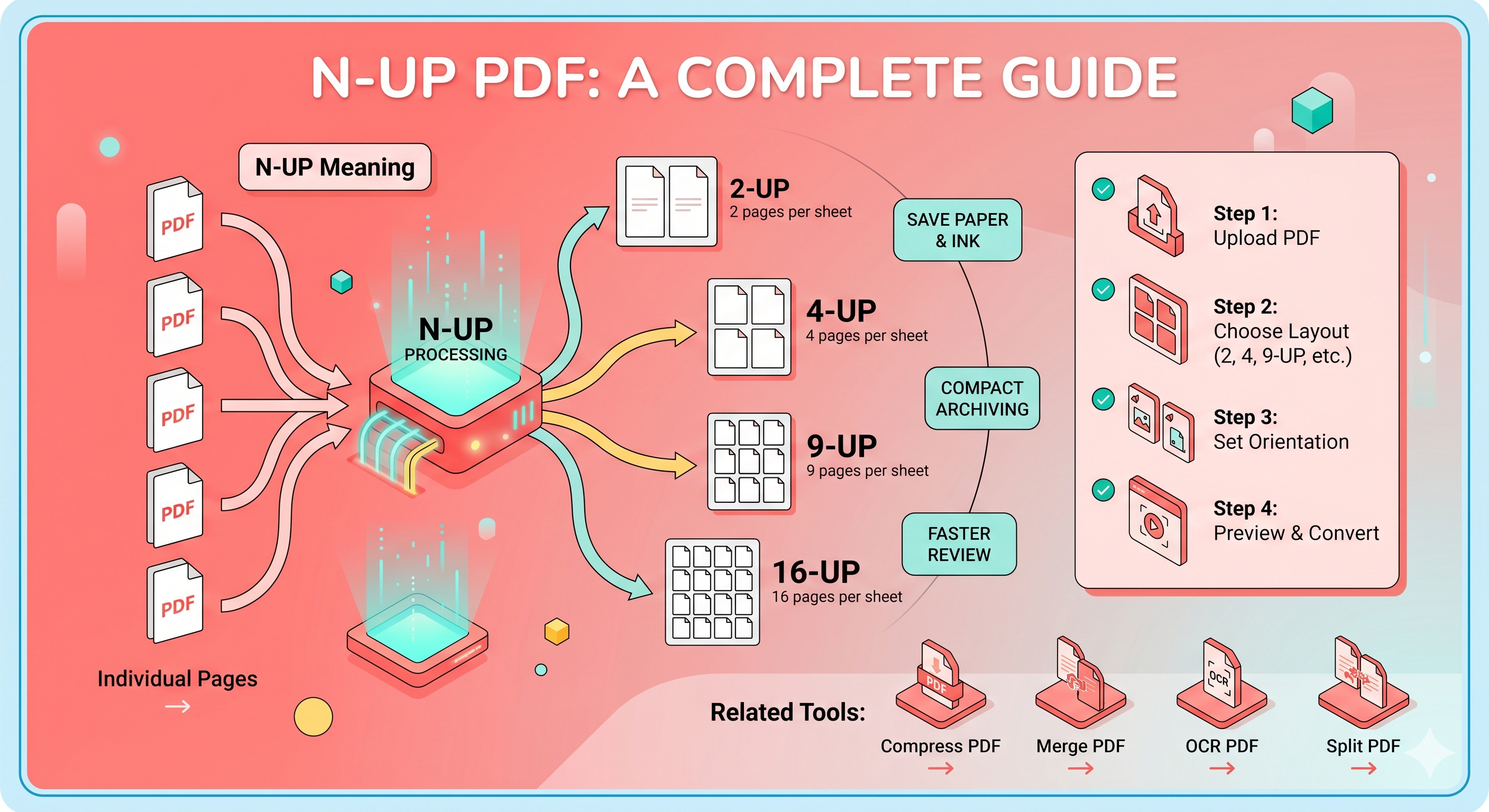
N-UP PDF is a document formatting method that places multiple PDF pages side-by-side on a single sheet. The "N" simply stands for the number of pages per sheet.
- 2-UP → 2 pages on one sheet
- 4-UP → 4 pages on one sheet
- 9-UP → 9 pages on one sheet
- 16-UP → 16 pages on one sheet
Each page is proportionally resized and arranged in a grid layout. The content remains intact — it's just scaled down to fit. Think of it like a photo collage, but for document pages.
💡 Real-world analogy: Imagine printing a PowerPoint handout with 4 slides per page. That's exactly what N-UP PDF does — but for any PDF document.
Why Use N-UP PDF? (More Than Just Saving Paper)
Most people assume N-UP is only for printing. It's actually useful in several everyday scenarios:
| Use Case | Recommended Layout |
|---|---|
| Printing study notes | 2-UP or 4-UP |
| Creating presentation handouts | 2-UP |
| Quick document preview | 9-UP or 16-UP |
| Sharing compact reports via email | 4-UP |
| Archiving documents | 16-UP |
Environmental and Practical Benefits
- Reduces paper waste — A 2-UP layout cuts paper usage by 50%
- Lowers printing costs — Fewer pages = fewer ink cartridges
- Compact file sharing — Easier to email or upload compressed layouts
- Faster review — See more content at a glance without scrolling
N-UP Layouts Explained: Which One Should You Use?
2-UP (Two Pages Per Sheet)
The most readable multi-page layout. Text remains comfortably legible, making it ideal for reports, essays, and presentations. This is the go-to choice when readability matters but you still want to save paper.
4-UP (Four Pages Per Sheet)
The sweet spot between compactness and clarity. Slightly smaller text but still readable — perfect for revision notes, cheat sheets, and study guides. Most commonly used layout overall.
6-UP (Six Pages Per Sheet)
Crosses into scan-and-skim territory. Great for quick document reviews where you need to locate a section fast rather than read every word.
9-UP (Nine Pages Per Sheet)
Thumbnail-style layout. Ideal for document previews and structural overviews — you can see how a document is organized at a glance. Not suitable for reading small print.
16-UP (Sixteen Pages Per Sheet)
Maximum space efficiency. Best for indexing, cataloguing, or archiving large documents where you just need a visual reference, not actual reading.
How to Use N-UP PDF with PDF Techno (Step-by-Step)
PDF Techno offers a free, browser-based N-UP tool that works without any installation. Here's how to use it:
Step 1: Open the Tool
Visit PDF Techno's N-UP PDF page in any browser — no account needed.
Step 2: Upload Your PDF
Click "Upload PDF" and select your file. Supports files up to several MB depending on your plan.
Step 3: Choose Your N-UP Layout
Select from 2, 4, 6, 9, or 16 pages per sheet depending on your use case. Use the table above if you're unsure.
Step 4: Set Page Orientation
Choose Portrait for text-heavy documents and Landscape for wide slides or spreadsheets. Landscape generally improves readability in 4-UP and above.
Step 5: Adjust Margins and Spacing
Add small margins (5–10mm) to prevent content from touching the edges. Tight spacing can make pages feel cramped and hard to read.
Step 6: Preview and Convert
Always use the preview option before converting. Check that text is legible and no content is getting cut off at page edges.
Step 7: Download Your File
Click Download to save your N-UP PDF. The file is typically much smaller than the original.
Pro Tips for Best Results
- Use landscape mode for 4-UP and above — it distributes space more naturally
- Avoid 9-UP or 16-UP for text-heavy documents — the text becomes too small to read comfortably
- Set consistent margins — prevents content from appearing cramped or uneven
- Test with one page first — upload a single-page version to check quality before processing the full document
- Combine with PDF compression — after creating your N-UP file, use PDF Techno's compression tool to reduce file size further before sharing
Common Mistakes to Avoid
❌ Choosing too many pages per sheet for reading — 9-UP and 16-UP are for previewing, not studying
❌ Ignoring orientation — Portrait with 4-UP can make columns too narrow
❌ Skipping the preview — Always check before downloading the final file
❌ Using N-UP on already-small text — If the original text is small, N-UP will make it unreadable
Frequently Asked Questions
1. What does N-UP mean in PDF?
N-UP refers to placing N number of pages onto a single printed or digital sheet. "2-UP" means 2 pages per sheet, "4-UP" means 4, and so on.
2. Does N-UP reduce the quality of my PDF?
No. When done correctly, N-UP simply resizes and repositions pages — it doesn't compress or degrade image or text quality.
3. Is N-UP PDF free to use on PDF Techno?
Yes. PDF Techno offers free N-UP conversion for standard documents. Visit pdftechno.com to get started.
4. Can I undo an N-UP PDF back to individual pages?
Not automatically. N-UP merges pages visually on a single sheet. To reverse it, you'd need to re-upload the original file and process it without N-UP settings.
5. Which N-UP setting is best for printing study notes?
4-UP is the most popular for students — it's compact enough to save paper but readable enough for revision. For very dense notes, stick to 2-UP.
6. Can I apply N-UP to a scanned PDF?
Yes, but if the scanned PDF has very small text to begin with, N-UP may make it too small to read. Consider using PDF Techno's OCR tool first to enhance the text.
Conclusion
N-UP PDF is one of those features that seems small but changes how you work with documents entirely. Whether you're printing study notes, creating professional handouts, or just trying to reduce paper waste, getting your N-UP layout right makes a real difference.
The key is matching the layout to your purpose: 2-UP for reading, 4-UP for revision, 9-UP+ for previewing. With a free tool like PDF Techno, the whole process takes under a minute.
Related Tools on PDF Techno:
- Compress PDF — Reduce file size after N-UP conversion
- Merge PDF — Combine multiple PDFs before applying N-UP
- OCR PDF — Make scanned PDFs readable before N-UP
- Split PDF — Extract specific pages before applying N-UP layout