Introduction
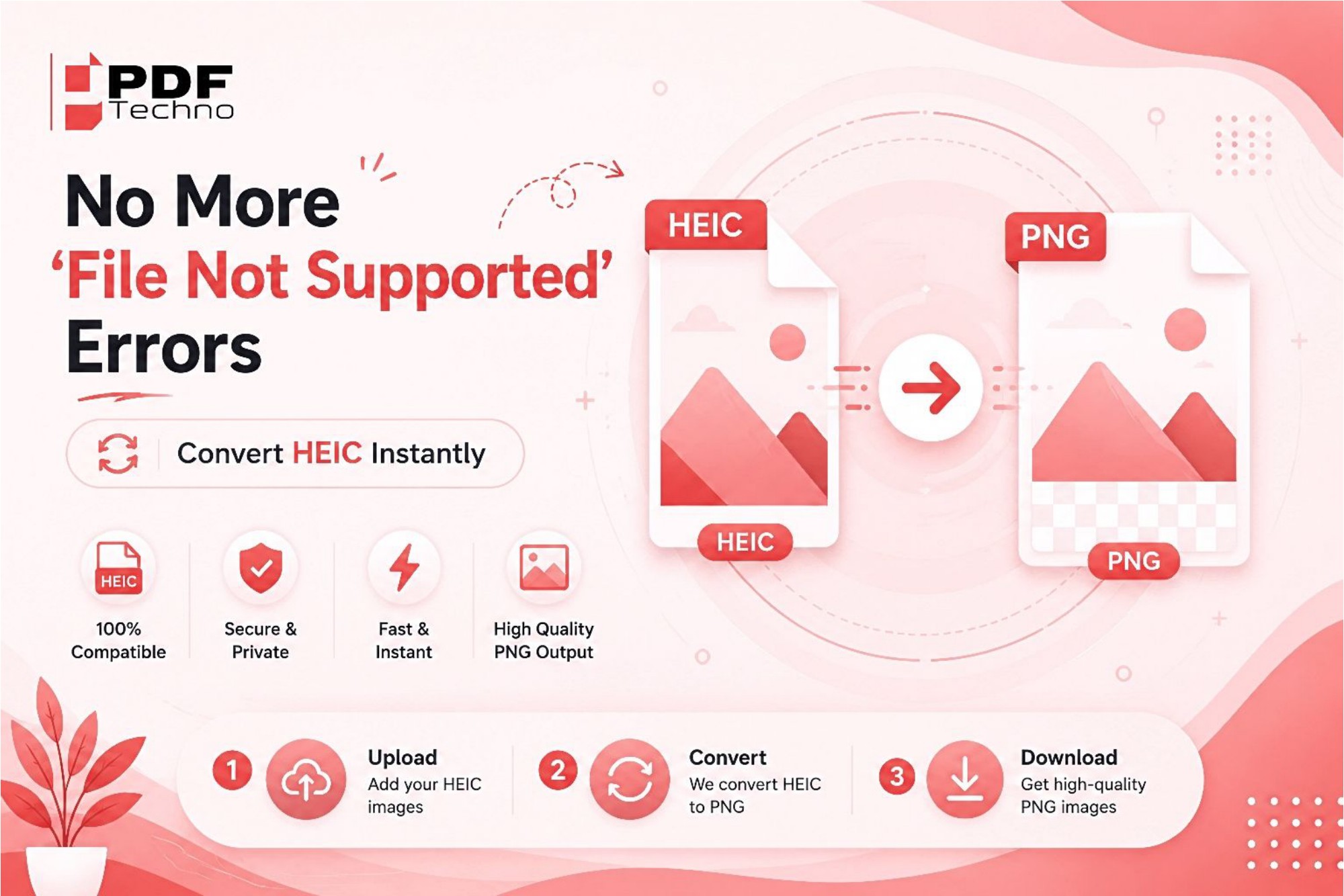
Have you ever tried opening a photo on your laptop, uploading it to a website, or sharing it online only to see the frustrating message: "This file is not supported"?
If you're an iPhone user, chances are that photo was saved in the HEIC format. While HEIC offers excellent image quality and smaller file sizes, many platforms, apps, and devices still struggle to support it.
The good news? You don't need to install any software or change complicated settings. With PDF Techno's HEIC to JPG/PNG Converter, you can convert your images instantly and make them compatible everywhere.
What Is HEIC?
HEIC (High Efficiency Image Container) is a modern image format developed by Apple to store photos more efficiently. It is commonly used on iPhones and iPads because it provides high-quality images while taking up significantly less storage space than traditional formats like JPG. HEIC uses advanced compression technology, allowing users to save more photos without sacrificing image quality. However, despite its storage benefits, HEIC files are not universally supported, which often leads to compatibility issues when opening, editing, or uploading images on certain devices, applications, or websites.
Why Do You See the "File Not Supported" Error?
You may see the "File Not Supported" error because many devices, applications, and websites do not natively support the HEIC (High Efficiency Image Container) format. Although HEIC is widely used by Apple devices due to its excellent image quality and efficient compression, several Windows computers, older software programs, online platforms, and editing tools are unable to recognize or process HEIC files. As a result, users often encounter issues such as files not opening, failed uploads, unsupported previews, or inability to edit images. Converting HEIC files to universally supported formats like JPG or PNG is the easiest way to eliminate these compatibility problems.
Why Convert HEIC to JPG or PNG?
Converting HEIC files to JPG or PNG is often necessary to ensure better compatibility across different devices, applications, and online platforms. Although HEIC is an efficient image format that provides high-quality photos while using less storage space, it is primarily supported by Apple devices such as iPhones and iPads. Many Windows computers, websites, social media platforms, and image editing tools still do not fully support HEIC files, which can lead to errors like "File Not Supported" or failed uploads.
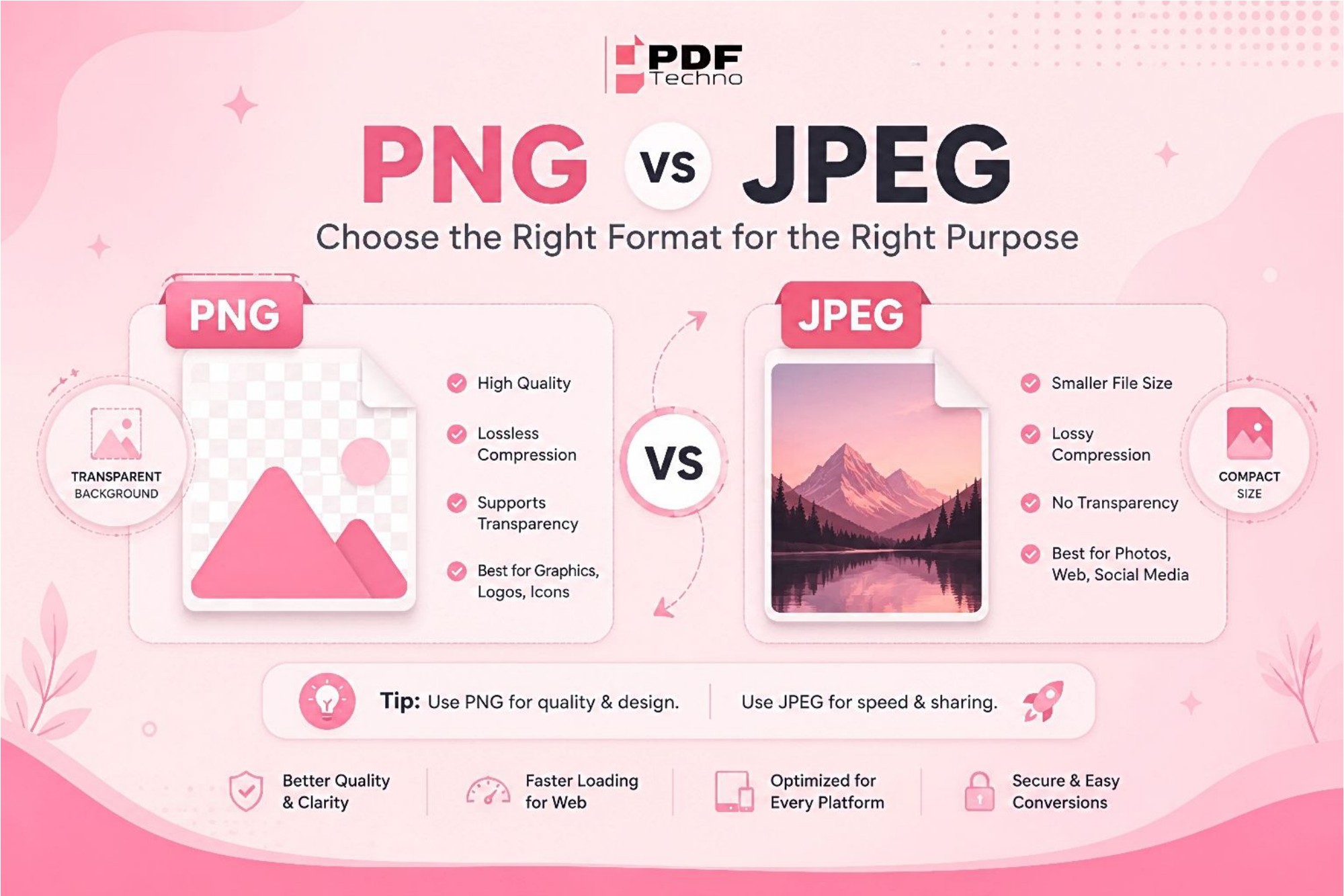
By converting HEIC images to JPG, users can enjoy universal compatibility, smaller file sizes, and seamless sharing through email, websites, and social media. Alternatively, converting to PNG is ideal when maintaining maximum image quality, preserving fine details, or using transparent backgrounds for logos and graphics. Overall, converting HEIC files to JPG or PNG makes your images easier to open, edit, upload, share, and use across virtually any platform or device.
Convert HEIC Instantly with PDF Techno
With PDF Techno's HEIC to JPG/PNG Converter, converting files is simple and completely online.
Key Features:
- Works 100% Online — No software installation is required. Open the tool in your browser and start converting instantly.
- Fast One-Click Conversion — Upload your HEIC file, select the output format, and convert within seconds.
- Secure Processing — Your images are processed securely, ensuring a safe conversion experience.
- Supports Large Files — Convert HEIC and HEIF images easily without worrying about compatibility issues.
- Free to Use — No subscriptions, hidden charges, or account registration required.
How to Convert HEIC Files Using PDF Techno
Converting your images with PDF Techno takes only a few simple steps:
- Step 1: Upload your HEIC file using the upload button.
- Step 2: Choose your preferred output format:
- JPG for sharing and universal compatibility
- PNG for better quality and transparency support
- Step 3: Select the image quality settings according to your needs.
- Step 4: Click the Convert button.
- Step 5: Download your converted image instantly and use it anywhere.
That's it! Your photos are now ready for uploading, editing, sharing, or printing.
Stop Compatibility Issues for Good
HEIC is a great format for storing high-quality photos, but compatibility limitations can often interrupt your workflow. Instead of struggling with unsupported files, convert them to JPG or PNG and enjoy seamless access across all your devices and applications.
With PDF Techno's HEIC to JPG/PNG Converter, you can eliminate "File Not Supported" errors forever and make your images usable everywhere.
Tips for Best Results
To achieve the best results when converting HEIC files, always upload the original image to preserve maximum quality. Choose JPG if you need smaller file sizes and broad compatibility for sharing, uploading, or emailing, while PNG is a better option for maintaining high image quality and supporting transparent backgrounds. Additionally, selecting higher quality settings during conversion and reviewing the final output can help ensure that your images look their best across all devices and platforms.
Frequently Asked Questions (FAQs)
1. Why can't my computer open HEIC files? Many Windows devices and older applications do not support HEIC files natively.
2. Which format should I choose: JPG or PNG? Choose JPG for sharing and smaller file sizes. Choose PNG for better quality and transparency support.
3. Do I need to install software to convert HEIC files? No. PDF Techno allows you to convert HEIC files directly in your browser.
4. Is the HEIC converter free to use? Yes, PDF Techno's HEIC converter is free and requires no registration.