PDF Security Checklist: 10 Things You Should Do Before Sharing a File
Introduction
PDF files have become an essential part of our daily personal and professional lives. Whether you're sending a resume to a recruiter, sharing a business proposal with a client, submitting an assignment to your university, or emailing invoices and contracts, PDFs are the preferred choice because they maintain their formatting across different devices and operating systems. Unlike editable document formats, PDFs provide a clean, professional appearance that remains consistent no matter where they're opened.
However, many people make one common mistake — they assume that saving a document as a PDF automatically makes it secure. Unfortunately, that's not true. A PDF can still contain sensitive information, hidden metadata, editable content, or confidential details that shouldn't be shared. Once a file has been sent, you lose control over how it's used, copied, or forwarded. Even a small oversight can expose personal data, confidential business information, or legal documents to unintended recipients.
This is why every PDF should go through a quick security check before being shared. A few extra minutes spent reviewing your document can prevent costly mistakes, protect your privacy, and present a more professional image. Whether you're an individual user, student, freelancer, HR professional, lawyer, or business owner, following a proper PDF security checklist is a smart habit.
In this guide, we'll cover ten essential things you should always do before sharing any PDF file. You'll also learn how PDF Techno can simplify PDF management with easy-to-use online tools for organizing, converting, compressing, editing, and electronically signing documents.
Why PDF Security Is More Important Than Ever?
As businesses move toward paperless workflows, the number of digital documents being exchanged every day continues to grow. Contracts, tax documents, invoices, employee records, financial reports, healthcare forms, and educational certificates are now commonly shared online. While this has improved convenience and productivity, it has also increased the risk of data leaks and unauthorized access.
A single PDF may contain names, addresses, account details, signatures, or confidential company information. If shared without proper checks, this information could be viewed, copied, or distributed by people who were never meant to access it. In professional environments, even a minor mistake can affect trust, compliance, and business relationships.
The good news is that protecting your PDFs doesn't require advanced technical knowledge. By following a few simple steps, you can greatly reduce the chances of exposing sensitive information and ensure your documents are ready to share with confidence.
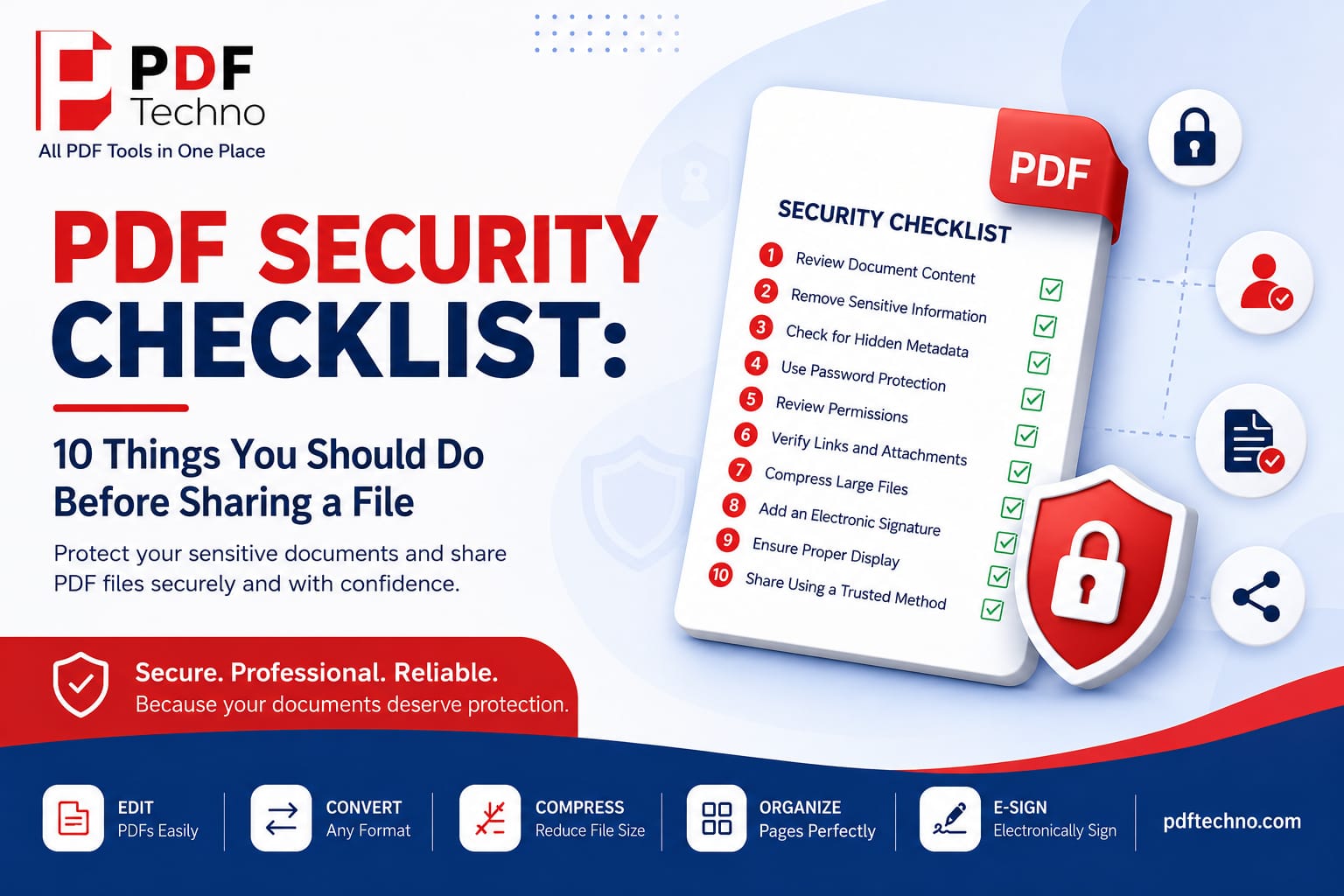
1. Review Every Page Carefully Before Sharing
Before you send a PDF, take a few minutes to read through the entire document. Many people quickly generate a PDF and send it immediately without checking the final version. This increases the risk of sharing outdated information, unfinished content, spelling mistakes, duplicate pages, or confidential notes that were meant only for internal use.
Open the PDF exactly as the recipient will see it. Scroll through every page and verify that the text, images, tables, headers, footers, and page numbers appear correctly. If you've recently made edits, confirm that the latest version has been saved and exported properly.
This simple habit can save you from embarrassing mistakes and prevent unnecessary follow-up emails asking recipients to ignore or replace the previous document.
2. Remove Confidential or Unnecessary Information
Not every piece of information inside a document needs to be shared. Many PDFs contain internal comments, employee details, financial records, phone numbers, addresses, identification numbers, or confidential business information that should remain private.
Sharing only the information that is truly required reduces privacy risks and helps maintain confidentiality, especially when working with clients, legal documents, or financial records.
3. Check for Hidden Metadata
Most users don't realize that PDF files often contain hidden metadata. This information may include the document author's name, company name, creation date, modification history, document title, keywords, or even the software used to create the file.
Although metadata isn't visible while reading the PDF, anyone with the right tools may be able to view it. In some situations, this hidden information could unintentionally reveal confidential details about your organization or document history.
4. Protect Sensitive Files with a Password
If your PDF contains confidential information such as contracts, financial statements, employee records, legal documents, or personal data, password protection should be one of your first security measures.
A password ensures that only authorized individuals can open the document. Even if the file is accidentally forwarded or intercepted during transmission, unauthorized users won't be able to access its contents without the correct password.
When creating a password, avoid using simple combinations like "123456" or your company name. Instead, choose a strong password that includes uppercase and lowercase letters, numbers, and special characters.
5. Review PDF Permissions
Opening a PDF and editing a PDF are two different things. Some PDF files allow recipients to print, copy text, edit content, or add annotations. Depending on the type of document you're sharing, these permissions may not be appropriate.
Before sending the file, review the permission settings and make sure they match the purpose of your document. Protecting the integrity of your PDF is just as important as protecting its contents.
6. Verify All Links and Attachments
If your PDF includes hyperlinks, email addresses, QR codes, or attachments, take a moment to test each one before sharing. A broken link or incorrect URL can confuse recipients and make your document look unprofessional. If the PDF directs users to a website, online form, or downloadable resource, ensure that every link opens the correct page.
Similarly, if your PDF contains attached files, verify that you've included the correct versions. Accidentally attaching an outdated document or the wrong file is a common mistake that can lead to unnecessary delays. Spending just a few minutes checking links and attachments can save time and improve the overall experience for the recipient.
7. Compress Large PDF Files Without Losing Quality
Large PDF files are often difficult to upload or send through email because many email providers and online portals have file size limits. Instead of reducing image quality or splitting the document into multiple parts, it's better to compress the PDF while maintaining readability.
A compressed PDF is easier to upload, downloads faster, and provides a smoother experience for the recipient. However, it's important to use a reliable tool that reduces file size without affecting text clarity or image quality.
With PDF Techno, you can compress PDF files online quickly while keeping the document clear and professional.
8. Add an Electronic Signature When Required
Many professional documents require approval before they become valid. Instead of printing the document, signing it manually, and scanning it again, electronic signatures provide a faster and more convenient solution.
Whether you're sending contracts, agreements, offer letters, consent forms, or business proposals, adding an electronic signature improves efficiency and creates a smoother document workflow. It also reduces paper usage and speeds up approvals.
PDF Techno allows users to electronically sign PDF documents online, making the signing process simple, secure, and accessible from any browser.
9. Make Sure the PDF Displays Correctly
Never assume that your PDF looks perfect just because it appears fine on your own computer. Different devices, screen sizes, and PDF readers may display documents differently.
Before sharing, open the PDF on another device or browser and carefully review every page. Check that images load correctly, tables remain aligned, fonts display properly, and page numbers are in the correct order. If your document contains graphics or charts, make sure they are clear and not distorted.
This final quality check ensures the recipient sees exactly what you intended and avoids unnecessary confusion.
10. Share Your PDF Using a Trusted Method
Even after securing your PDF, the method you use to share it matters. Sending confidential files through unsecured platforms can increase the risk of unauthorized access. Whenever possible, use trusted email services, secure cloud storage, or encrypted file-sharing platforms.
If the document contains highly sensitive information, avoid sharing passwords in the same email as the PDF. Instead, send the password separately through a different communication method, such as a phone call or secure messaging app. Following safe sharing practices adds another layer of protection to your important documents.
What Happens If You Share an Unsecured PDF?
Sharing an unsecured PDF can create serious problems, especially when the file contains sensitive or confidential information. Someone could copy the content, edit important details, print unauthorized copies, or forward the document to people who were never meant to receive it. In some cases, hidden metadata may reveal information about the author, company, or editing history without your knowledge.
For businesses, this could result in financial losses, damaged client relationships, or compliance issues. For individuals, it may lead to identity theft, privacy concerns, or misuse of personal information. Taking a few preventive steps before sharing a PDF significantly reduces these risks and helps ensure your documents remain protected.
Common PDF Security Mistakes to Avoid
Many users unintentionally compromise their document security by making simple mistakes. Some of the most common include sending the wrong version of a file, forgetting to remove confidential information, using weak passwords, or assuming that converting a document to PDF automatically makes it secure.
Another common mistake is failing to review the final document after exporting it. Formatting issues, missing pages, broken links, or hidden comments can easily go unnoticed if the PDF isn't checked carefully. Building a habit of reviewing every document before sharing helps prevent these errors and improves professionalism.
How PDF Techno Helps Secure Your Documents
Managing PDF security doesn't have to be complicated. PDF Techno offers browser-based tools that simplify document management while helping users prepare professional PDFs for sharing. Whether you need to compress large files, organize pages, convert documents, or electronically sign PDFs, everything can be done online without installing software.
Using the right tools not only saves time but also ensures your files are ready to share with confidence. By combining good security practices with reliable PDF tools, users can protect sensitive information while maintaining a smooth and efficient workflow.
Final Thoughts
Sharing a PDF is often the final step in completing an important task, but it's also the moment when security matters the most. A few minutes spent reviewing your document can prevent costly mistakes, protect confidential information, and ensure your files look professional.
By following this PDF security checklist — reviewing content, removing sensitive information, checking metadata, protecting files with passwords, verifying permissions, testing links, compressing files, adding electronic signatures, reviewing formatting, and using secure sharing methods — you can confidently share documents without unnecessary risks.
Whether you're a student submitting assignments, a freelancer sending proposals, an HR professional managing employee documents, or a business sharing contracts with clients, these simple practices will help keep your PDF files safe.
With PDF Techno, you can edit, convert, compress, organize, and electronically sign PDFs online, making document preparation faster, easier, and more secure before every file you share.
Frequently Asked Questions (FAQs)
1. Why should I secure a PDF before sharing it? To protect confidential information and prevent unauthorized access.
2. Can I password-protect a PDF? Yes, password protection helps keep sensitive documents secure.
3. What is PDF metadata? It's hidden information like the author, title, and creation date.
4. Should I compress a PDF before sending it? Yes, smaller files are easier to upload and share.
5. Can anyone edit my PDF after I share it? Only if editing permissions are allowed.
6. What's the safest way to share a PDF? Use password protection and a trusted file-sharing method.