Explore All 30+ Free PDF Techno Tools in 2026: The Complete Guide (With Use Cases for Every Tool)
Introduction
Most people discover PDF tools the wrong way — in a panic.
The assignment portal just rejected your file. The contract your client sent is locked. The scanned report from your professor has no searchable text. You Google "how to fix PDF" at 11 PM and end up on five different sites, each handling one piece of the puzzle.
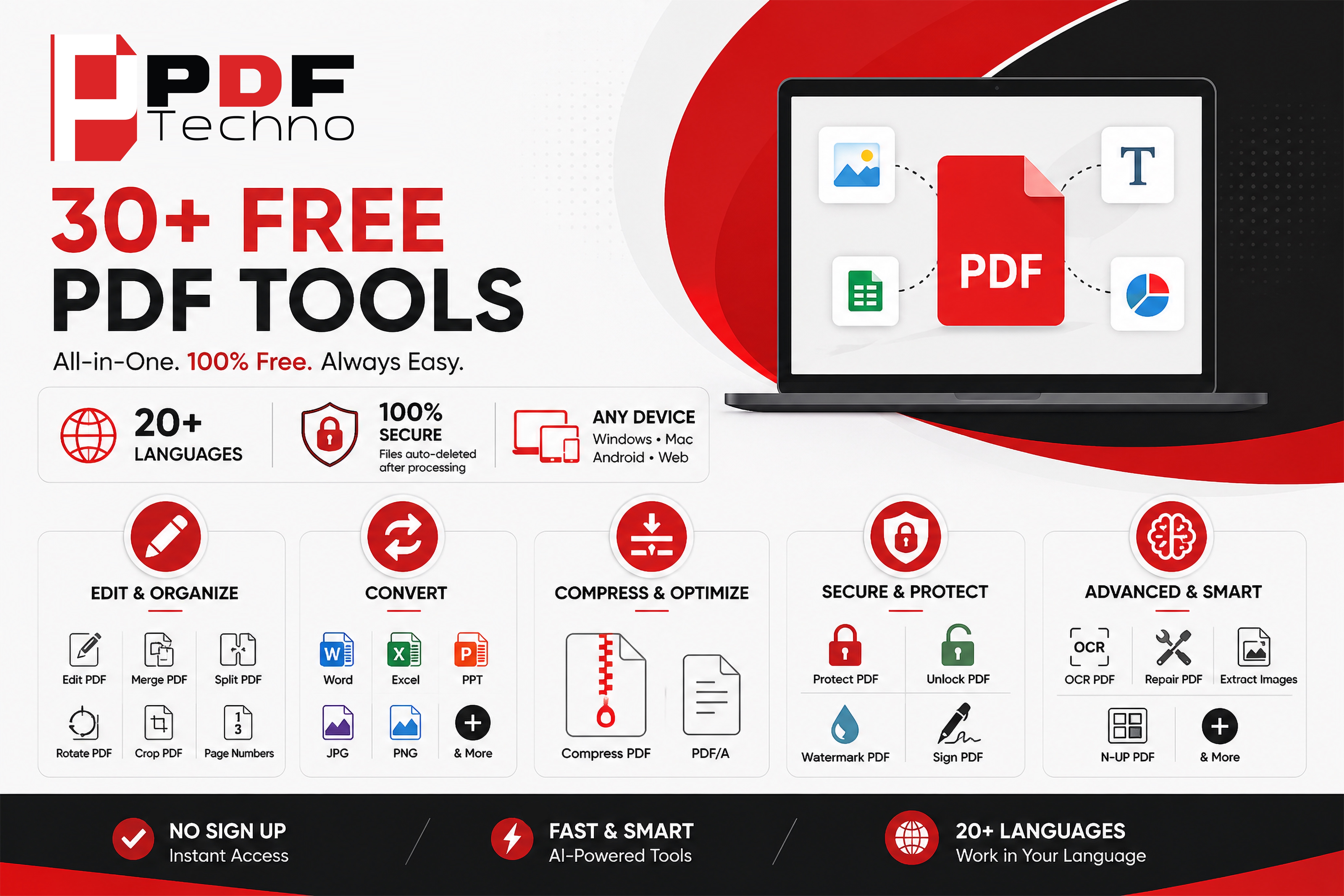
PDF Techno was built to end that scramble. It's a single platform with 30+ PDF tools, no account required, no software to install, completely free — and it works in 20+ languages, making it one of the most globally accessible document platforms available today.
This guide doesn't just list those tools. It explains what each one actually does, who needs it, and when to use it — so you always know exactly where to go the next time a PDF causes you trouble.
What Makes PDF Techno Different in 2026?
Before diving into the tools, here's why it's worth using one platform instead of scattered free sites:
| Feature | PDF Techno | Typical Free Tools |
|---|---|---|
| Number of tools | 30+ | 1–5 per site |
| Account required | ❌ No | Often yes |
| Download required | ❌ No | Sometimes |
| Cost | 100% Free | Freemium / limited |
| Language support | 20+ languages | Usually English only |
| Device compatibility | All browsers, all devices | Varies |
| File privacy | Auto-deleted after processing | Varies |
| AI-powered processing | ✅ Yes | Rarely |
The 20+ language support deserves special mention. Most PDF tools assume English fluency. PDF Techno supports Arabic, French, Spanish, Hindi, German, Portuguese, Japanese, Turkish, and many more — which means students, professionals, and freelancers across the world can use it in the language they think in, not just the language they're forced into.
The Full List: All 30+ PDF Techno Tools Explained
🗂️ Category 1: PDF Editing & Organization Tools
These are the tools you reach for when you need to change, restructure, or clean up a PDF document.
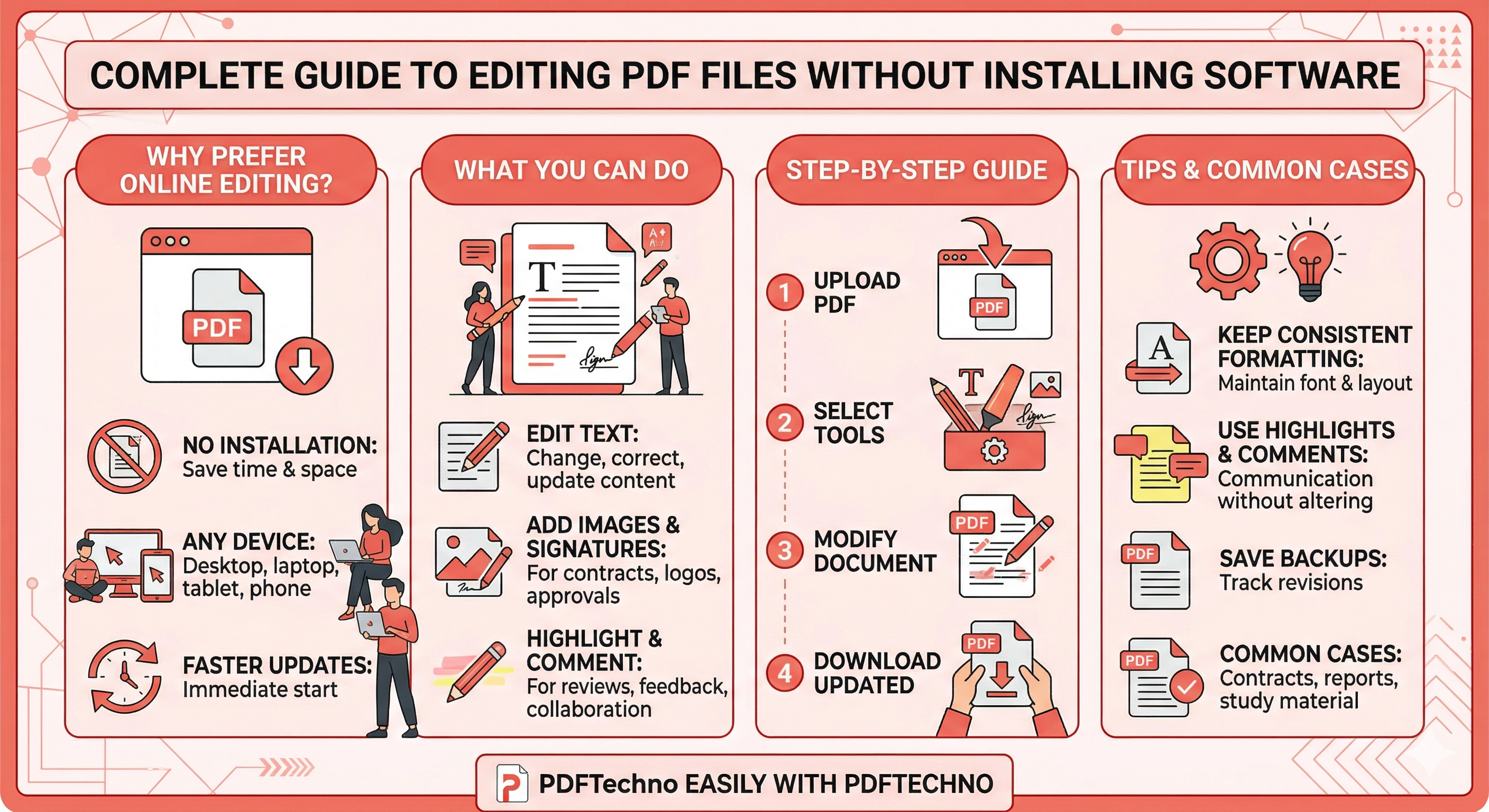
1. Edit PDF
What it does: Lets you click directly on any text in a PDF and modify it, add new text boxes, insert images, or annotate — all inside the browser.
Who needs it: Students fixing a typo before resubmitting. Professionals updating a report without going back to the original Word file.
When to use it: Any time you need to make a quick change to a PDF that you'd otherwise have to recreate from scratch.
⚠️ If the PDF is password-protected, use Unlock PDF first.
2. Merge PDF
What it does: Combines two or more PDF files into one single document, in the order you choose.
Who needs it: Students combining chapter notes into one revision file. Freelancers assembling a portfolio. Professionals consolidating monthly reports into a quarterly summary.
When to use it: Before submitting multi-part assignments, or when sharing multiple documents with a client as one clean file.
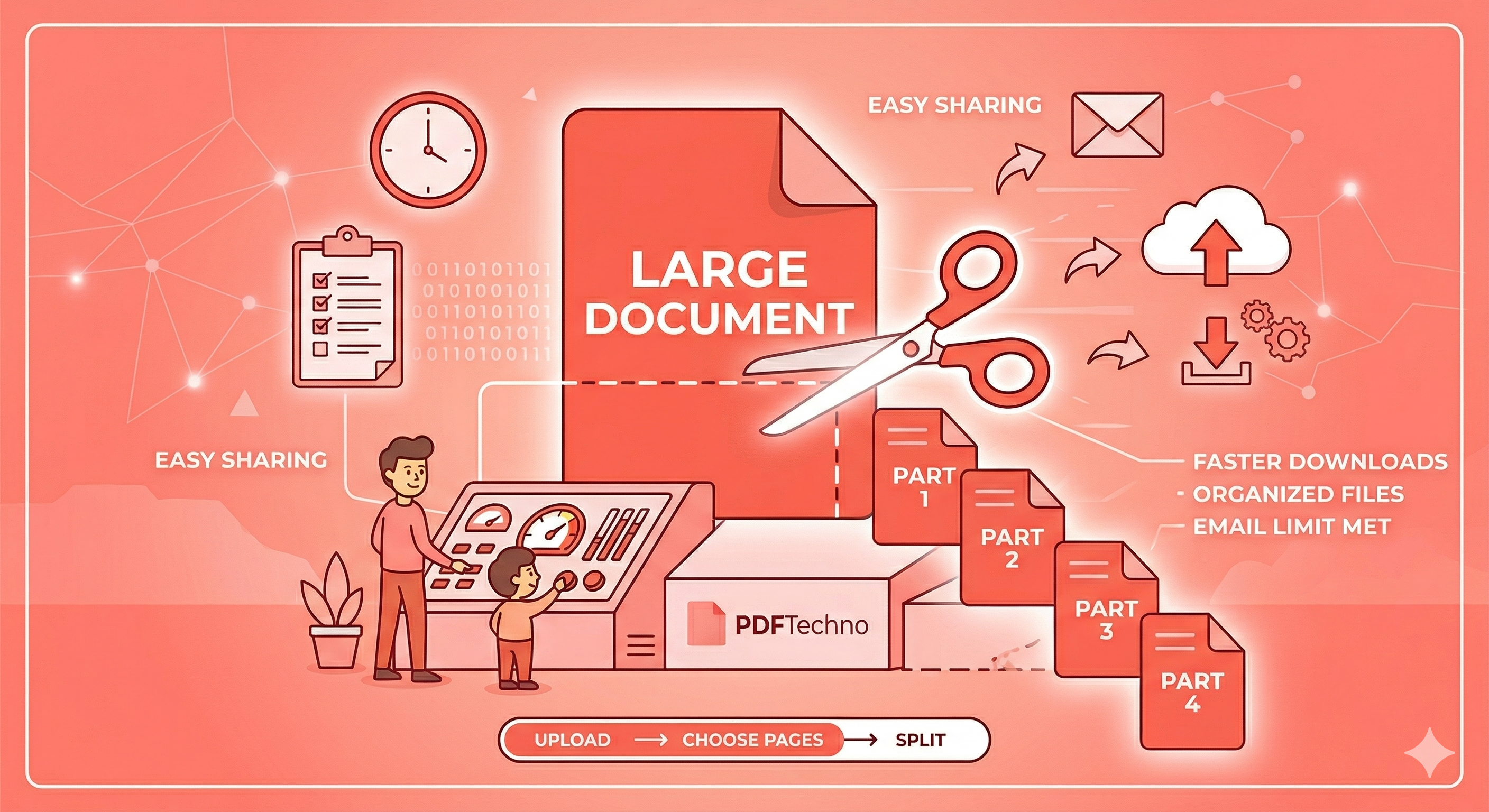
3. Split PDF
What it does: Extracts specific pages from a large PDF — either individual pages, page ranges, or every page as a separate file.
Who needs it: Anyone who received a 100-page report but only needs pages 12–18. Professors distributing specific chapters. Designers extracting single slides from a deck.
When to use it: When a file is too large to share, or when you need to isolate a specific section for someone else.
4. Organize PDF
What it does: Lets you drag, drop, and reorder individual pages within a PDF — move page 7 to page 2, for example, or remove pages you don't need.
Who needs it: Anyone who scanned pages in the wrong order. Professionals restructuring a document after feedback.
When to use it: After scanning a multi-page document, always check the page order here before sharing.
5. Rotate PDF
What it does: Rotates specific pages or all pages in a PDF — 90°, 180°, or 270°.
Who needs it: Everyone who's ever scanned a document sideways. Extremely common with mobile phone scans.
When to use it: Any time a page is sideways or upside down after scanning or conversion.
6. Crop PDF
What it does: Removes unwanted white space, borders, or sections from the edges of pages — you define the crop area precisely.
Who needs it: Researchers trimming oversized scanned pages. Designers cleaning up exported slides.
When to use it: When pages have large blank margins that waste space, or when a header/footer shouldn't appear in the version you're sharing.
7. Add Page Numbers
What it does: Inserts page numbers automatically to every page — you choose position (header/footer), font, and starting number.
Who needs it: Students submitting long assignments. Legal professionals creating numbered document references. Anyone making a document easier to navigate.
When to use it: Before submitting any formal document that has more than 5 pages.
8. Watermark PDF
What it does: Adds a visible text or image watermark to every page — "CONFIDENTIAL", "DRAFT", your company logo, or anything else.
Who needs it: Businesses sending proposals they don't want copied. Designers sharing work-in-progress files. Educators distributing materials they want attributed.
When to use it: Any time you're sharing a file externally that you want to visually mark as yours.
9. Add Header and Footer
What it does: Inserts custom text — titles, dates, document names — in the header or footer of every page.
Who needs it: Professionals creating branded reports. Students adding their name/ID to document footers before submission.
When to use it: When creating any formal document that will be printed or formally submitted.
10. Sign PDF
What it does: Adds a digital signature to any page — draw it, type it, or upload an image of your handwritten signature.
Who needs it: Freelancers signing contracts. Business professionals authorizing documents. Anyone who needs to sign something without printing and scanning.
When to use it: Whenever a document requires your signature and you don't have a printer nearby (which is most of the time in 2026).
🔄 Category 2: PDF Conversion Tools
These tools convert files into PDF or out of PDF — the most commonly needed operations for students and professionals alike.
11. Word to PDF
What it does: Converts .docx or .doc Word files into PDFs, preserving fonts, formatting, tables, and images.
Who needs it: Anyone submitting a Word document to a portal that requires PDF format.
When to use it: Always convert to PDF before submitting to university portals or email attachments — PDFs display identically on every device, Word files don't.
12. Excel to PDF
What it does: Converts spreadsheets into PDFs — each sheet becomes a page.
Who needs it: Accountants and analysts sharing financial data. Students submitting data tables.
When to use it: When you need someone to view a spreadsheet but not edit the underlying formulas.
13. PowerPoint to PDF
What it does: Converts .pptx presentation files into PDFs — one slide per page.
Who needs it: Presenters sharing slide decks after meetings. Students submitting presentations as PDFs.
When to use it: After finalizing slides, before sharing externally. PDFs prevent anyone from editing your slides or seeing your speaker notes.
14. JPG to PDF
What it does: Converts one or multiple JPG images into a single PDF document.
Who needs it: Students scanning handwritten notes with their phone camera. Anyone who photographed a receipt, whiteboard, or physical document and needs it as a PDF.
When to use it: After taking photos of physical documents — combine all images into one organized PDF instead of sending dozens of separate photos.
15. PNG to PDF
What it does: Same as JPG to PDF but optimized for PNG format — especially useful for diagrams, screenshots, and graphics with transparent backgrounds.
Who needs it: Designers and developers working with screenshots or diagrams.
When to use it: When your images are in PNG format, particularly screenshots or digital artwork.
16. HTML to PDF
What it does: Converts an HTML file or webpage into a PDF document — preserving layout, styling, and links.
Who needs it: Web developers documenting their work. Content creators archiving webpages. Anyone who needs a static copy of a webpage.
When to use it: When you need a permanent, shareable copy of a website or web-based report.
17. JSON to PDF
What it does: Converts JSON data files into readable, formatted PDF documents.
Who needs it: Developers and data analysts who need to share structured data in a readable format for non-technical stakeholders.
When to use it: When you need to present API data or configuration files to someone who doesn't work with raw JSON.
18. PDF to Word
What it does: Converts a PDF back into an editable .docx Word file — preserving tables, columns, formatting, and fonts as accurately as possible.
Who needs it: Anyone who received a PDF they need to edit. Students modifying a downloaded template. Professionals updating an old document they only have in PDF.
When to use it: When you need to edit a PDF and the Edit PDF tool isn't sufficient for the scale of changes needed.
💡 Always review the converted Word file carefully — tables and multi-column layouts are the most common conversion challenges.
19. PDF to Excel
What it does: Extracts tables and data from a PDF into an editable Excel spreadsheet.
Who needs it: Analysts working with PDF reports that contain data tables. Students extracting research data. Accountants processing PDF invoices.
When to use it: When a PDF contains structured data you need to manipulate, filter, or chart.
20. PDF to PowerPoint
What it does: Converts a PDF back into an editable .pptx PowerPoint presentation — each page becomes a slide.
Who needs it: Presenters who received slides as a PDF and need to edit them. Students adapting a template.
When to use it: When you need to edit slides that only exist in PDF format.
21. PDF to Image
What it does: Converts each page of a PDF into a JPG or PNG image file.
Who needs it: Designers extracting visual elements from PDFs. Social media managers turning report pages into shareable images. Developers generating thumbnails.
When to use it: When you need a specific page of a PDF as a standalone image for use in presentations, social posts, or websites.
📦 Category 3: Compression & Optimization Tools
22. Compress PDF
What it does: Reduces the file size of a PDF — by up to 80% in many cases — without visibly degrading quality. Achieves this by optimizing embedded images, removing redundant metadata, and compressing fonts.
Who needs it: Everyone. This is the most universally useful PDF tool.
When to use it: Before every upload, email attachment, or shared link. Even if the file doesn't exceed a size limit, a smaller file loads faster, shares more reliably, and causes fewer errors on slow connections.
💡 Combine this with N-UP PDF for maximum space savings — first arrange multiple pages on one sheet, then compress the result.
23. PDF to PDF/A
What it does: Converts a standard PDF into PDF/A format — the ISO-standardized format for long-term archiving. Embeds all fonts, removes audio/video, and ensures the file is self-contained.
Who needs it: Legal and compliance teams. Government and institutional archivists. Anyone submitting documents to official archives or regulatory bodies.
When to use it: Whenever a system, court, or government portal specifically requires PDF/A format — common in legal submissions and official records.
🔐 Category 4: Security & Protection Tools
24. Protect PDF
What it does: Adds password protection and/or permission restrictions to a PDF. You can require a password to open the file, and separately restrict actions like printing, editing, or copying.
Who needs it: Anyone sharing sensitive information externally. Students submitting final assignments. Businesses sending contracts or proposals.
When to use it: Before sharing any document that shouldn't be edited, copied, or freely redistributed.
💡 Use a permissions password (not just an open password) when you want someone to read the file but not edit it — this allows them to open it without a password but blocks editing.
25. Unlock PDF
What it does: Removes security restrictions from a protected PDF — restoring full access for editing, copying, and printing. Requires the correct password.
Who needs it: Anyone who receives a restricted PDF they legitimately need to edit. Professionals unlocking their own previously secured files.
When to use it: When you have a locked PDF and the correct credentials, and need to process it further (edit, compress, merge, etc.).
🧠 Category 5: Advanced & AI-Powered Tools
These tools solve problems that basic PDF readers can't handle at all.
26. OCR PDF
What it does: Uses Optical Character Recognition (AI) to scan image-based or scanned PDFs and convert them into real, searchable, selectable text. Supports multiple languages.
Who needs it: Students working with scanned textbooks or photocopied lecture notes. Researchers processing historical documents. Anyone who has ever pressed Ctrl+F in a PDF and found nothing.
When to use it: Any time you receive a scanned PDF where you cannot select or search the text. This is the single most transformative tool for students dealing with physical study materials.
💡 After OCR, use Compress PDF — OCR output tends to be larger than the original scan.
27. Repair PDF
What it does: Attempts to fix corrupted, damaged, or partially unreadable PDF files — recovering content that standard PDF readers refuse to open.
Who needs it: Anyone whose PDF file was corrupted during download, transfer, or storage. Professionals who need to recover a critical document.
When to use it: When Adobe Reader or your browser says "file is damaged" or "cannot open PDF." Try Repair PDF before giving up on the file.
28. Extract Images from PDF
What it does: Pulls all embedded images out of a PDF and lets you download them individually as JPG or PNG files.
Who needs it: Designers retrieving assets from a PDF brief. Researchers extracting charts and diagrams from research papers. Marketers pulling visuals from PDF catalogs.
When to use it: When you need a specific image that's embedded inside a PDF and screenshotting it would lose quality.
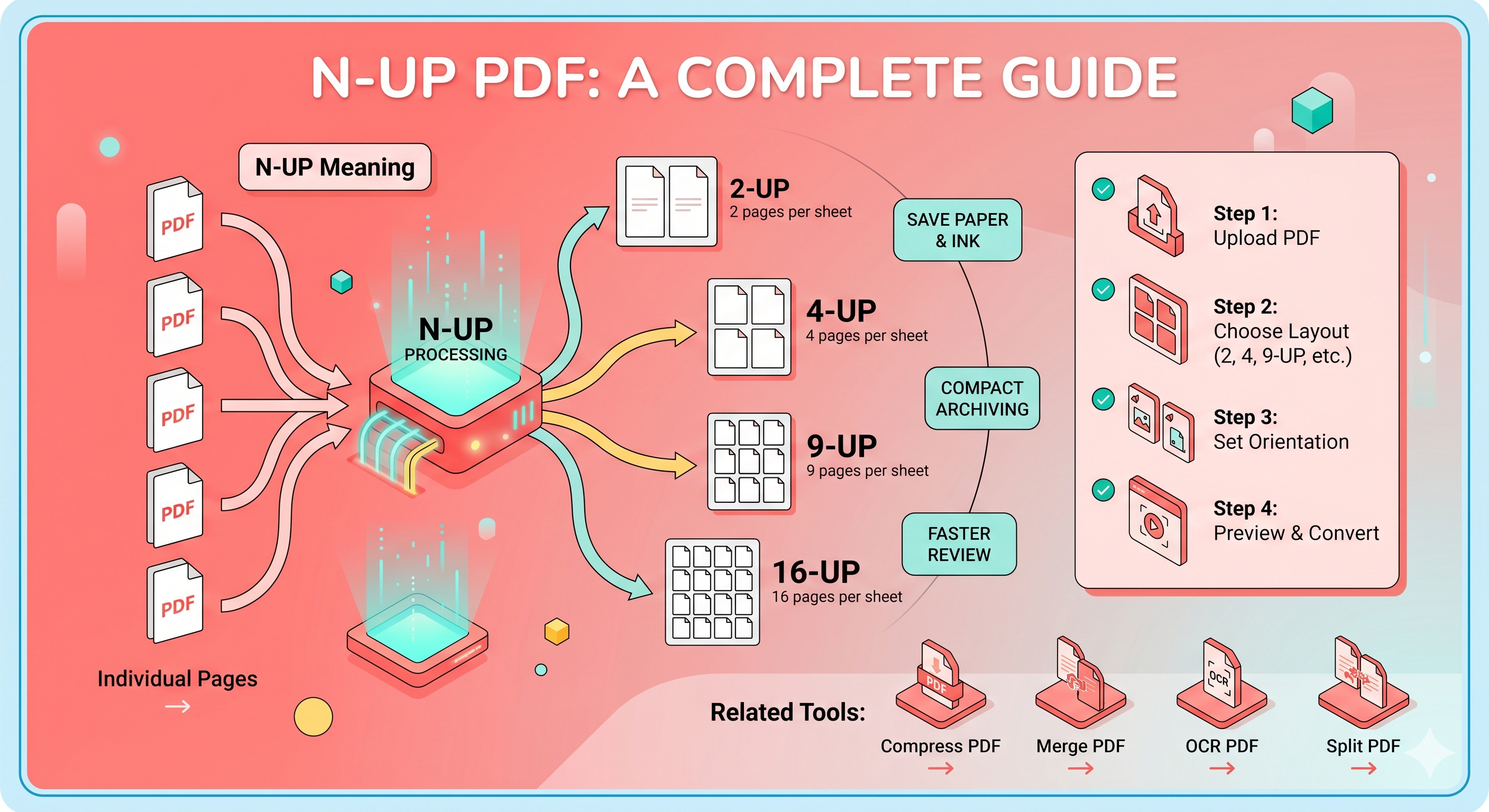
29. N-UP PDF
What it does: Arranges multiple PDF pages onto a single sheet — 2, 4, 6, 9, or 16 pages per page. Proportionally scales each page to fit the grid.
Who needs it: Students printing condensed revision notes. Professionals creating compact handouts. Anyone trying to reduce paper usage without losing content.
When to use it: Before printing any document where you want to save paper, or when creating review sheets. See our complete N-UP PDF guide for full layout recommendations.
30. Flatten PDF
What it does: Merges all interactive elements (form fields, annotations, comments, layers) into the static page content — making the PDF non-interactive but universally compatible.
Who needs it: Anyone submitting a filled form that must appear as a static document. Professionals finalizing annotated documents for archiving.
When to use it: After filling a PDF form, before submitting it — flattening ensures the form data is permanently embedded and can't be edited.
31. Delete PDF Pages
What it does: Removes specific pages from a PDF without affecting the rest of the document.
Who needs it: Anyone who needs to strip a cover page, a blank page, or an irrelevant section before sharing a document.
When to use it: When Split PDF is overkill — if you just need to remove one or two specific pages, this is faster.
32. Reverse PDF Pages
What it does: Flips the entire page order of a PDF — last page becomes first.
Who needs it: Anyone who scanned a document back-to-front (very common with flatbed scanners). Professionals who receive reversed documents from automated systems.
When to use it: When your scanned document reads from back to front.
Who Should Use Which Tools? (Audience-Specific Guides)
📚 If You're a Student
Your most important tools, in order of how often you'll need them:
- Compress PDF — For upload limits on assignment portals
- OCR PDF — For scanned lecture notes and textbooks
- Merge PDF — For combining chapters or multi-part assignments
- PDF to Word — For editing downloaded templates
- N-UP PDF — For printing compact revision notes
- Word to PDF — For submission-ready formatting
- Split PDF — For extracting specific chapters
💡 Student tip: Save pdftechno.com as a browser bookmark now, before you need it at 11:45 PM on a deadline night.
💼 If You're a Professional or Freelancer
Your workflow essentials:
- Protect PDF — For securing proposals, contracts, and reports before sending
- Sign PDF — For signing contracts without printing
- Watermark PDF — For branding drafts and proposals
- Merge PDF — For assembling portfolio pieces or multi-section reports
- Compress PDF — For email attachments and shared drives
- PDF to Excel — For extracting data from PDF reports
- Add Header and Footer — For branded, professional document formatting
🏢 If You're a Business or Team
Tools with the highest impact for business use:
- Protect PDF + Watermark PDF — Document security workflow
- PDF to PDF/A — Compliance and archiving
- Flatten PDF — Finalizing forms for submission
- OCR PDF — Digitizing physical records
- Repair PDF — Recovering corrupted files
- Extract Images from PDF — Asset extraction from vendor catalogs or briefs
The 20+ Language Support: Why It Actually Matters
Most PDF tools are built for English-speaking users and leave everyone else behind. PDF Techno's multi-language interface changes the experience fundamentally for non-English users:
Languages supported include: English, Arabic, French, Spanish, Hindi, German, Portuguese (Brazil & Portugal), Japanese, Turkish, Italian, Dutch, Russian, Polish, Korean, Chinese (Simplified & Traditional), Malay, Indonesian, Vietnamese, and more.
Here's why this matters beyond just reading the buttons:
- OCR accuracy — PDF Techno's OCR tool handles multi-language documents, meaning it can recognize and convert Arabic script, Hindi text, or Japanese characters in scanned documents — not just Latin alphabet text.
- Reduced errors — Users who aren't fluent in English make fewer mistakes when interface labels, tooltips, and instructions are in their native language.
- Wider accessibility — A freelancer in Jakarta, a student in Riyadh, and a professional in São Paulo can all use the same platform at the same skill level.
If you're a student or professional outside an English-speaking country, the language support alone makes PDF Techno the most accessible tool in its category.
How to Use Any PDF Techno Tool (Universal Steps)
Every tool on the platform follows the same simple pattern:
- Go to pdftechno.com and select your tool
- Upload your PDF (or other file, depending on the tool)
- Configure any settings — layout, compression level, password, language, etc.
- Process — click Convert, Compress, Merge, or the relevant action button
- Download your output file
No account. No app. No watermark. No credit card. The processed file is automatically deleted from the server after download for privacy.
Tips for Getting the Most Out of PDF Techno
Chain tools together for complex tasks:
- Large scanned document → OCR PDF → Compress PDF → Protect PDF
- Multi-file report → Merge PDF → Add Page Numbers → Add Header and Footer
- Printed notes → JPG to PDF → OCR PDF → N-UP PDF
Always compress before sharing — it's a 30-second step that prevents 90% of upload errors.
Use OCR before editing — if a PDF is scanned (image-based), run OCR first. Otherwise the Edit PDF tool won't find any text to work with.
Protect last — always apply passwords and restrictions as the final step, after editing and compressing. Processing protected files often requires unlocking them first.
Frequently Asked Questions
1. Is PDF Techno completely free?
Yes. All 30+ tools are free with no subscription, no account, and no hidden charges. Visit pdftechno.com to start immediately.
2. How many tools are available?
30+ tools spanning editing, conversion, compression, security, and AI-powered processing — all in one place.
3. Is my data safe when I upload files?
Yes. PDF Techno processes files securely and automatically deletes them from the server after processing. Your files are not stored or accessed.
4. Can I use PDF Techno on my phone?
Yes. It's entirely browser-based and works on mobile, tablet, and desktop — no app download required.
5. Which languages does PDF Techno support?
20+ languages including Arabic, French, Spanish, Hindi, German, Portuguese, Japanese, Turkish, Korean, Chinese, and more.
6. What's the best tool to start with if I'm new to PDFs?
Start with Compress PDF — it's the most universally needed tool and takes under 30 seconds to use.
7. Can PDF Techno handle scanned documents?
Yes. Use the OCR PDF tool to convert scanned image-based PDFs into searchable, editable text.
8. What if my PDF is corrupted and won't open?
Try the Repair PDF tool — it attempts to recover damaged files that standard PDF readers can't open.
Conclusion
PDF problems are universal. But having the right tool for each one doesn't have to mean maintaining a list of five different websites, managing subscriptions, or downloading software.
PDF Techno consolidates everything into one free, browser-based platform — 30+ tools, 20+ languages, no downloads, no sign-up. Whether you're a student uploading an assignment, a freelancer signing a contract, or a business archiving compliance documents, there's a tool here built for exactly what you need.
Bookmark it. You'll use it more than you expect.
Complete Tool Directory
| Tool | Category | Best For |
|---|---|---|
| Edit PDF | Editing | Quick text changes |
| Merge PDF | Organization | Combining files |
| Split PDF | Organization | Extracting pages |
| Organize PDF | Organization | Reordering pages |
| Rotate PDF | Editing | Fixing sideways scans |
| Crop PDF | Editing | Trimming margins |
| Add Page Numbers | Editing | Formal documents |
| Watermark PDF | Security | Branding & ownership |
| Sign PDF | Security | Digital signatures |
| Word to PDF | Conversion | Submission-ready docs |
| Excel to PDF | Conversion | Sharing spreadsheets |
| PowerPoint to PDF | Conversion | Sharing slide decks |
| JPG to PDF | Conversion | Photo scans |
| PNG to PDF | Conversion | Screenshots & diagrams |
| HTML to PDF | Conversion | Webpage archiving |
| JSON to PDF | Conversion | Developer data reports |
| PDF to Word | Conversion | Editing PDFs |
| PDF to Excel | Conversion | Extracting data |
| PDF to PowerPoint | Conversion | Editing slides |
| PDF to Image | Conversion | Extracting visuals |
| Compress PDF | Optimization | Reducing file size |
| PDF to PDF/A | Optimization | Long-term archiving |
| Protect PDF | Security | Adding passwords |
| Unlock PDF | Security | Removing restrictions |
| OCR PDF | AI/Advanced | Scanned documents |
| Repair PDF | AI/Advanced | Corrupted files |
| N-UP PDF | AI/Advanced | Multi-page layouts |
More from PDF Techno Blog: