How to Reduce PDF File Size Without Losing Image Quality
Large PDF files can quickly become a problem when you need to upload documents online, send them through email, or store them efficiently. Many websites and email platforms impose strict file size limits, which makes it important to reduce PDF size without damaging the quality of images or content.
However, many people struggle with compression tools that significantly reduce image clarity. When compression is done poorly, images can become blurry, charts lose detail, and scanned documents become difficult to read.
The key is to compress PDF at high quality while maintaining the integrity of images and graphics. By understanding what causes large PDF files and applying smart optimization techniques, you can shrink PDF images, reduce PDF resolution strategically, and optimize PDF size without sacrificing visual quality.
In this guide, we will explore the best ways to reduce PDF file size while keeping images sharp and documents readable — and how tools like PDFTechno help streamline the process.
Why PDF Files Become Large
Before attempting to reduce PDF size, it is important to understand what makes a PDF file heavy. Large PDFs are usually the result of high-resolution images, embedded resources, or inefficient compression settings.
High Resolution Images
Images are often the largest component of a PDF file. Many documents include photographs, graphics, or scanned images saved at extremely high resolutions. While this ensures excellent visual quality, it dramatically increases the overall file size. By applying smart compression techniques, you can shrink PDF images while preserving their visual clarity.
Scanned Documents
Scanned PDFs are essentially collections of image files. When documents are scanned at high DPI settings — 600 DPI or higher — the PDF can become extremely large, far beyond what is needed for digital use. Lowering the DPI to a reasonable level helps reduce PDF resolution while maintaining readability. This is particularly useful for scanned contracts, reports, and forms.
Embedded Fonts and Graphics
PDF files often contain embedded fonts and vector graphics to ensure consistent display across devices. Some PDFs also include unused fonts or redundant graphic elements that contribute to unnecessary file weight. Removing these elements helps optimize PDF size while preserving the structure and layout of the document.
Best Ways to Reduce PDF File Size Without Losing Image Quality
Reducing the size of a PDF without damaging image quality requires a balanced approach. Instead of aggressively lowering quality, the goal is to apply smart optimization techniques that keep images sharp while making the file smaller.
Compress Images Without Reducing Visual Quality
Images usually account for the largest portion of a PDF's file size. Modern compression techniques analyze the image data and remove redundant information that does not affect how the image appears to the human eye. This allows the document to compress PDF at high quality while maintaining image detail and color accuracy.
Reduce PDF Resolution Strategically
Many PDFs contain images stored at extremely high resolutions such as 600 DPI or more. For most digital viewing purposes, resolutions between 150 DPI and 300 DPI are more than sufficient. By lowering the resolution slightly, you can reduce PDF resolution while still maintaining sharp and readable images. This is particularly helpful for scanned documents, reports, and presentations intended for screen viewing.
Remove Unnecessary Metadata and Hidden Elements
Many PDF files contain hidden elements that increase file size but do not contribute to visible content:
- Document metadata
- Embedded thumbnails
- Unused fonts
- Hidden layers
Removing these elements helps optimize PDF size without affecting the layout or visual quality of the document.
Use Efficient Image Compression Formats
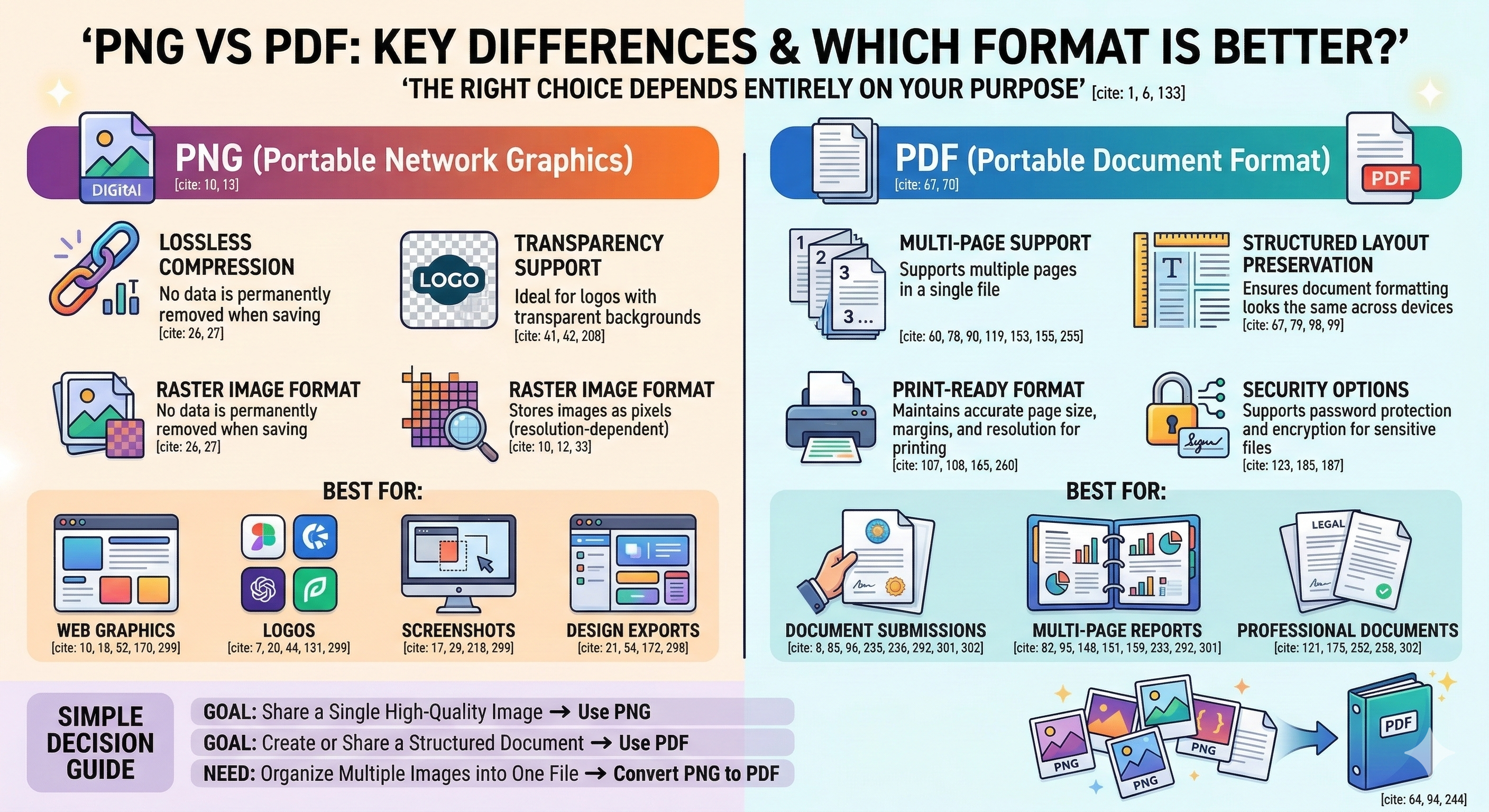
The type of compression used for images inside a PDF also influences file size. Photographs are often compressed efficiently using JPEG compression, while graphics and illustrations may perform better with PNG compression. Choosing the right compression method helps compress PDF at high quality while maintaining visual accuracy.
Best Tool to Reduce PDF Size Without Losing Quality
Manually optimizing images, adjusting resolution, and cleaning metadata can take time — especially when working with multiple PDF files. Using a dedicated compression tool simplifies the process and ensures consistent results.
Why Use an Online PDF Compression Tool
Online tools provide a convenient way to compress PDFs without installing additional software. Users can upload a file, apply compression, and download the optimized document within seconds. This is especially helpful for professionals, students, and businesses that frequently need to share, submit, or store large documents.
Reduce PDF Size Easily with PDFTechno
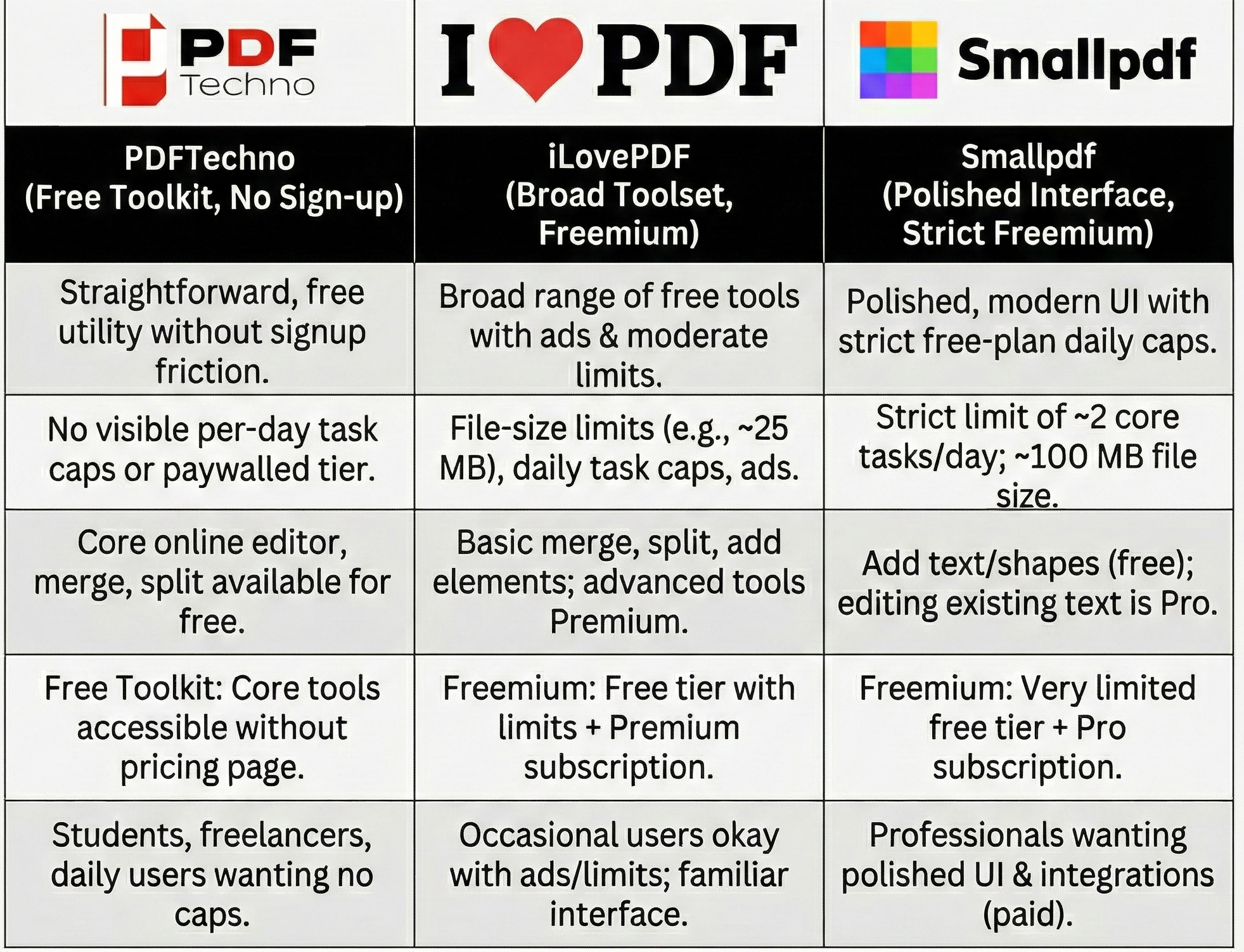
PDFTechno offers a simple and efficient way to manage large PDF files. The platform includes advanced compression technology that helps users reduce PDF size without sacrificing image clarity. With PDFTechno, users can:
- Compress PDF at high quality
- Shrink PDF images while preserving detail
- Reduce PDF resolution safely for digital viewing
- Optimize PDF size for faster uploads and sharing
Step-by-Step Guide to Compress PDF Using PDFTechno
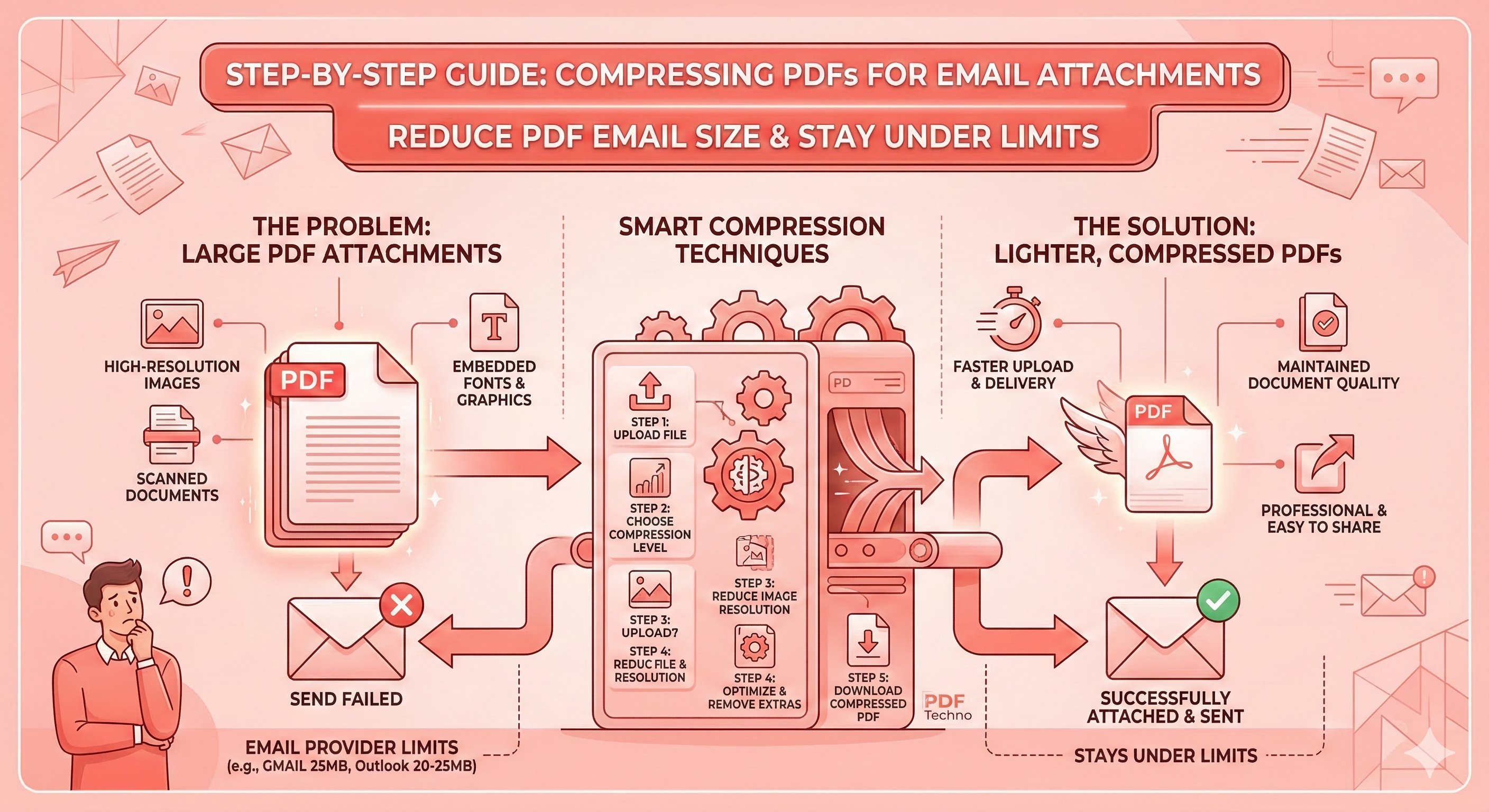
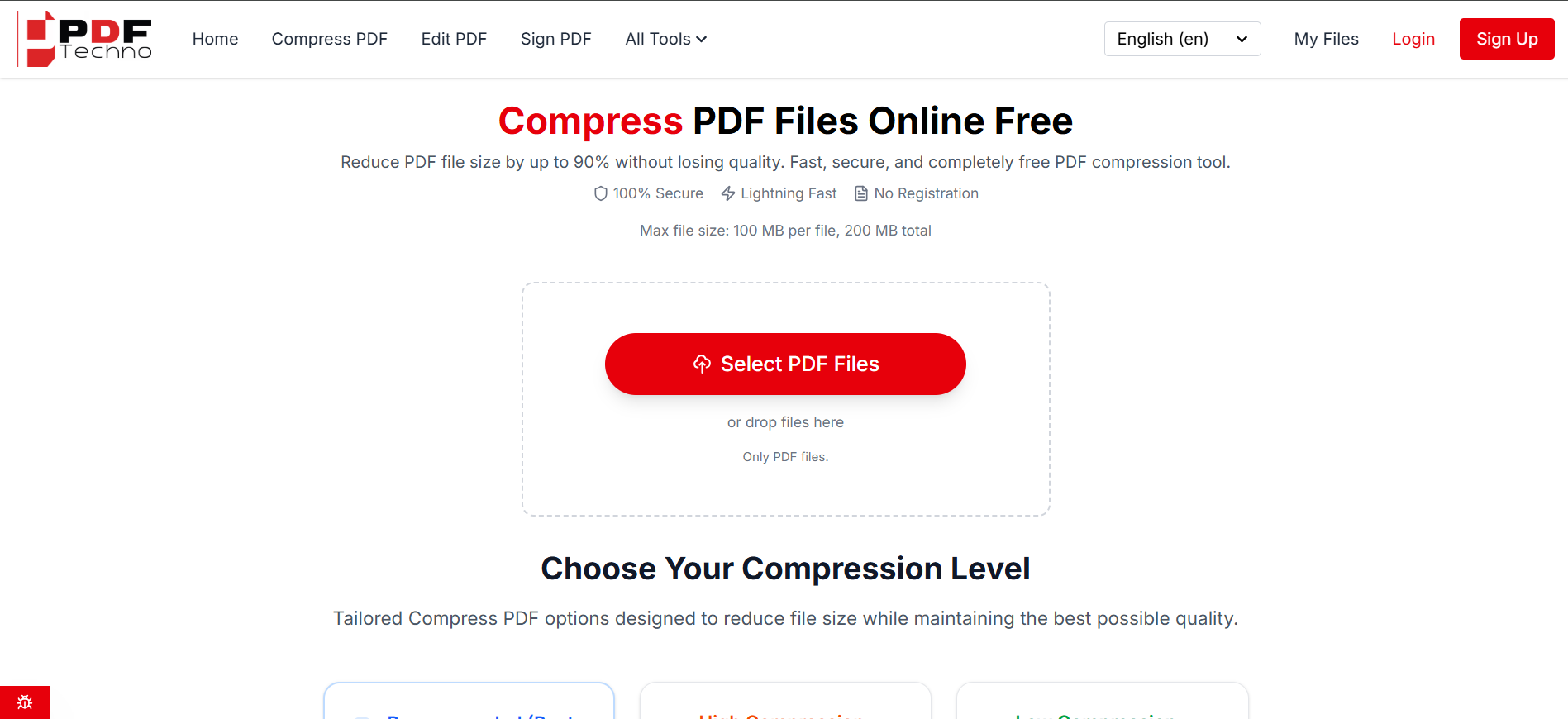
Step 1: Upload Your PDF File
Start by uploading the PDF file that you want to compress — documents, scanned reports, presentations, or invoices. Once uploaded, the tool analyzes the document structure to identify large elements such as images and embedded resources that contribute to the overall file size.
Step 2: Select the Compression Level
After uploading, select the compression level that best suits your needs. If your PDF slightly exceeds a limit, light compression may be sufficient. For very large files, stronger compression may be required. The system carefully adjusts image data and document elements to reduce PDF resolution where appropriate while maintaining clarity.
Step 3: Process the File with Smart Compression
The tool applies optimized algorithms that compress PDF at high quality by reducing redundant image data and removing unnecessary file components. This process also helps optimize PDF size by cleaning metadata and compressing images intelligently.
Step 4: Download the Optimized PDF
After compression is complete, the optimized document is ready for download. The new file is significantly smaller while still maintaining professional visual quality.
What Happens When You Compress PDFs Incorrectly
Many compression tools reduce file size by aggressively lowering image quality. This approach may shrink the file but creates serious problems:
- Blurry images — overly aggressive compression makes images pixelated and lose sharpness.
- Loss of detail in graphics — charts, diagrams, and design elements lose important detail.
- Unreadable scanned documents — lowering resolution too much makes scanned text difficult to read.
The goal is not just to shrink files, but to compress PDF at high quality while preserving image clarity.
Sending Compressed PDFs via Email
Large PDF attachments are one of the most common reasons email delivery fails. Most email providers enforce strict file size limits.
Gmail Attachment Limits
Gmail allows attachments up to 25 MB per email. If the total attachment size exceeds this limit, Gmail automatically suggests uploading the file to Google Drive instead of attaching it directly. By compressing the PDF beforehand, you can keep it within Gmail's attachment limit and send it directly as an attachment.
Outlook and Other Email Limits
Microsoft Outlook and several other email providers also enforce attachment limits, typically around 20 MB to 25 MB depending on the service configuration. Corporate email systems may impose even smaller limits to control bandwidth usage.
When to Use Cloud Links Instead
Sometimes a PDF file may still remain large even after compression. In such cases, sharing the document through a cloud storage link (Google Drive, Dropbox, etc.) is a practical alternative. However, if the goal is to send the document directly through email, compressing the file beforehand is the best solution.
Tips to Optimize PDF Size Without Losing Image Quality
Avoid Over Compression
Applying extremely aggressive compression settings can make images appear blurry or pixelated. Moderate compression often achieves the best balance between file size and image clarity.
Choose the Right Image Resolution
Lowering resolution to a practical range — typically 150 to 300 DPI — helps reduce PDF resolution while maintaining clear visuals for screens and presentations.
Optimize Images Before Creating the PDF
If you are creating a PDF from images or design files, optimizing the images beforehand can significantly reduce the final file size. Resizing or compressing images before converting them into a PDF helps shrink PDF images while maintaining good visual quality.
Use Reliable Compression Tools
Advanced tools like PDFTechno analyze the document structure and apply targeted compression methods to optimize PDF size without damaging images or formatting.
Frequently Asked Questions
How can I reduce PDF size without losing image quality?
You can reduce PDF size by compressing images intelligently, removing unnecessary metadata, and lowering image resolution slightly. Using tools designed for high-quality compression helps maintain image clarity while reducing file size.
Does compressing a PDF reduce image quality?
Not necessarily. Modern compression tools are designed to compress PDF at high quality by optimizing image data rather than aggressively removing detail. This helps maintain clear visuals while reducing file size.
What is the best resolution for PDF images?
For most digital documents, image resolutions between 150 DPI and 300 DPI provide a good balance between clarity and file size. Higher resolutions are usually unnecessary unless the document is intended for high-quality printing.
How can I shrink PDF images without making them blurry?
Using intelligent compression algorithms allows you to shrink PDF images while preserving important visual details. Avoid tools that apply extreme compression settings that degrade image quality.
What is the best way to optimize PDF size?
The best way is to combine image compression, resolution adjustment, and metadata cleanup. Dedicated tools like PDFTechno automate this process and help users reduce PDF size efficiently while maintaining document quality.
How do I compress a PDF for email?
Upload the file to a compression tool, apply optimized compression settings, and download the smaller file. This process helps reduce the document size while maintaining readability and image quality.
What is the maximum PDF attachment size for Gmail?
Gmail allows attachments up to 25 MB per email. If a file exceeds this limit, Gmail suggests uploading it to Google Drive and sharing a link instead.
How do I reduce PDF email size quickly?
Using an online compression tool is the fastest way to reduce PDF email size. These tools automatically optimize images and document elements to produce a smaller file suitable for email attachments.