How to Reduce PDF Size Without Losing Quality
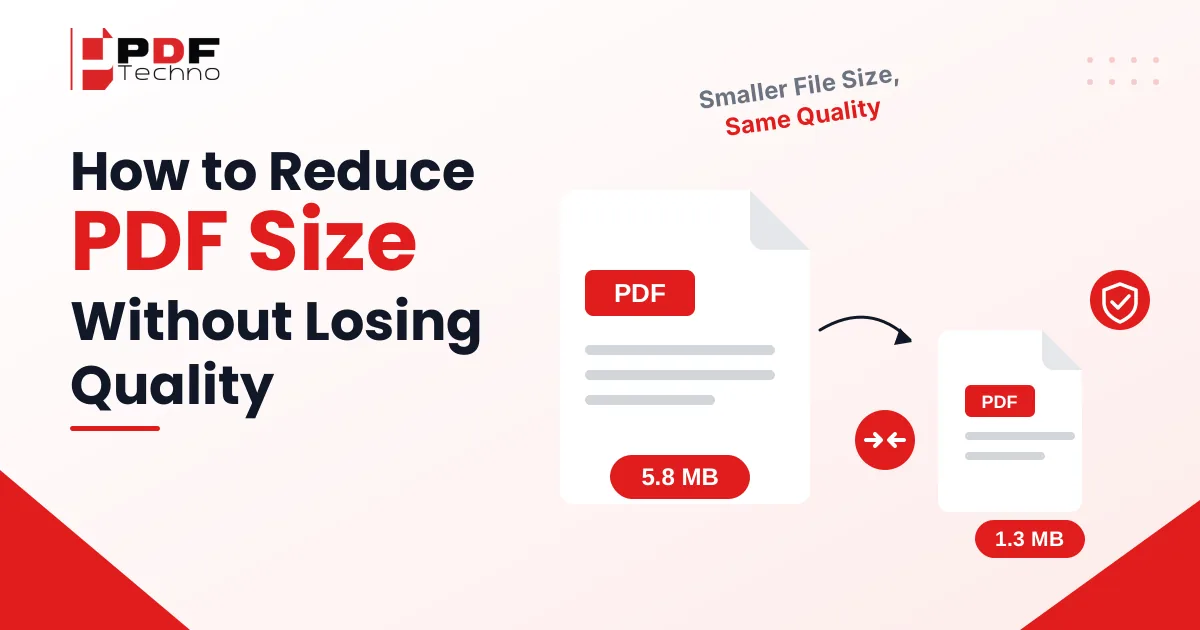
Quick Answer: It is easy to reduce the size of a PDF document without compromising on its quality once you know how. You can reduce the size of your PDF through an online software, PDF Techno, or simply delete unwanted pages from the document. The best way to go about this is to select a low or recommended level of compression, have a backup of your original file, and review the content before sending.
Introduction
Your form is ready, but the portal says "file size too large." Annoying, right? You face this with job applications, college forms and government websites, and sometimes even WhatsApp and email won't take your PDF.
It gets tougher when your PDF has scanned pages, because every page is saved like a photo. But don't worry. You can make your PDF much smaller with the Compress PDF tool without spoiling how it looks. In this guide, you'll learn easy ways to do it, step by step, in simple words. Let's get started without any delay.
What Does It Mean to Reduce PDF Size Without Losing Quality?
It means making your PDF file smaller while the text stays sharp and the images stay clear. When you open the smaller file, you should not notice any difference. There are two ways to do this, and both work differently.
- Lossless compression: It removes extra hidden data from your file, like unused fonts and duplicate items. You lose nothing you can see, so the quality stays exactly the same.
- Lossy compression: It lowers the image detail to save space. If you do it lightly, you won't notice. If you overdo it, your pictures turn soft and blurry.
For most files, a light mix of both works best. You get a small file that still looks really good.
How to Reduce PDF Size Without Losing Quality
You don't need fancy software to shrink a PDF. These six easy methods all work really well, and your pages will stay sharp and clear.
Method 1: Compress a PDF Using Adobe Acrobat
Adobe Acrobat is the second option. It gives you more control if you already have it on your computer.
Follow these steps:
- Open your PDF in Adobe Acrobat Pro.
- Go to File, then Save as Other, then Reduced Size PDF.
- Choose the version compatibility, or keep the default one.
- Click OK.
- Pick a name and a location, then save your file.
- If it is still big, go to File, then Save as Other, then Optimized PDF for more settings.
Best for: You already use Acrobat Pro and want full control over image quality, fonts and other settings, all on your own.
Why use Adobe Acrobat for this?
- Adobe is the company that created the PDF format.
- The Optimized PDF option lets you control image quality and fonts.
- It can remove hidden data you don't need.
- It works offline, so your files stay on your computer.
- It handles big and heavy files well.
Method 2: Reduce Image Resolution Carefully
Images make your PDF heavy, so lowering their resolution a little saves a lot of space. This helps a lot with scanned pages, since each one is an image. Use these safe numbers:
- 150 dpi: enough for reading on screen
- 300 dpi: enough for printing
- Below 100 dpi: avoid it, because your text turns fuzzy
Lower it step by step and check the pages each time.
Method 3: Remove Unnecessary Pages and Content
Scans often have blank pages or repeated pages. Remove them first, and your file gets lighter before you start compressing.
Steps:
- Open the Delete PDF Pages tool on a website.
- Upload your scanned file.
- Select the blank, repeated or useless pages.
- Delete them.
- Download your new file.
- Run it through Compress PDF to make it even smaller.
Important: Keep a copy of your original file before deleting, so you can go back if you remove the wrong page.
Best for: You have long documents with blank pages, repeated pages or extra attachments.
Also Read: Too Many PDF Files? Here's How to Combine Them Into One Document
Method 4: Use Lossless Compression
Lossless compression makes your file smaller without changing how it looks. It cleans out hidden extras like unused fonts, old edit data and duplicate items. You save less space, but your quality stays exactly the same. It is the safest choice when nothing can change, like contracts, legal papers or print-ready files. On this tool, the Low Compression level is the gentlest option for such files.
Best for: You have contracts, legal papers or certificates, and every small detail must stay exactly as it is in the original.
Method 5: Export the Original Document Using Optimized Settings
If you still have the original Word, PowerPoint or design file, export the PDF again with smaller settings. This usually works better than compressing later.
Recommended workflow:
- Open the original file in the app you made it in.
- Resize or compress the big photos inside your file first.
- Go to File, then Save As or Export.
- Choose PDF as the format.
- Pick "Minimum size" or "Standard", not "High quality print".
- Export the file and check its size.
- If it is still too big, run it through PDF Techno.
Method 6: The Quickest & 100% Free Way (Using PDF Techno)
PDF Techno is a free tool. It compresses your file in a few clicks, and you don't need an account.
Follow these steps:
- Open the Compress PDF page on PDF Techno.
- Upload your file, or drag and drop it. You can add many files together.
- Choose a level: Recommended, High or Low compression.
- Turn on Grayscale if your file is mostly text and you want it even smaller.
- Click Compress and wait a few seconds.
- Download your smaller PDF.
Best for: You need a quick, free fix for big files, including scanned PDFs, before email or portal uploads.
Why use PDF Techno for this?
- It is free, and you don't need to sign up.
- You get three levels: Low (30-50% smaller), Recommended (60-80%) and High (80-90%).
- Grayscale can cut another 20-30% from text-heavy files.
- You can compress many files in one go.
- It works on scanned documents, forms, presentations and eBooks.
- It runs in your browser, even on your phone, and deletes your files automatically after processing.
Disclaimer: This article is provided for general informational and educational purposes only. The effectiveness, security, and quality of PDF compression depend on the software or service used and the document being processed. Always review the provider's terms and privacy policy before uploading files, and verify the compressed document before relying on it for important purposes.
How to Compress a PDF Without Making It Blurry
Blurry pages happen when you squeeze a file too hard. Follow these habits and your PDF stays sharp every time.
- Pick Recommended: This level balances size and clarity. Most of your files shrink a lot and still look clean on your screen.
- Avoid High Compression: It saves the most space, but it can soften your images. Use it only when an email limit forces you.
- Zoom and Check: After compressing, zoom in to 200% and read the small text carefully. If it looks clear there, you are good.
- Scan It Right: When you reduce a scanned file, start with a clean 200-300 dpi scan. A poor scan stays poor after compression. You can use the Scan to PDF tool with your phone camera.
- Keep the Original: Never overwrite your first file. Save the new one with a different name, so you can redo it anytime you want.
- Use Grayscale: Colour adds weight to your file. For text pages, grayscale cuts the size more and keeps everything easy to read.
A quick check before you send takes ten seconds. It saves you from sharing a blurry file with someone important.
How Much Can You Reduce PDF File Size?
How much your file shrinks depends on what is inside. Image-heavy files drop the most, and text-only files drop less.
| Compression Level | Size Reduction | Quality | Best For |
|---|---|---|---|
| Low | 30–50% | Highest | Reports, presentations, contracts |
| Recommended | 60–80% | Clear | Everyday files |
| High | 80–90% | Slight loss | Strict email limits |
| Grayscale (add-on) | Extra 20–30% | Text stays readable | Text-heavy files |
Formula to check your result:
Reduction % = (Original size − New size) ÷ Original size × 100
For example, if your 10 MB file becomes 3 MB, the reduction is (10 − 3) ÷ 10 × 100 = 70%.
Scans often shrink the most, so if your file is a scan, expect big savings with very little visible change.
Common Mistakes to Avoid When Compressing PDFs
A few small mistakes can spoil a good result. Go through this list once before you click the compress button.
- Using High Compression for every single file
- Overwriting your original file without keeping a backup
- Compressing the same file again and again
- Scanning your pages at needlessly high resolution at first
- Not zooming in to check pages after compressing
- Using unknown websites for private or confidential files. If your file is confidential, add a password with Protect PDF before sharing.
- Deleting pages from your file without checking them first
Avoid these mistakes and you get a smaller file that looks the same, with no second attempts, no wasted time.
Conclusion
Making your PDF smaller does not mean losing quality. Pick the method that suits your file: a free tool for speed, Acrobat for full control, or a simple page cleanup for long documents. And if your file is a scan, start with the Recommended level and check the result.
Next time your file is too big to send, don't panic. Try one of these methods, keep your original safe, and you will have a light, clean PDF in a minute. Try PDF Techno's Compress PDF tool today. It is free.
Frequently Asked Questions (FAQs)
1. Can I reduce PDF size without losing quality?
Yes, you can. Use the Recommended or Low compression level, and your text and images stay clear. Avoid High compression unless an email or portal limit forces you to go smaller.
2. How can I reduce the size of a scanned PDF without losing quality?
Upload your file to PDF Techno, choose Recommended and download it. Scans are made of images, so scan at 200-300 dpi next time. After compressing, zoom in and check your pages once.
3. Why is my PDF file so large?
Usually because of high-resolution images, embedded fonts or scanned pages. Each scanned page is saved like a picture, and when you have many pages, those pictures add up very fast.
4. Is it safe to compress PDFs online?
On a trusted tool, yes. PDF Techno uses an encrypted connection and deletes your uploaded files automatically after processing. Still, avoid unknown websites when your file has private or confidential details.
5. How much can I reduce a PDF?
Anywhere from 30% to 90%, depending on the level you pick and what is inside your file. The Recommended level on PDF Techno usually gives you around a 60-80% reduction.


