Top 5 PDF Problems Students Face in 2026 (And How to Fix Each One Fast)
Introduction
It's 11 PM. Your assignment is due at midnight. You try to upload the PDF and get: "File size exceeds limit."
Or you open your professor's scanned notes and realize you can't search, highlight, or copy a single word.
PDF problems are not new — but in 2026, with nearly all academic work happening digitally, these issues hit harder and more often. A file that won't upload, a document you can't edit, or content you can't search can directly affect your grade, not just your mood.
This guide breaks down the 5 most common PDF problems students face in 2026, explains why they happen, and gives you the exact fix for each — all using PDF Techno's free tools.
Why PDF Problems Hit Students Harder in 2026
The shift to fully digital education has made PDFs unavoidable. Students today use PDFs for:
- Downloading and annotating lecture slides
- Submitting assignments through university portals
- Accessing eBooks and research papers
- Scanning handwritten notes
- Sharing group project documents
The problem is that universities, professors, and publishers all handle PDFs differently — different restrictions, formats, sizes, and security settings. That inconsistency creates friction at the worst possible times: right before deadlines.
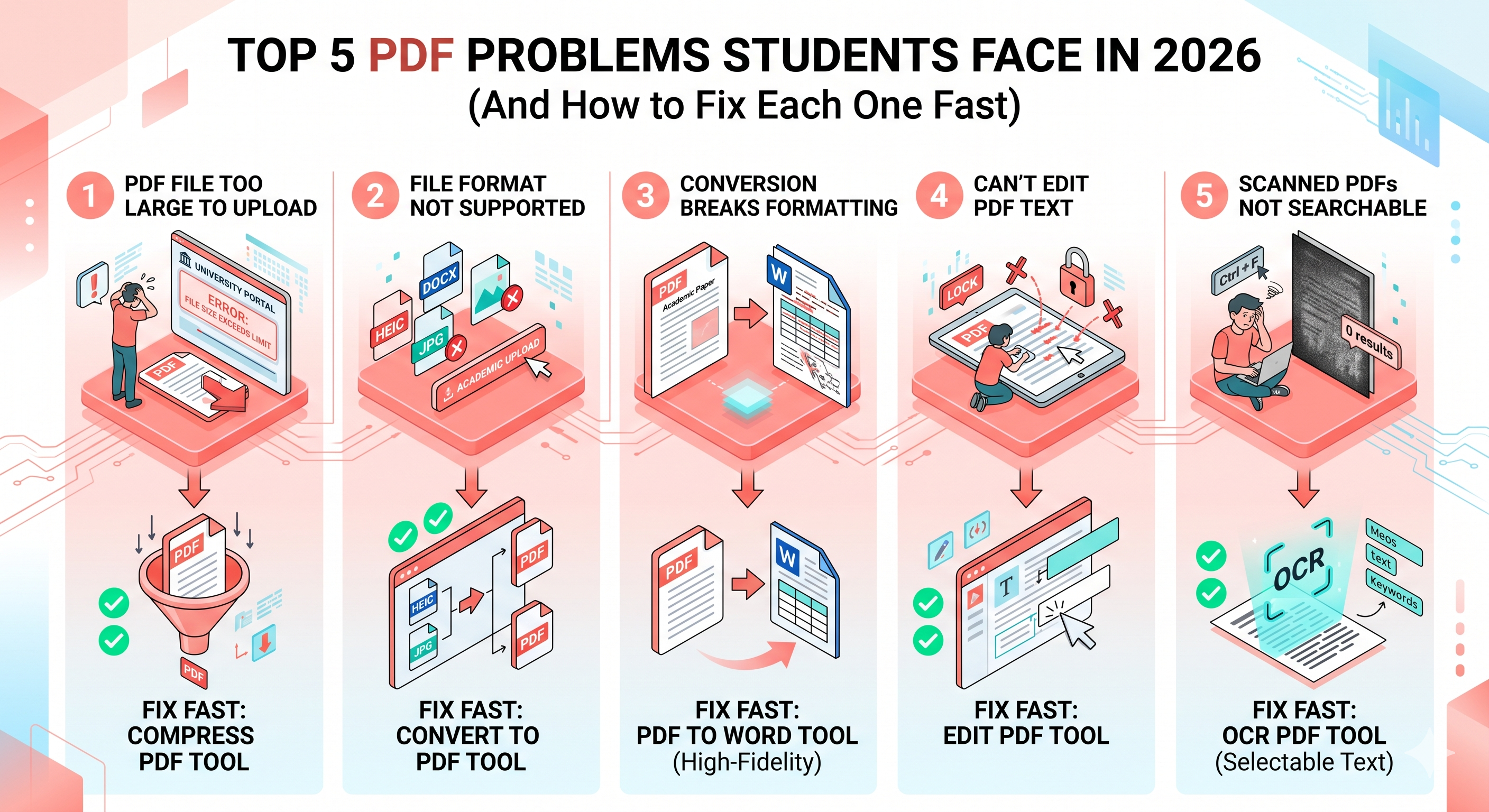
Problem 1: PDF File Too Large to Upload
Why It Happens
High-resolution scans, embedded images, and uncompressed exports from Word or PowerPoint create PDFs that can easily exceed 10–20MB. Most university portals cap uploads at 2–5MB.
The Real-World Impact
- Upload fails on the assignment portal
- Email attachment gets rejected
- Slow loading on mobile when studying on the go
The Fix: Compress Your PDF Before Uploading
Use PDF Techno's PDF Compressor to reduce file size by up to 80% without visibly affecting quality. It works by optimizing image resolution and removing redundant data.
How to do it:
- Go to pdftechno.com/compress-pdf
- Upload your large PDF
- Choose compression level (Standard for assignments, High for archiving)
- Download the compressed file
💡 Pro tip: Always compress PDFs before submitting, not just when the portal rejects them. Smaller files load faster for whoever is grading them, too.
Problem 2: File Format Not Supported for Submission
Why It Happens
Students receive materials in HEIC (iPhone photos), JPG, DOCX, or even JSON format. When you try to convert them to PDF, the result often looks broken — wrong fonts, misaligned images, or missing elements.
The Real-World Impact
- Scanned notes saved as HEIC images can't be submitted directly
- Converted PDFs display differently on the professor's screen
- Tables and charts from Word files get distorted
The Fix: Use a Reliable Format Converter
PDF Techno's file-to-PDF converter supports multiple input formats and preserves the original layout during conversion.
Supported formats: JPG, PNG, HEIC, DOCX, XLSX, PPTX, and more.
How to do it:
- Go to pdftechno.com/convert-to-pdf
- Upload your file in the original format
- Convert and download a clean, properly formatted PDF
💡 Pro tip: For iPhone users, switch your camera setting from HEIC to JPG in Settings → Camera → Formats → Most Compatible to avoid HEIC conversion issues altogether.
Problem 3: PDF Conversion Breaks the Formatting
Why It Happens
Converting a PDF back to Word (or Word to PDF) is a two-way translation between different document systems. Tables, columns, footnotes, and special characters often don't survive the conversion intact.
The Real-World Impact
- Research papers with multi-column layouts become unreadable after conversion
- Tables turn into plain text with no structure
- Submitted assignments look completely different from what you prepared
The Fix: Use a High-Fidelity PDF Converter
Not all converters are equal. PDF Techno's PDF-to-Word converter is designed to maintain the original layout — including tables, columns, spacing, and fonts — during conversion.
How to do it:
- Go to pdftechno.com/pdf-to-word
- Upload your PDF
- Download the converted Word file with original formatting intact
💡 Pro tip: After conversion, always open the Word file and do a quick visual scan before submitting. Pay attention to tables and any content near page breaks — these are the most common conversion weak points.
Problem 4: Can't Edit Text in a PDF
Why It Happens
PDFs are designed to display content reliably, not to be edited like a Word document. When a professor hands back an annotated PDF or you need to fill in a form, you're often stuck — unless you have the right tool.
The Real-World Impact
- Can't fix a typo in a submitted assignment before re-uploading
- Can't fill in a PDF application form
- Can't add your name or student ID to a downloaded template
The Fix: Use a PDF Editor
PDF Techno's PDF editor lets you click directly on text and modify it, add new text boxes, insert images, and annotate — all in the browser.
How to do it:
- Go to pdftechno.com/edit-pdf
- Upload your PDF
- Click on any text to edit it, or use the toolbar to add annotations, highlights, or new text
- Download the edited version
⚠️ Note: If the PDF is password-protected, you'll need to unlock it first using PDF Techno's Unlock PDF tool before editing.
Problem 5: Scanned PDFs Are Not Searchable
Why It Happens
When a document is scanned, the scanner captures it as an image, not as text. The PDF looks like a normal document but contains no actual text data — so Ctrl+F, highlighting, and copying don't work at all.
The Real-World Impact
- Can't search for keywords in 80-page lecture notes
- Can't copy a quote from a scanned research paper
- Can't use text-to-speech or accessibility tools on the content
The Fix: Use OCR (Optical Character Recognition)
OCR technology analyzes the visual patterns in a scanned image and converts them into real, selectable text. PDF Techno's OCR tool handles this automatically.
How to do it:
- Go to pdftechno.com/ocr-pdf
- Upload your scanned PDF
- Select the language of the document (important for accuracy)
- Process and download — your PDF is now fully searchable and copyable
💡 Pro tip: After OCR processing, combine with PDF Techno's compression tool to keep the file size manageable. OCR output can be slightly larger than the original scan.
Quick Reference: Problem → Solution Table
| Problem | Cause | PDF Techno Tool |
|---|---|---|
| File too large to upload | Uncompressed images/scans | Compress PDF |
| Format not supported | Wrong file type | Convert to PDF |
| Formatting breaks in conversion | Incompatible converter | PDF to Word |
| Can't edit PDF text | PDF display format | Edit PDF |
| Scanned PDF not searchable | Image-only scan | OCR PDF |
Bonus: 3 PDF Habits That Will Save You Every Semester
1. Always compress before submitting
Make it a habit. Even if the file fits, a smaller file uploads faster and causes fewer errors on dodgy university Wi-Fi.
2. Organize by subject folder, not by date
Rename your PDFs with a consistent format: SubjectName_Topic_Date.pdf. Searching your downloads folder at midnight is painful otherwise.
3. Run OCR on every scanned set of notes
The 30 seconds it takes to OCR your notes will save you hours of scrolling when you're looking for a specific term during revision.
Frequently Asked Questions
1. What is the most common PDF problem students face?
Large file size and non-editable content are the top two. Both are easily fixed with PDF Techno's compression and editing tools.
2. How can I fix PDF formatting issues after converting from Word?
Use a high-fidelity converter like PDF Techno's PDF-to-Word tool. Always preview the output before submitting.
3. What is OCR and why do students need it?
OCR (Optical Character Recognition) converts scanned image-based PDFs into real, searchable text. Essential for making lecture notes and textbooks actually usable. Try it at pdftechno.com/ocr-pdf.
4. Are PDF tools like PDF Techno free for students?
Yes. PDF Techno offers free access to core tools including compression, OCR, editing, and conversion — no account required for basic use.
5. How can I manage multiple PDFs more efficiently?
Use PDF Techno's Merge and Split PDF tools to combine related documents or extract specific pages from large files.
Conclusion
PDF problems are predictable — which means they're also preventable. Once you know which tool fixes which problem, you'll stop losing time to file errors and start spending it on actual studying.
The five issues covered here — large file size, format errors, broken conversions, editing restrictions, and unsearchable scans — account for the vast majority of student PDF frustrations. Every single one has a free, fast fix on PDF Techno.
Bookmark it. You'll thank yourself at 11:58 PM on a deadline night.
All tools mentioned in this article:
- Compress PDF — Reduce file size before uploading
- Convert to PDF — Convert any format to PDF
- PDF to Word — Convert with layout preserved
- Edit PDF — Edit text directly in the browser
- OCR PDF — Make scanned PDFs searchable
- Merge PDF — Combine multiple PDFs
- Split PDF — Extract specific pages