
Extract Pages from PDF Online
Pick the pages you need and save them as a new PDF. Select pages by clicking thumbnails, type a range like 1-3, 5, 8-10, or choose all odd or even pages in one click.
Drop PDF Files Here
Release to add files
Extract Pages from a PDF Online
Need only a few pages from a long PDF? PDF Techno’s Extract PDF Pages tool lets you pull out exactly the pages you want and save them as a brand new PDF. Upload your file, select the pages on screen or type a page range, and download the result in seconds. No software to install and no sign-up required.
Unlike a plain splitter, the extractor builds a single, clean PDF from your selection. You can pick non-consecutive pages such as 1, 4 and 9-12, take a whole range like 20 to the end, or grab every odd or every even page with one click.
The extracted file keeps your original page quality, text, images and layout. Bookmarks and links that point to pages you left out are cleaned up, so your new PDF contains only what you chose and its size shrinks to match.
Extract, Split or Delete: Which Tool Do You Need?
PDF Techno has a tool for every page task.
Extract PDF Pages
Keep only the pages you choose in one new PDF. Best when you know which pages you want.
Delete PDF Pages
Remove the pages you don’t want and keep everything else. Best when only a few pages need to go.
Delete pages →Split PDF
Break a PDF into several files by page ranges. Best when you need multiple output documents.
Split a PDF →Extract Odd or Even Pages from a PDF
Printing double-sided, splitting scanned fronts and backs, or separating a book into recto and verso pages? Use the Odd pages and Even pages buttons to select every other page instantly, without counting or typing a long list.
How to Extract Pages from a PDF
Four quick steps, right in your browser.
Upload your PDF
Click Select PDF File or drag and drop your document onto the page. Password-protected PDFs are supported, you’ll be asked for the password.
Select the pages to extract
Click page thumbnails, type a range such as 1-3, 5, 8-10, or use the Odd pages and Even pages buttons to select every other page.
Click Extract Pages
Check the summary showing how many pages will be in your new PDF, then click the Extract Pages button.
Download your new PDF
Preview the result and download it. Your selected pages are saved in their original order.
When to Extract PDF Pages
Common reasons people save a few pages from a larger document.
Share just one section
Send a client only the relevant chapter, clause or invoice instead of the whole report.
Submit specific forms
Pull the signed page or required form out of a long application packet.
Create study notes
Save the lecture slides or textbook pages you need for revision into one short file.
Print selected pages
Extract only the pages you want to print and save paper and ink.
Separate scanned pages
Use odd and even selection to separate fronts and backs from a duplex scan.
Reduce file size for email
Keep only the necessary pages so the attachment is small enough to send.
Why Use Our PDF Page Extractor
A faster, clearer way to save only the pages you need.
Visual page selection
See a thumbnail of every page and click to select. No guessing which page number holds the content you need.
Flexible page ranges
Type ranges like 1-3, 5, 8-10, use 4- for page 4 to the end, or last for the final page. Out-of-range ranges are clamped to the document.
Odd and even in one click
Select every odd or every even page instantly, then fine-tune by clicking pages on or off.
Original quality preserved
Text stays selectable, images stay sharp and fonts and layout are untouched. Pages are copied, not re-rendered.
Smaller, cleaner output
Bookmarks, named destinations and links to pages you didn’t keep are removed, so the file size reflects only the pages you extracted.
Works on any device
Use it on desktop, tablet or phone, in any modern browser. Nothing to install.
Secure and Private PDF Page Extraction
Your documents are transferred over an encrypted connection and used only to create the file you asked for. We don’t read, sell or share your content. Password-protected PDFs work too, and the password is used only to open your file.
Extract PDF Pages: Frequently Asked Questions
Quick answers about extracting pages from a PDF.
How do I extract pages from a PDF for free?
Upload your PDF to the Extract PDF Pages tool, click the pages you want or type a range like 1-3, 5, then click Extract Pages and download the new PDF. It runs in your browser with no software or sign-up needed.
How do I extract only odd or even pages?
After uploading, click the Odd pages or Even pages button. The matching pages are selected immediately, and you can still click individual pages to add or remove them before extracting.
Can I extract non-consecutive pages?
Yes. Select any combination of pages by clicking them, or type a list such as 1, 4, 9-12. All of them are saved into one PDF.
What page range formats are supported?
You can use single pages (5), ranges (2-6), open-ended ranges (4- for page 4 to the end) and the word last for the final page, separated by commas. A range that goes past the last page is shortened to fit.
Will the extracted pages keep their order?
Yes. Pages are always saved in their original order, so typing 3,1 gives you page 1 followed by page 3. To rearrange pages, use our Organize PDF tool.
Does extracting pages reduce quality?
No. Pages are copied into the new file as they are, so text, images and fonts keep their original quality.
Can I extract pages from a password-protected PDF?
Yes. Enter the password when asked and the tool will open the document so you can choose pages. The password is used only to read your file.
What is the difference between extracting and splitting a PDF?
Extracting creates one new PDF from the pages you select. Splitting divides a PDF into several separate files, for example one per chapter. Use Extract when you want a single output file.
More PDF Page Tools
Organize, split and clean up your PDFs.
Related Guides

How to Remove Watermark from PDF: Easy Ways to Get a Clean Document
Learn how to remove watermark from PDF online. Discover why PDF watermarks need to be removed and how to remove them using PDF Techno.

Request Signatures Online: How to Send a PDF for Electronic Signature
Learn how to request a signature online and send PDFs for electronic signing. See how to request electronic signatures with PDF Techno.

PDF to Markdown Converter: How to Convert PDF Files into Editable Markdown
Convert PDF to Markdown online with PDF Techno. Learn why PDF to Markdown is useful and how to turn PDF content into editable Markdown files.

Too Many PDF Files? Here's How to Combine Them Into One Document
Have too many PDF files? Learn how to combine multiple PDFs into one organized document for easier sharing, submission, storage, and management.
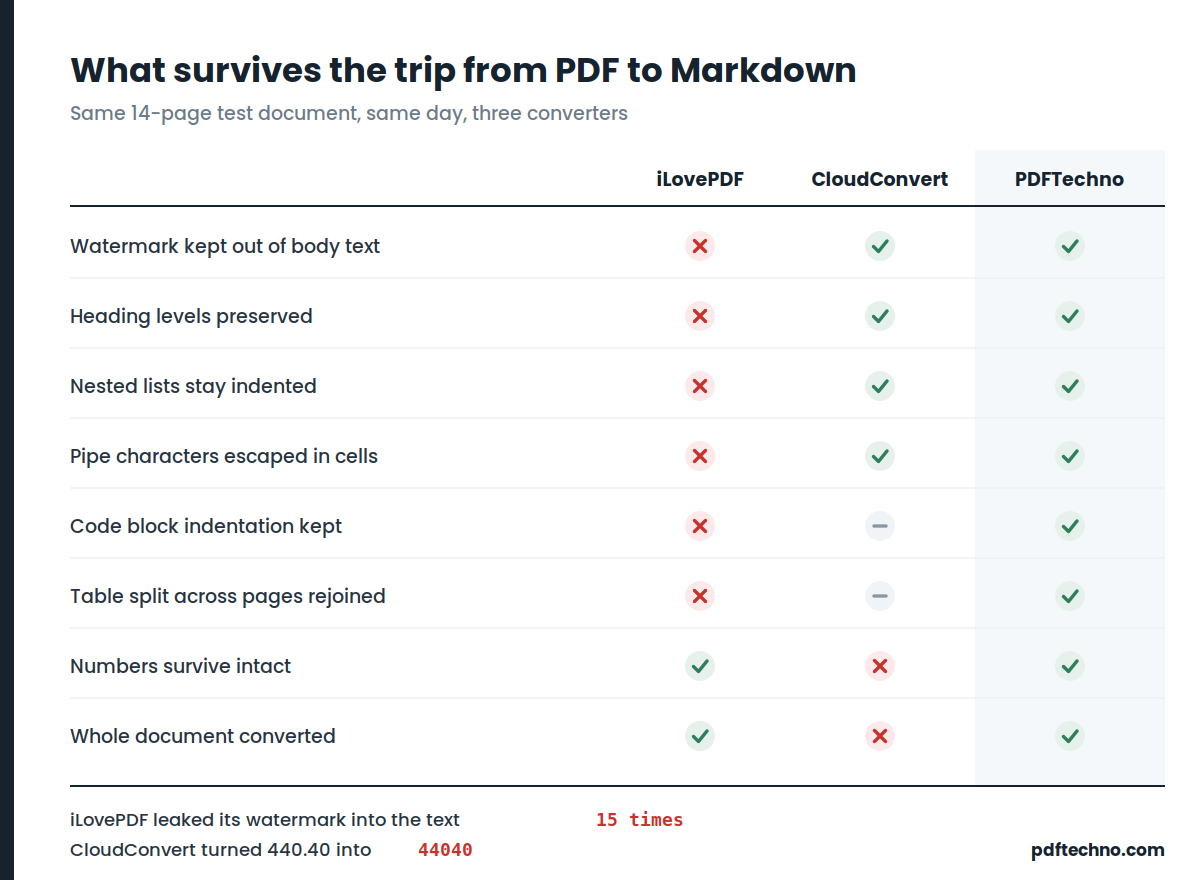
iLovePDF vs CloudConvert vs PDFTechno: PDF to Markdown Tested on a Real Bill
We put three PDF to Markdown converters through 45 structural checks and a real electricity bill. One changed 440.40 into 44040. One leaked its watermark 15 times. Full results and test files.
XML Is Hard to Read? Turn XML Data Into a Clean PDF
Learn why XML can be difficult to read and how to convert XML to PDF for easier viewing, sharing, printing, documentation, and record keeping.