
Convert PDF to Markdown
Turn any PDF into clean, structured Markdown - headings, tables, lists and links preserved.
Drop PDF Files Here
Release to add files
A PDF parser, not a text dump
Most "PDF to text" tools hand back a wall of lines in whatever order the file happened to store them. This one reconstructs the document: which lines were a heading, which block was a table, which column comes first, and where a paragraph was cut in half by a page break.
Plain text extraction
Quarterly Results
Revenue grew 18% year on
year. The table below
Region Q3 Q4
EMEA 4.1 4.8
APAC 2.7 3.9
breaks down performance by
region.
This converter
## Quarterly Results

Revenue grew 18% year on year.
The table below breaks down
performance by region.

| Region | Q3  | Q4  |
|--------|-----|-----|
| EMEA   | 4.1 | 4.8 |
| APAC   | 2.7 | 3.9 |
Same PDF. The difference is structure: a heading level, a real table, and a paragraph put back together around the block that interrupted it.
What survives the conversion
Structure is recovered from layout geometry, not guessed from punctuation.
Headings and lists
Heading levels come from relative font size and weight, so an H2 stays an H2 rather than becoming another paragraph. Ordered and unordered lists keep their nesting, and inline bold, italic and monospace runs are carried across as Markdown emphasis and code spans.
Tables, ruled or not
Bordered tables are detected from their rules. Borderless ones — the kind that are really just aligned columns of text — are found by clustering cell positions, which is where most converters give up and emit a jumble of tab-separated fragments.
Multi-column reading order
A two-column page stores its text in one stream that zig-zags between columns. Read naively, every other line comes from the wrong place. Column boundaries are detected first, so each column is read top to bottom before the next one starts.
Links and page-break repair
Hyperlink annotations become real Markdown links instead of being flattened into bare text. Paragraphs split across a page boundary — with a header, footer and page number wedged in between — are stitched back into one paragraph.
Batch conversion
Send a folder's worth of PDFs as one job and get a ZIP back containing every .md file plus a CONVERSION_REPORT.md manifest recording what happened to each one. Available on plans with batch processing enabled.
Private by default
Files are uploaded over TLS, processed, and deleted automatically once your plan's retention window elapses. Page previews are rendered locally in your browser, so a PDF you decide not to convert never leaves your machine.
The four things that break PDF converters
A PDF stores glyphs at coordinates. It does not store paragraphs, tables or reading order — those have to be inferred. Here is what that inference has to survive.
Two-column layouts
The problem
Academic papers, newsletters and annual reports lay text out in columns, but the underlying content stream often runs straight across the page. Extract it in stored order and you get line one of column A, then line one of column B, then line two of column A — an interleaved mess that reads as gibberish. The parser detects the vertical gutter first and reads each column as a separate block.
Borderless tables
The problem
Plenty of tables have no drawn lines at all; a human reads them as a table purely because the values line up. With no rules to detect, geometric analysis of where text starts and stops on each row is the only signal. Rows and columns are inferred from those alignments and rebuilt as Markdown pipe tables.
Paragraphs cut by page breaks
The problem
A sentence that starts at the bottom of page 4 and finishes at the top of page 5 has a running header, a footer and a page number sitting between its two halves. Those repeating elements are identified across pages and removed, and the two fragments are rejoined into a single paragraph.
Pages with no text at all
The problem
A scanned page contains an image, not characters — there is literally nothing to extract. Rather than emitting a silently blank section, those pages are counted and reported back by number, so a short output is explained instead of looking like a bug. Turn on OCR and they get read instead.
Scanned pages: reported by default, readable on request
If a page has no text layer, the converter tells you which pages were affected instead of quietly producing a shorter file. Optional OCR reads those pages as text — it is off by default, because it is a genuine trade-off rather than a free upgrade.
What it recovers
Headings, lists, tables and reading order all come back, because they are derived from where words sit on the page rather than from font metadata.
What it costs
Roughly 1.5 seconds per page against about 50 milliseconds without it — around thirty times slower — and it is capped at 50 pages per document.
What it cannot recover
Bold and italic. OCR output carries no font information, so emphasis on recognised pages is gone for good. Recognition errors on poor scans are also normal.
OCR uses the same plan entitlement as the standalone OCR tool. Pages read this way are listed separately in the result so you know exactly which parts of the document to double-check.
Converting many files at once
Batch mode is built around the assumption that in any real folder of PDFs, at least one will be awkward.
One job, one ZIP
Every PDF becomes its own .md file inside a single archive, so a documentation migration is one upload and one download rather than a repetitive loop.
One bad file never sinks the batch
A corrupt or locked PDF fails on its own. The rest convert normally and stay downloadable — you are never sent back to square one over a single file.
A manifest of what happened
CONVERSION_REPORT.md inside the ZIP records the outcome for each source file: pages converted, pages that were scans, pages that could not be parsed.
A password per file
Protected PDFs rarely share a password. Each locked file gets its own field, checked in your browser before upload, so a typo is caught immediately rather than after a long transfer.
Markdown, plain text, or Word?
All three get words out of a PDF. They differ in how much of the document's shape comes with them, and in what you can do next.
| Markdown | Plain text (.txt) | Word (.docx) | |
|---|---|---|---|
| Headings | Preserved as # levels | Lost | Preserved as styles |
| Tables | Markdown pipe tables | Lost | Preserved |
| Reads well in a diff | Yes | Yes | No — binary format |
| Renders on GitHub, wikis, docs sites | Natively | As a code block | Not without conversion |
| Good input for an LLM or search index | Best — structure survives | Workable, structure lost | Needs extraction first |
| Editable in any text editor | Yes | Yes | No |
Rule of thumb: Markdown when the text will be read, versioned or processed further; Word when it will be re-laid out and printed.
How to convert a PDF to Markdown
No account needed to try it, and no software to install.
Add your PDFs
Drag files anywhere on the page or use the picker. Each one gets a first-page thumbnail and a page count, rendered locally in your browser.
Set the options
Optionally extract embedded images, turn on OCR for scanned pages, and enter a password for any file that shows as locked.
Convert
One file converts immediately. Several are queued as a batch and processed together, with progress shown as each finishes.
Download and check the notes
You get a .md file, or a ZIP when images were extracted or several files were converted. Read the notice if one appears — it says which pages needed attention.
Where this actually gets used
Anywhere a PDF has to become text that a machine or a version control system can work with.
Documentation migration
Legacy manuals, SOPs and spec sheets locked in PDF move into a docs site, wiki or repository with their headings and tables intact — no retyping, no reformatting pass.
RAG pipelines and LLM context
Retrieval quality depends heavily on chunking, and chunking depends on structure. Markdown headings give a splitter real boundaries to cut on, which plain text simply does not provide.
Research and note-taking
Pull papers into Obsidian, Notion or Logseq with sections and tables preserved, so quotes and figures stay linked to the heading they came from.
Version-controlled documents
Markdown diffs line by line in git. A contract or policy converted once can then be tracked, reviewed and approved through the same workflow as code.
Static site and CMS content
Markdown is the native input for Hugo, Jekyll, Astro, Docusaurus and most headless CMSs, so converted files drop straight into a content directory.
Data extraction from reports
Financial statements and survey reports bury their numbers in tables. Markdown tables are trivially parseable, which makes the figures reachable by a script.
What it will not do
Worth knowing up front, because a converter that hides its failure modes is harder to trust than one that names them.
Difficult pages are flagged, not hidden
Pages that were scans, failed to parse, or proved too complex for table detection are each reported by number in the result. Complex pages still produce their text as paragraphs — the table shape is what is lost.
Size and page caps come from your plan
Maximum file size, pages per document and files per batch are all set by your plan and shown in the panel beside the uploader. The figure displayed is always your current one.
Encrypted files need their password
A locked PDF cannot be read without it. Passwords are used for that single conversion, checked in your browser first, and never stored.
Frequently asked questions
Does it work on scanned PDFs?
Not without OCR, because a scanned page holds an image rather than characters — there is nothing to extract. The converter tells you exactly which pages were scans, and turning on OCR reads them instead. Expect it to be considerably slower and to lose bold and italic on those pages.
Are tables really preserved, or just approximated?
Both ruled tables and borderless aligned-column layouts are detected and rebuilt as Markdown pipe tables. Very complex pages — merged cells, nested tables, heavy visual styling — fall back to plain paragraphs, and those pages are listed in the result so you know which ones to check.
What happens to images inside the PDF?
By default they are skipped and you get a single .md file. Tick "extract embedded images" and the result is a ZIP containing your Markdown plus an images/ folder, with the Markdown linking to each extracted file.
Can I convert several PDFs at once?
Yes, on a plan with batch processing enabled. Files are queued as one job and returned as a ZIP with a conversion report. Without that plan feature you can still convert any number of files one at a time.
How does it handle two-column academic papers?
Column boundaries are detected before any text is read, so each column is processed top to bottom in turn. Without that step, extraction alternates between columns line by line and the output is unusable — which is why so many tools struggle with papers specifically.
Can I convert a password-protected PDF?
Yes. Locked files show a password field on their own card, and the password is verified in your browser before anything is uploaded, so a wrong one is caught instantly. In a batch, each file can have a different password.
How big a file can I convert?
That depends on your plan. The limit shown under the upload area is your current one, and it is read live from your account rather than being a fixed number, so upgrading raises it immediately.
Is the Markdown ready to publish as-is?
Usually close. Headings, lists, tables and links come through clean, and the output is standard CommonMark that renders on GitHub, in wikis and in static site generators. Documents with unusual layout are worth a quick read-through, and the result notice tells you where to look.
How long are my files kept?
Uploads and converted output are deleted automatically after your plan's retention window, which is shown beneath the uploader. You can also delete a converted file immediately from the download screen.
Do I need an account?
No. Conversion works without signing in, subject to the anonymous plan's limits on file size, pages and daily conversions. Signing in raises those limits and lets you keep files for longer.
Related tools
Other ways to get content out of, or into, a PDF.
Related Guides
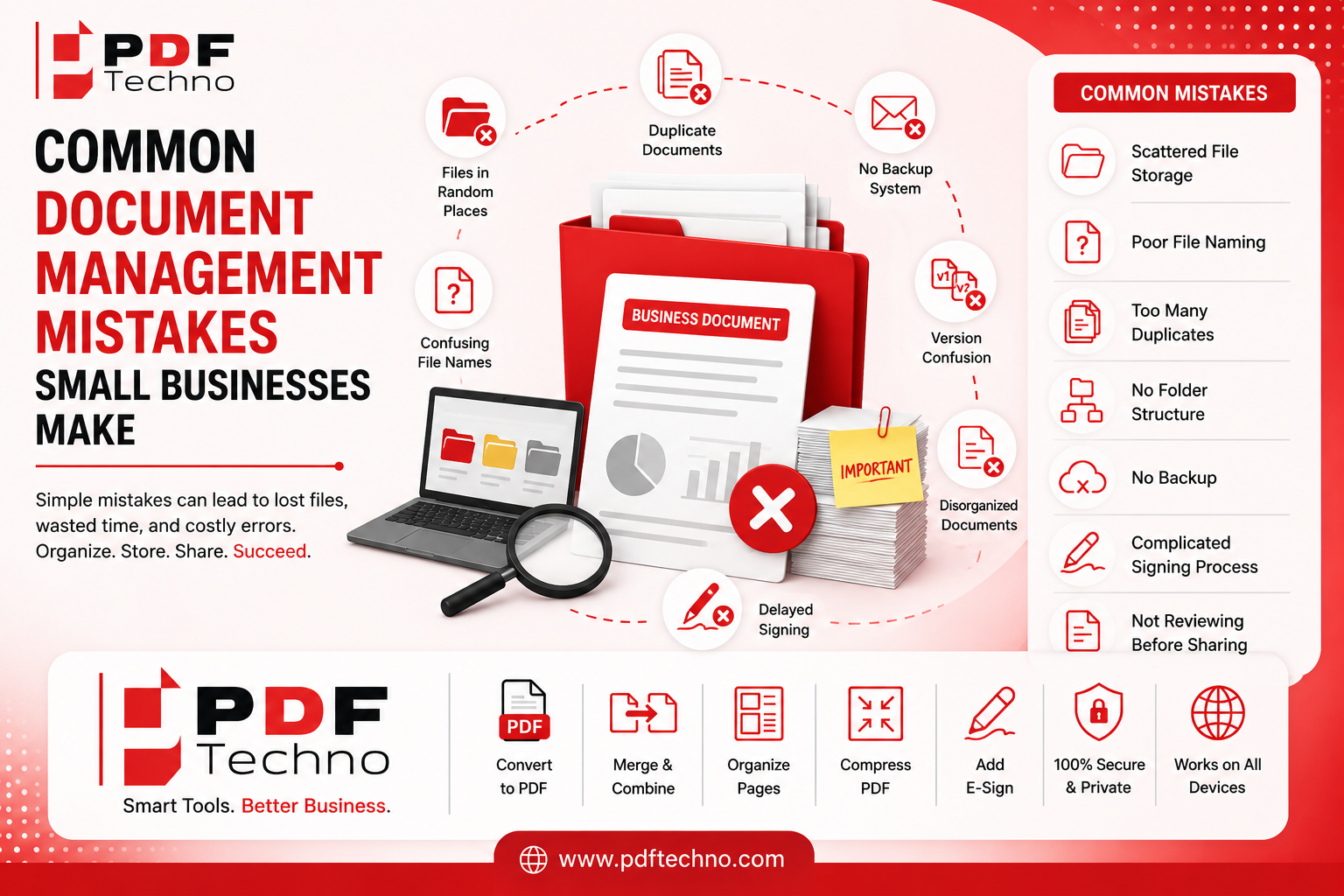
Common document management mistakes small business make
Discover the most common document management mistakes small businesses make and learn simple ways to organize, store, share, and manage important files efficiently." focus_keyword: Document Management Mistakes
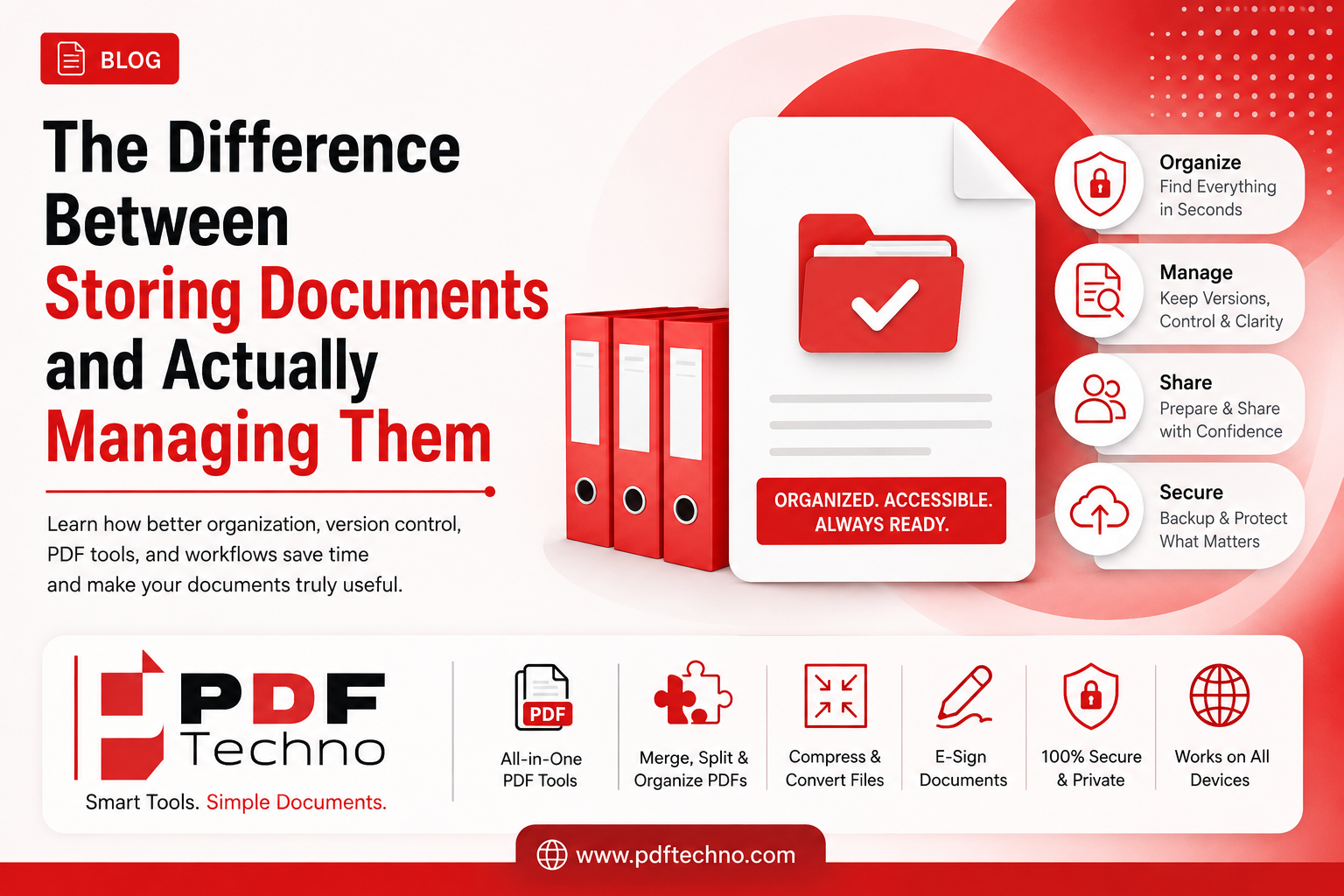
The Difference Between Storing Documents and Actually Managing Them
Learn the difference between storing documents and actually managing them. Discover how better organization, version control, PDF tools, and workflows save time." focus_keyword: Document Storage vs Document Management
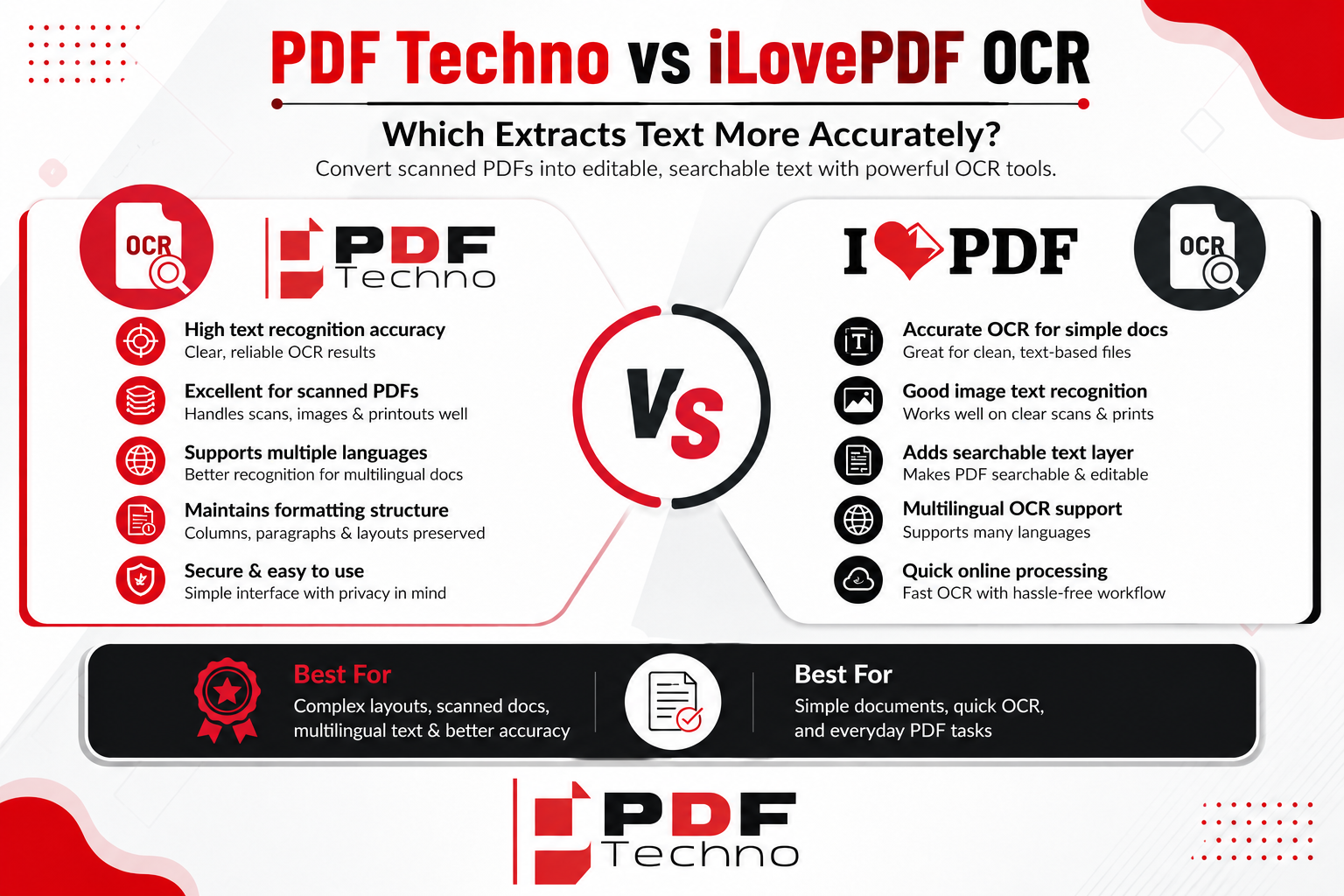
PDF Techno vs iLovePDF OCR: Which Is More Accurate?
Compare PDF Techno vs iLovePDF OCR for text accuracy, scanned PDFs, multilingual documents, tables, ease of use, and overall OCR performance.
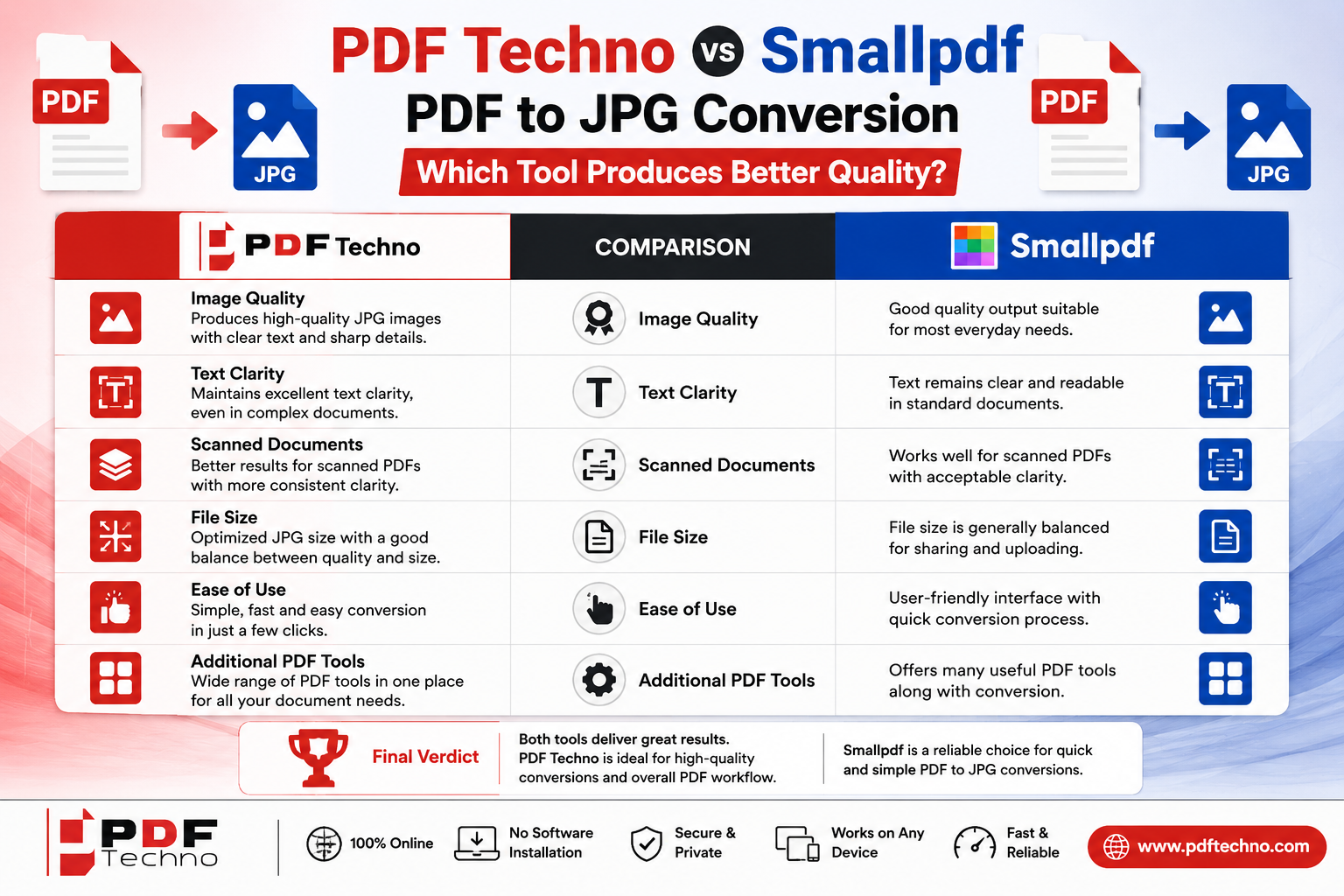
PDF Techno vs Smallpdf PDF to JPG: Which Is Better?
Compare PDF Techno vs Smallpdf PDF to JPG conversion for image quality, text clarity, scanned documents, file size, ease of use, and overall results.
Edit PDF vs Repair PDF: What's the Difference and Which One Do You Need?
Confused between editing a PDF and repairing one? Learn the difference, when to use each option, and how PDF Techno helps you edit and repair PDF files quickly.

PDF Security Checklist: 10 Things You Should Do Before Sharing a File
Protect your sensitive documents with this PDF security checklist. Learn 10 essential steps to secure your PDF before sharing it online using PDF Techno.